Best AI Automation Tools for Simple Workflows
The best AI automation tool is not always the one with the most AI features. For simple workflows, the better choice is the tool that can move information between the apps you already use, keep errors visible, and let you add human review before an AI step creates work for someone else.
This guide is for solo operators and small teams who want to automate repeatable work without building fragile systems. It is based on official product, pricing, help, privacy, and security pages checked on June 6, 2026. It is official-research-only, not a hands-on speed or output-quality benchmark.
If you are still choosing your broader stack, start with our AI productivity tools guide or the free AI tools starter stack. If the workflow begins with meetings, pair this with our guide to turning meeting transcripts into action items with AI.
Quick Verdict: Start With The Workflow, Then Pick The Tool
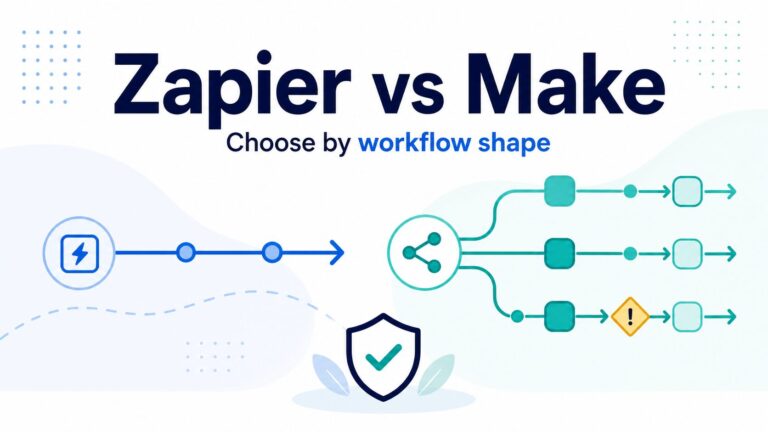
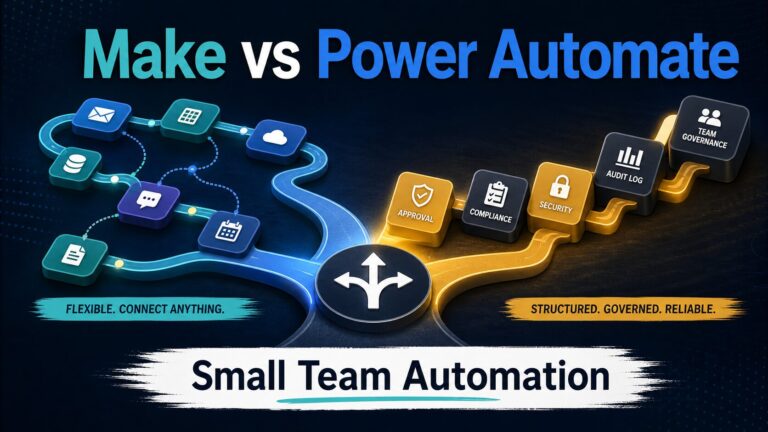
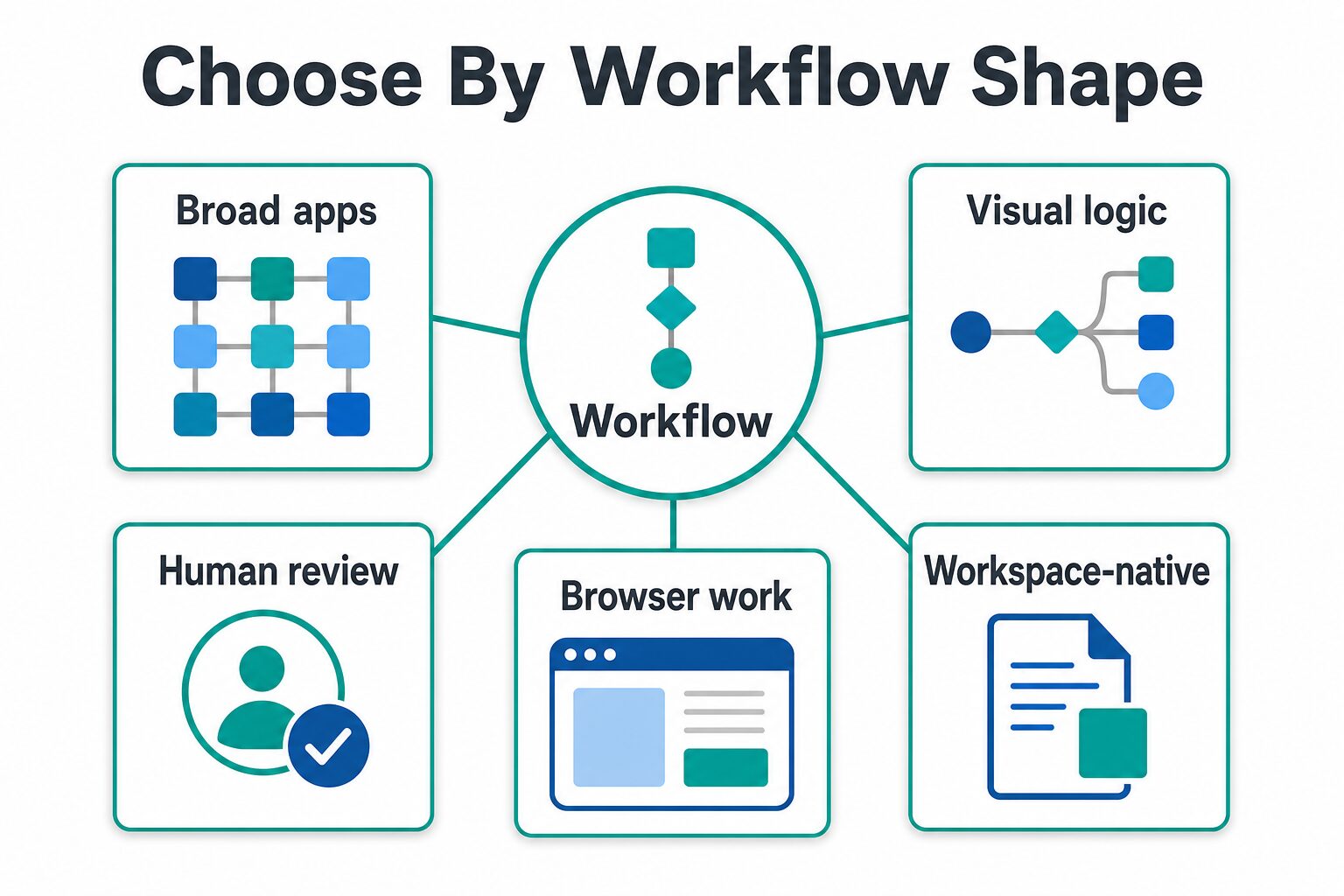
Choose Zapier if you need the broadest app coverage and simple trigger-action automations. Choose Make if you want a visual builder with more control over branches, filters, and data movement. Choose Relay.app if human approvals and AI output review are central to the workflow. Choose Bardeen when the work happens in the browser, especially web research and lead-data routines. Choose Notion when the automation should stay inside your Notion workspace. Choose Google Workspace with Gemini when Gmail, Docs, Drive, Sheets, Calendar, and Meet are already the operating system for the work.
How We Selected These AI Automation Tools
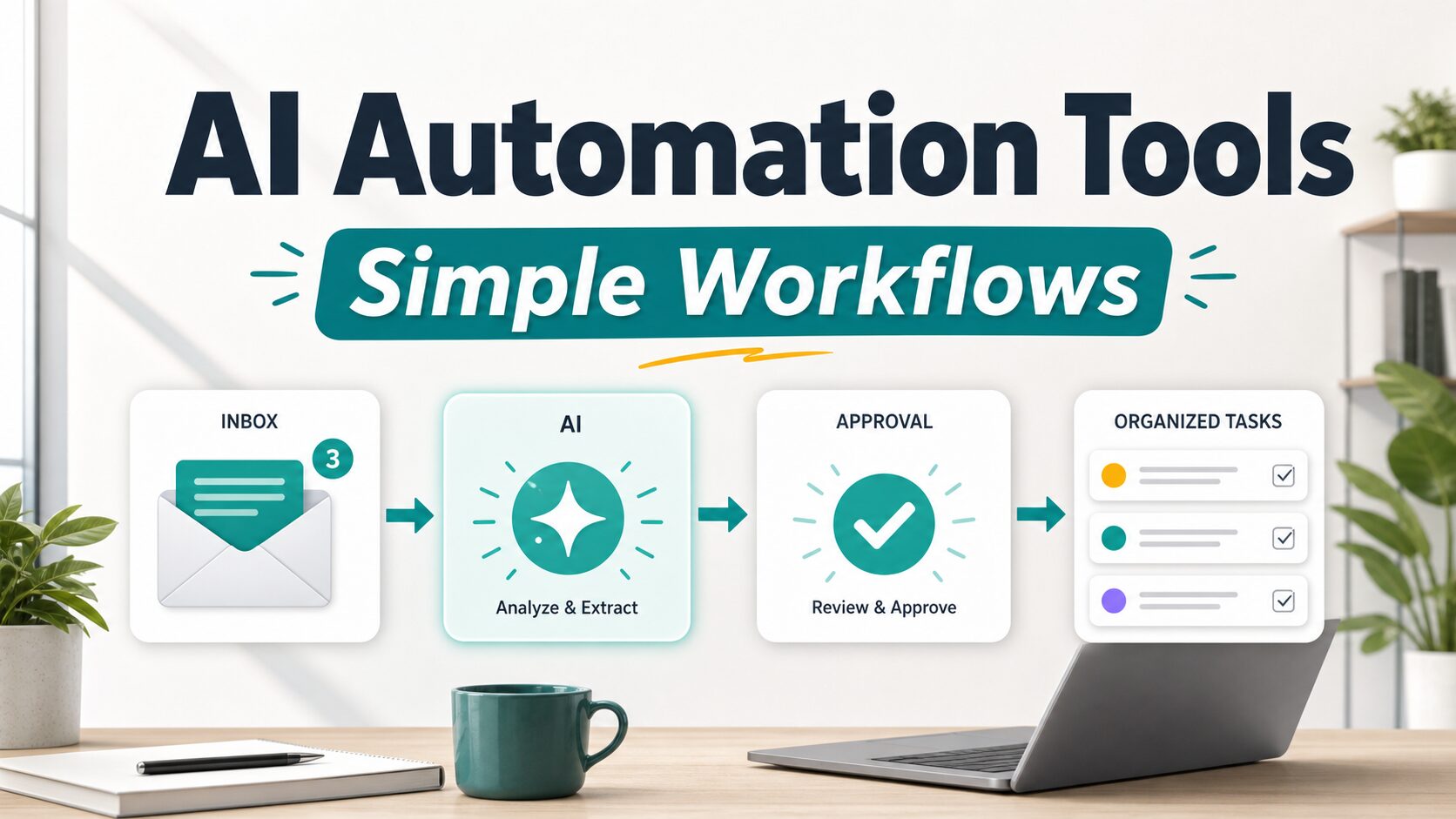
The selection is intentionally practical. A simple workflow is not an enterprise integration program. It is a repeated handoff such as “when a form arrives, summarize it, create a task, and send a follow-up email” or “when a meeting transcript is saved, extract action items, ask me to approve them, and update a project list.”
For this article, a tool had to help with at least one of these jobs: connect common work apps, add AI steps to a repeat process, review or transform text, update a database or spreadsheet, move work into a task system, or keep a human approval step in the loop. Pricing, free-plan limits, AI-credit models, and privacy checks are based on official pages, not memory.
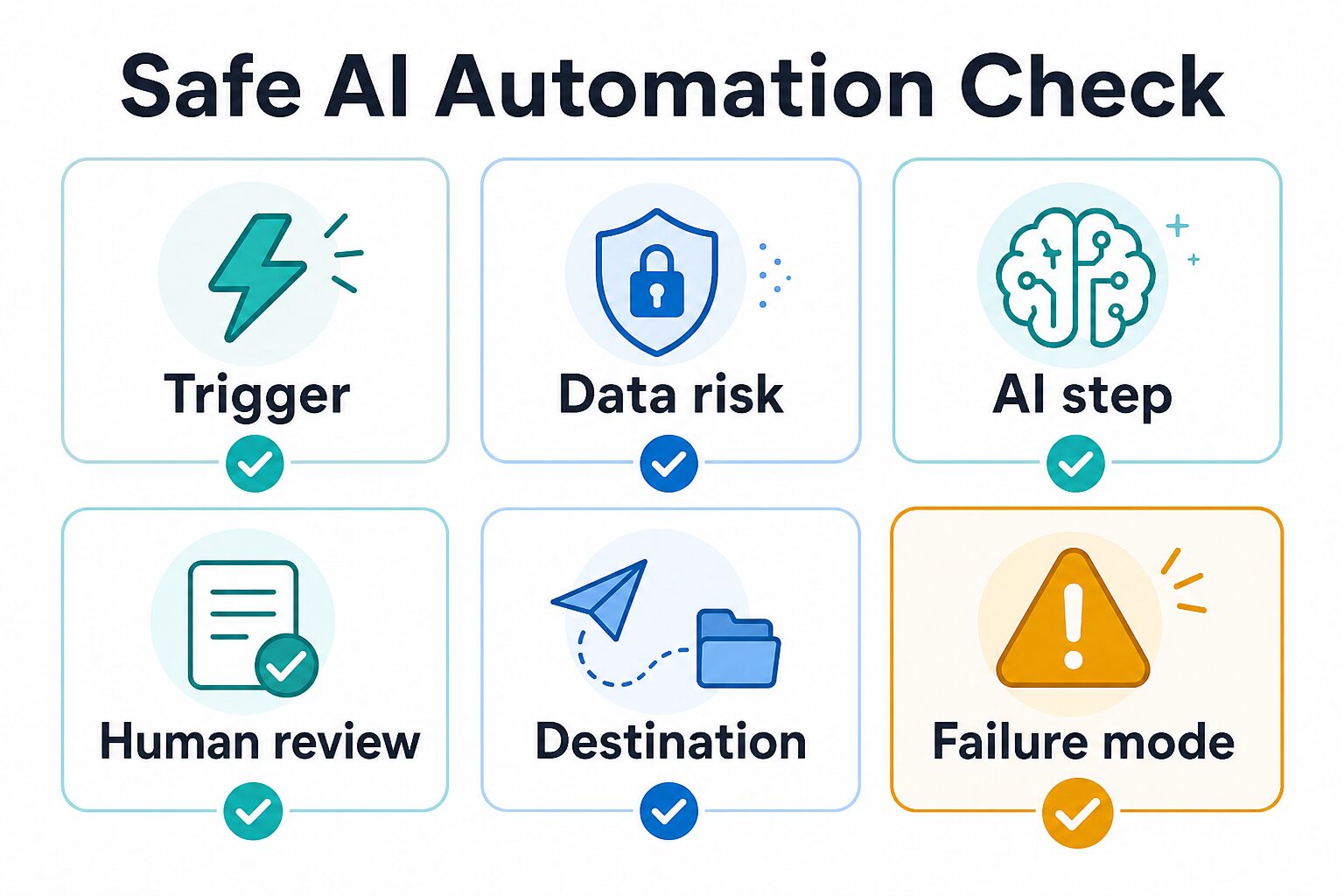
The most important warning is this: do not automate a workflow you cannot explain manually. Write the current handoff first. Identify the trigger, inputs, output, owner, review step, and failure mode. Then choose the tool.
Best AI Automation Tools Compared
| Tool | Best fit | Free-plan signal checked | Pricing caveat | Who should skip it |
|---|---|---|---|---|
| Zapier | Broad app-to-app workflows, AI orchestration, forms, tables, and simple trigger-action automations. | Official help lists 100 tasks/month on Free, one user, two-step Zap workflows, and 15-minute polling for polling triggers. | Task tiers and premium features matter; verify the current plan before building a high-volume workflow. | People who need deep visual branching, heavy data transformation, or low-cost high-volume runs. |
| Make | Visual workflow building, routers, filters, multi-step scenarios, AI apps, and more controlled data movement. | Official pricing lists Free with up to 1,000 credits/month, 3,000+ apps, routers, filters, and 15-minute minimum interval. | Credits are consumed by module actions; complex scenarios can use more credits than beginners expect. | People who want the simplest first automation and do not want to think about scenario design. |
| Relay.app | Human-in-the-loop workflows, AI output reviews, approval-heavy automations, and cleaner team handoffs. | Official pricing lists a Free plan with 2 active workflows and 500 AI credits/month. | Professional and Team plans increase workflow and AI-credit capacity; confirm current limits before relying on it for production. | People who need the largest app catalog or who do not need approval steps. |
| Bardeen | Browser automation, web research, lead-data workflows, scraping, enrichment, and Google Sheet exports. | Official support says Free includes 100 monthly credits for production automations and unlimited Builder Mode testing. | Pricing and credits are central; AI tools, enrichment, and web-data actions can consume credits quickly. | People who mainly need back-office app orchestration across many SaaS tools. |
| Notion | Workflows that live inside pages, docs, databases, meeting notes, project notes, and workspace knowledge. | Official pricing lists Free and Plus with trial AI capabilities; Business includes Notion Agent and AI Meeting Notes. | Notion is strongest when the workspace is already maintained; AI cannot fix messy information architecture. | People who need cross-app automation as the main job rather than workspace organization. |
| Google Workspace with Gemini | Gmail, Docs, Drive, Sheets, Meet, Calendar, and organization-native workflows. | Official pricing shows a 14-day trial and Gemini AI assistant in Gmail on Starter, with broader Workspace AI on higher plans. | Plan features, promotions, and admin controls can change; verify the current Workspace plan and policy. | People outside Google Workspace or teams that need neutral cross-app automation first. |
1. Zapier: Best For Broad App Coverage
Zapier is the easiest default recommendation when the workflow spans many common apps. Its official pricing page positions Zapier around Zaps, Tables, Forms, and Zapier MCP in one AI orchestration plan family. Its free-plan help page, updated May 29, 2026, lists 100 tasks per month, one user, two-step Zap workflows, 2,500 table records, 10 form project pages, Copilot, and free versions of Zapier Chatbots and Zapier Agents.
That makes Zapier a good first place to test workflows such as “new form response to spreadsheet and email,” “new lead to CRM task,” “new meeting summary to project note,” or “new support request to triage queue.” It is also a useful benchmark because many other automation platforms compare themselves against it.
Use Zapier when: the workflow is simple, the apps are mainstream, and you value setup speed over deep control. Skip or compare first when: the workflow is high-volume, has many branches, needs complex data shaping, or will become expensive if every step consumes tasks.
2. Make: Best For Visual Workflow Control
Make is better when you want to see the workflow logic. Its official pricing page describes a visual-first interface, routers and filters, 3,000+ apps on Free, 1,000 credits/month on Free, and paid plans based on monthly credits. The same page describes AI apps, Make MCP Server, AI Content Extractor, AI Web Search beta, Make AI Agents beta, and Make AI Toolkit.
For nontechnical operators, the main advantage is that the workflow can be inspected visually. If a form submission needs to branch by customer type, summarize notes, update a database, send one of several follow-up emails, and log the result, a visual canvas can be easier to debug than a hidden sequence of steps.
Use Make when: the process has branches, filters, repeated data transformations, or enough complexity that visual debugging matters. Skip or compare first when: the workflow is only one trigger and one action, or when you do not want to learn a scenario model.
3. Relay.app: Best For Human-In-The-Loop AI Workflows
Relay.app is the most interesting option in this list when the automation should pause for a human. Its official pricing page lists a Free plan, Professional starting at $19/month, Team starting at $59/month, AI builder credits, workflow execution limits, free AI credits, access to models such as GPT, Claude, and Gemini, AI output reviews, and human-in-the-loop functionality.
That matters because many AI workflows should not run fully unattended. If an AI step drafts a customer reply, extracts action items, classifies a sales lead, or summarizes a client document, the safer workflow may be “AI prepares, human approves, automation continues.” Relay.app’s positioning fits that pattern.
Use Relay.app when: approval steps, AI output review, or team handoffs are part of the workflow. Skip or compare first when: you mainly need the largest app catalog or the cheapest high-volume automation engine.
4. Bardeen: Best For Browser And Web-Data Workflows
Bardeen fits a different part of the automation market. Its official pricing page emphasizes web scraping, web search, enrichment, AI tools, integrations, and credits. Its support page says the Free plan includes 100 monthly credits for production automations and unlimited Builder Mode testing, with advanced integrations and AI-powered actions tied to higher tiers.
For simple workflows, Bardeen makes most sense when the work happens in the browser: collect web data, enrich a lead list, qualify records, export to Google Sheets, or automate a repeated research step. That is different from a back-office workflow where one SaaS app triggers another through an API connector.
Use Bardeen when: your repeated work is browser-based research, scraping, or data collection. Skip or compare first when: your main need is reliable cross-app operations after data is already inside business systems.
5. Notion: Best When The Workflow Lives In Your Workspace
Notion is not a direct replacement for Zapier or Make, but it belongs here because many simple workflows start and end inside a workspace. Official Notion pricing lists Free at $0 per member/month, Plus at $10 per member/month, Business at $20 per member/month, and Enterprise custom pricing. It also lists trial AI capabilities on Free and Plus, and Business features such as Notion Agent, AI Meeting Notes, and Enterprise Search beta.
Use Notion when the work is really about turning scattered notes, meeting output, project updates, and internal docs into organized next actions. If the database, project page, and operating checklist already live in Notion, workspace-native AI can be more useful than pushing every small task into a separate automation platform.
Use Notion when: your workflow depends on pages, databases, docs, notes, and internal knowledge. Skip or compare first when: your Notion workspace is disorganized or the main job is moving information between many external apps.
6. Google Workspace With Gemini: Best For Gmail And Docs-Native Work
Google Workspace with Gemini is not a general automation platform, but it can be the right AI workflow layer when the real work already happens in Gmail, Docs, Drive, Sheets, Meet, Calendar, and Chat. Google’s official pricing page showed a 14-day trial, Starter at $7/user/month after a temporary promotion, Standard at $14/user/month, and Plus at $22/user/month when checked on June 6, 2026. It also listed Gemini AI assistant in Gmail on Starter and broader Gemini AI assistant access in Gmail, Docs, Meet, and more on Standard.
For a small business, this can be more practical than buying another automation app too early. If the workflow is “summarize this email thread,” “draft a reply,” “turn meeting notes into a Doc,” or “work with a Sheet,” the native workspace layer may be enough.
Use Google Workspace with Gemini when: Gmail and Docs are already your work hub. Skip or compare first when: the process spans many non-Google tools or needs explicit workflow monitoring outside Workspace.
The Simple Workflow Test Before You Pay
Before choosing any tool, write a one-page workflow test. This is the step that prevents most automation mistakes.
- Trigger: What exact event starts the workflow?
- Input: What data is allowed to enter the automation?
- AI step: What should AI draft, classify, summarize, or transform?
- Review: Who approves the AI output before it creates work for someone else?
- Destination: Where does the final output go?
- Failure mode: What happens if the AI is wrong, the trigger fires twice, or an app is disconnected?
If you cannot answer those six questions, stay manual for another week. Use the manual work to learn the pattern. Then automate the stable parts.
Privacy And Workplace Data Checks
Automation tools are powerful because they connect systems. That is also the risk. A simple workflow can touch email, calendars, cloud drives, customer records, meeting transcripts, internal notes, spreadsheets, payment tools, HR records, and AI providers. Do not paste or route sensitive data through a tool just because the setup screen makes it easy.
Check the official security, privacy, and admin pages before using any tool with client, student, legal, medical, financial, HR, unpublished research, or confidential business data. Zapier has a data privacy and security help section. Make publishes security and compliance information including SOC 2 Type II and SOC 3 audit language. Relay.app publishes security and privacy pages. Notion’s pricing FAQ says Notion AI uses standard data protection practices and that customer data is not used to train models unless the user opts in. Google Workspace decisions should go through the Workspace admin and plan controls.
The safest starting point is low-risk data: public web forms, non-sensitive draft tasks, content calendar reminders, basic status updates, and internal checklists. Delay automations involving confidential files until the security review is clear.
Example Simple AI Workflows
Lead form to follow-up draft
A form submission creates a row, AI drafts a short follow-up, and a human approves it before sending. Zapier or Make can be good starting points; Relay.app is worth checking if approval is central.
Meeting transcript to task list
A transcript is summarized, action items are extracted, and approved tasks are sent to the project system. Use the process in our meeting-transcript workflow before turning on full automation.
Research page to spreadsheet
Browser research creates structured rows in a sheet for later review. Bardeen fits this pattern better than a general app-to-app automation tool.
Workspace notes to weekly review
Project notes, meeting notes, and tasks are summarized inside the workspace before the weekly review. Notion or Google Workspace may be enough if the work already lives there.
Who Should Avoid AI Automation For Now?
Delay automation if the workflow changes every week, if the input data is sensitive, if no one owns the output, or if a wrong action would create real harm. Also delay if your only reason for buying is “AI is included.” AI in an automation platform is useful only when the workflow is stable enough to benefit from it.
For many solo operators, the best first move is not a subscription. It is a checklist, a naming convention, a clear task template, and one manual week of tracking where the repeated work actually happens.
FAQ
What is the best AI automation tool for beginners?
Zapier is often the easiest starting point for beginners because it covers many common app connections and simple trigger-action workflows. Make is better if you want visual control, while Relay.app is better when a human approval step matters.
Is Make better than Zapier for AI workflows?
Make can be better when the workflow has branches, filters, and data transformations that you want to inspect visually. Zapier can be easier when you need broad app coverage and a faster first setup. The better choice depends on workflow complexity and expected task or credit volume.
Are AI automation tools safe for client data?
Only after security, privacy, admin, and contract review. Automation tools can connect sensitive systems and AI providers, so client, legal, medical, financial, student, HR, or confidential business data should not be routed casually.
Do I need an AI agent platform for simple workflows?
Usually no. Start with trigger-action automations, approval steps, and clear checklists. Add agents only when the workflow is stable, low-risk enough, and valuable enough to justify monitoring.
What should I automate first?
Automate a repeated, low-risk handoff: form response to spreadsheet, meeting summary to draft tasks, content idea to planning board, or inbox label to follow-up checklist. Avoid automating decisions with money, legal risk, or customer impact until the process is reviewed.
Final Recommendation
For most solo operators, start with Zapier if you want the quickest broad-app automation, Make if you need visual control, Relay.app if approval matters, Bardeen if the job happens in the browser, Notion if the workflow lives inside your workspace, and Google Workspace with Gemini if Gmail and Docs already run the business.
Do not buy the tool first. Pick one simple workflow, write the trigger and failure mode, test it with non-sensitive data, and only then decide whether the free plan, task limit, credit model, AI-credit allowance, and security controls fit the way you actually work.