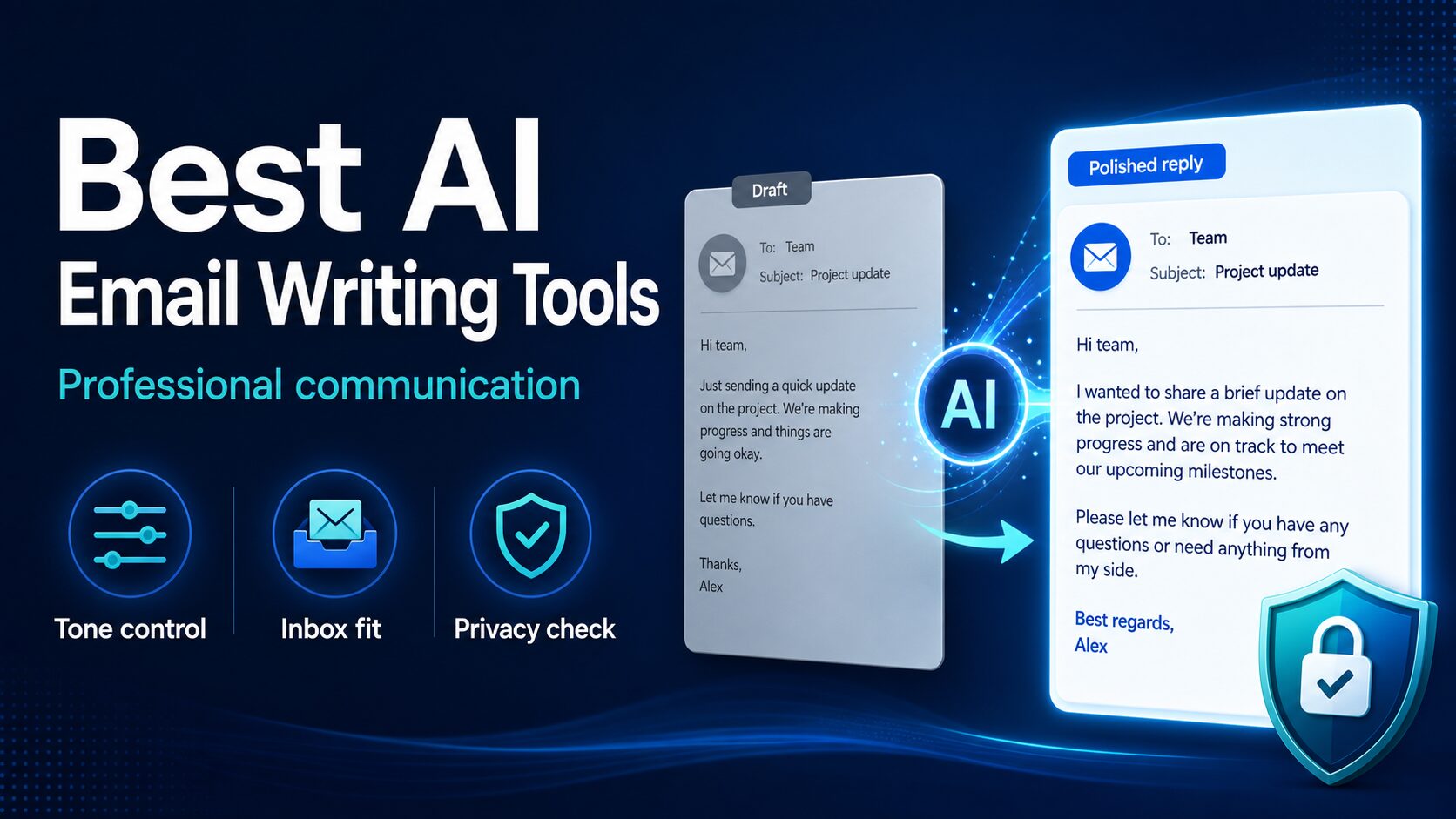
5 Best AI Email Assistants for Work: Gmail, Outlook, and Drafts
Best AI email assistants for work
Quick answer: choose the least invasive assistant that solves the job. Start with Grammarly for broad draft polish or Wordtune for sentence rewrites. Use Gemini when Gmail is already your approved workspace, Microsoft 365 Copilot when Outlook is, and Superhuman only when a dedicated high-speed inbox would solve a daily volume problem.
This comparison separates three products that search results often mix together: writing assistants that see the text you provide, workspace AI that can use approved Gmail or Outlook context, and dedicated email clients that become the inbox itself. It was refreshed on July 14, 2026 from official pricing, product, and help pages. The recommendations are official-research-only, not controlled output-quality tests.
Quick Verdict: Pick By Workflow And Access
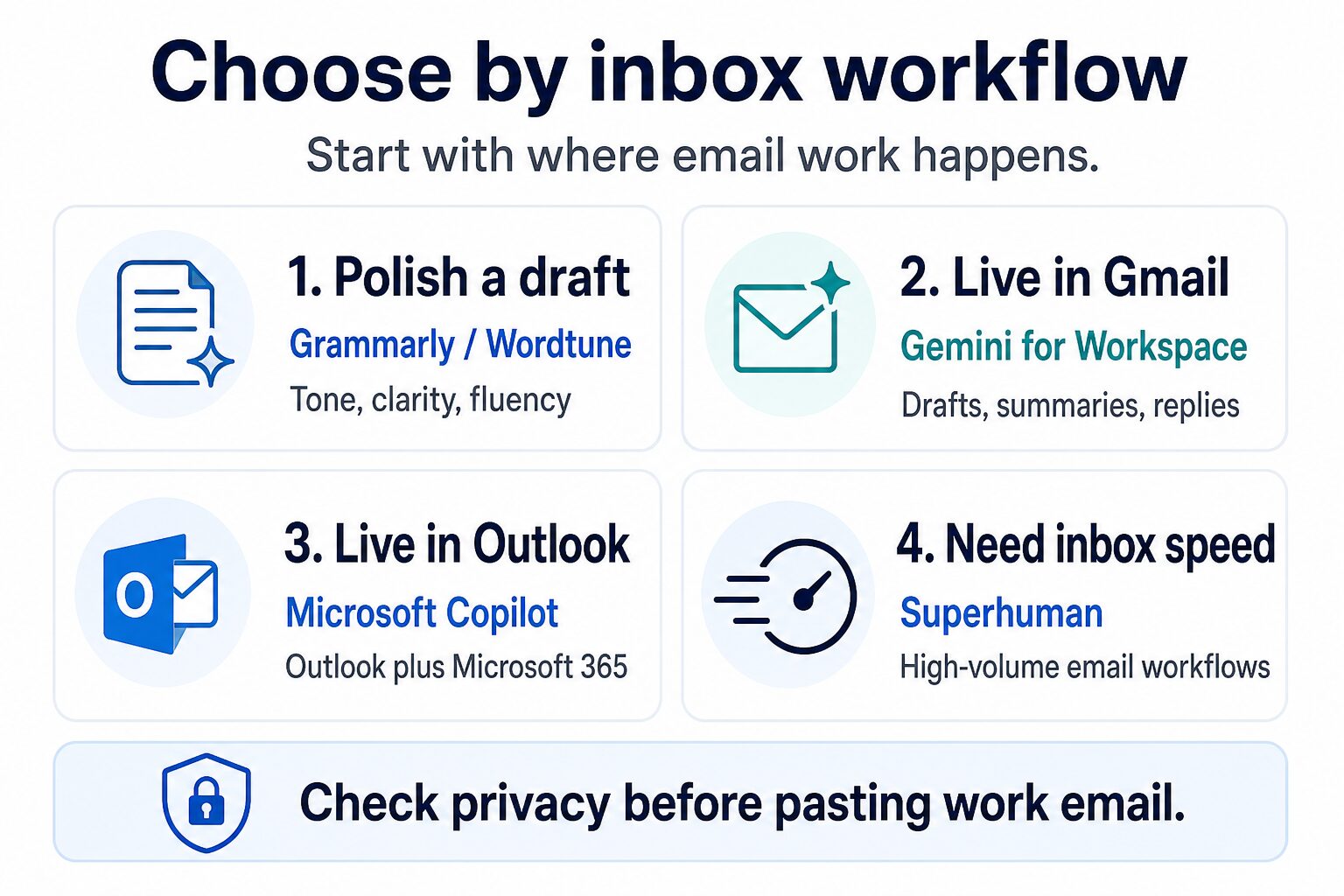
30-second picker: if your task is “rewrite this email,” choose a writing layer. If the assistant must use thread, calendar, file, or organization context, choose the approved workspace layer. If your pain is “I cannot keep up with my inbox,” compare email clients. More access is not automatically more useful.
Five AI Email Assistants Compared
| Tool | Best Fit | Access Level | Free Or Low-Friction Start | Pricing Note Checked July 14, 2026 | Who Should Skip It |
|---|---|---|---|---|---|
| Grammarly | Polishing emails for correctness, tone, fluency, and professional clarity | Writing layer: the text and surfaces you allow it to use | Free plan listed | Grammarly lists Free, Pro at $12 USD/month with a 7-day free-trial path, and Enterprise; verify current checkout terms before paying. | People who mainly need a new email client or deep Gmail/Outlook inbox automation. |
| Wordtune | Rewriting awkward sentences and getting alternate phrasing | Writing layer: selected draft text | Basic free plan listed | Wordtune’s public pricing page showed Basic free, Advanced at $6.99 monthly or $4.89/month billed annually, plus an Unlimited tier. Verify current limits. | People who need inbox triage, calendar-aware replies, CRM context, or enterprise admin controls. |
| Superhuman | High-volume email work where speed, follow-ups, and an AI-native mail client matter | Email-client layer: connected inbox and workflow features | Superhuman AI has a free entry point; Superhuman Mail is a separate paid inbox decision | Official Mail help listed Starter at $30/month or $300/year and Business at $40/month or $396/year. Verify checkout and plan scope. | Occasional email writers who only need tone help a few times a week. |
| Microsoft 365 Copilot | Outlook-based companies that already use Microsoft 365 apps and admin controls | Workspace layer: eligible Microsoft 365 work context and admin policy | Copilot Chat is listed as included for eligible Microsoft 365 subscription users | Microsoft displayed the Copilot Business add-on at $25.20/user/month on a monthly commitment and requires an eligible Business plan. Promotions and markets vary. | Solo users who do not already pay for Microsoft 365 or need only light email rewriting. |
| Gemini for Google Workspace | Gmail-first teams that want drafting, summaries, and side-panel help inside Google Workspace | Workspace layer: eligible Gmail and Workspace context, controlled by plan and admin settings | Included AI features vary by eligible Google Workspace plan | Google Workspace pricing showed Starter/Standard/Plus/Enterprise options and Gemini feature differences by SKU. Confirm current plan, admin settings, and country terms. | People outside Google Workspace or teams that need Microsoft-native Outlook workflows. |
How We Selected These Tools
This list focuses on professional email work, not general AI writing or personal chatbot use. The question is not “Which AI can write an email?” Almost every major AI assistant can do that. The better question is: which tool fits the email workflow you repeat every week?
- Inbox fit: Does the tool work naturally with Gmail, Outlook, or a dedicated email client?
- Tone control: Can it help make a message clearer, warmer, more concise, or more direct without changing the meaning?
- Editing friction: Does the user need to copy text into another app, or can the tool help where the email is written?
- Privacy caution: Does the tool require extra review before using client, HR, legal, medical, financial, or confidential company text?
- Cost fit: Is the paid plan justified by repeated email work, not by one impressive demo?
This article is based on official sources and workflow analysis. It does not claim that one tool writes better email output than another in a controlled test. Instead, it compares official feature sets, pricing pages, and practical workflow fit. Use the examples below as editing directions, not as generated output from the tools.
The most important distinction is simple: an AI email assistant is not always an email app. A writing assistant improves text you provide. Gmail or Outlook AI can work with approved workspace context. A dedicated email client can handle the inbox workflow itself. That access difference changes the value, price, setup effort, and privacy review.
Choose The Smallest Access Level That Solves The Job
Start at level one and move up only when the missing context is the actual bottleneck. A tool that can read more of the workflow may save clicks, but it also creates a larger approval, setup, and data-governance decision. For regulated, confidential, or client-sensitive email, your organization’s policy outranks this comparison.
Run This Two-Minute Test Before You Pay
Do not compare tools with a vague prompt such as “write a better email.” Use one fictional, repeatable task and score the result against the same five checks.
Fictional test prompt: “Rewrite this project follow-up in 80 words or fewer. Keep the Friday deadline and the request for two open questions. Make the tone direct but polite. Do not add promises, reasons, dates, or facts.”
Score the result: Did it preserve the deadline? Keep both questions? Avoid invented facts? Match the requested tone? Require less editing than your original?
- Meaning: reject a draft that changes ownership, deadline, scope, or commitment.
- Restraint: reject a draft that invents context or adds promises you did not authorize.
- Tone: prefer clear and appropriate language over generic corporate polish.
- Friction: count the copy-paste, correction, and review steps—not only generation speed.
- Access: ask whether the result justified the inbox or workspace permissions required.
A paid plan is easier to justify when the same tool wins this test on a recurring task and fits an approved data workflow. One impressive demo is not enough.
1. Grammarly: Best First Stop For Polishing Professional Emails
Grammarly is the most straightforward starting point if your main email problem is polish. You already know what you want to say, but you want the final message to sound clear, professional, and not accidentally too blunt.
Officially, Grammarly’s plans page checked on July 14, 2026 showed Free at $0, Pro at $12 USD/month with a 7-day free-trial path, and Enterprise. The same page lists tone detection on Free and puts tone adjustment, full-sentence rewrites, and fluent-English help on Pro. Verify the live checkout because eligibility and terms can change.
Email problem: “Can you send this today?” sounds too abrupt.
Better professional direction: “Could you send this by the end of today if the timeline still works on your side?”
Why Grammarly fits: The draft already exists. The job is tone, clarity, and fluency, not inbox management.
Best for: email polishing, grammar confidence, fluency support, tone adjustment, and rewriting existing sentences.
Not best for: people who need a full replacement email client, CRM-aware follow-ups, or Microsoft/Google admin integration.
Before paying: try the free workflow on recurring email tasks, such as follow-ups, client requests, and internal updates. Upgrade only after checking the current Pro checkout price, AI prompt allowance, data settings, and whether the paid features reduce real editing friction every week.
For a wider writing-tool shortlist beyond email, see our guide to practical AI writing tools for work. If your real problem is one message that sounds stiff, the narrower guide to rewriting professional emails without sounding generic may be the better next page.
2. Wordtune: Best For Rewriting Awkward Email Sentences
Wordtune is useful when the email is mostly written but the wording still feels stiff. It is less about managing an inbox and more about producing alternative phrasing: shorter, more fluent, warmer, more direct, or easier to read.
Wordtune’s pricing page checked on July 14, 2026 showed Basic at $0 with 10 rewrites or AI suggestions per day, Advanced at $6.99 monthly or $4.89/month billed annually with higher limits, and Unlimited at $9.99 monthly or $6.99/month billed annually. Treat checkout as the final source because prices, promotions, limits, and regional terms can change.
Email problem: “I am writing to inform you that the document has been revised according to your previous remarks.”
Better professional direction: “I updated the document based on your comments.”
Why Wordtune fits: The meaning is clear, but the sentence needs a cleaner version.
Best for: alternate phrasing, shortening long sentences, making email language smoother, and avoiding overly formal wording.
Not best for: users who need a company email suite, integrated calendar context, or a dedicated high-speed inbox.
Before paying: test whether the free limit is enough for your actual weekly email volume. If you rewrite only a few messages, a paid plan may be unnecessary.
If you are comparing Grammarly and Wordtune directly, read our deeper Grammarly vs Wordtune comparison for professional English writing.
3. Superhuman Mail: Best For High-Volume Email Speed
Superhuman Mail is different from a grammar checker. It is an email client and productivity workflow. That makes it a better fit for people whose real problem is not one awkward sentence, but the amount of email they handle every day.
Superhuman’s official pricing material checked on July 14, 2026 lists AI writing, instant replies, auto labels, reminders, summaries, scheduling, and higher-tier workflow controls. Its Mail help center listed Starter at $30/month or $300/year, Business at $40/month or $396/year, and sales-led Enterprise pricing. Superhuman AI also advertises a free entry point, but that should not be confused with a free Superhuman Mail plan. Verify the product and checkout you are actually choosing.
Email problem: You send many similar replies, schedule meetings, chase follow-ups, and need to stay fast without losing context.
Better professional direction: Choose an inbox workflow tool only if email volume is the bottleneck.
Why Superhuman fits: It is built around email speed, not just text correction.
Best for: founders, operators, sales teams, recruiters, managers, and anyone whose email volume justifies a dedicated paid inbox.
Not best for: occasional email writers who mostly need grammar correction or a few rewrite options.
Before paying: be honest about volume. If you do not process enough email for speed, labels, reminders, scheduling, and team features to matter, start with a cheaper writing assistant first.
For a deeper inbox-speed decision, read the Superhuman AI review for email-heavy work.
4. Microsoft 365 Copilot: Best For Outlook-Based Workplaces
Microsoft 365 Copilot is strongest when the organization already lives in Microsoft 365. For email, the important point is not only that Copilot can help write. It can fit into Outlook and the wider Microsoft work environment where documents, Teams conversations, calendars, and admin controls already exist.
Microsoft’s Copilot pricing page checked on July 14, 2026 displayed the Microsoft 365 Copilot Business add-on at $25.20 per user/month on a monthly commitment and requires an eligible Microsoft 365 Business plan. It lists Copilot across Outlook and other Microsoft 365 apps, while market availability, promotions, renewal terms, and prerequisite licenses can vary. The buying question is whether Outlook, Teams, files, identity, and admin context create enough value together—not whether Copilot can rewrite one email.
Email problem: You need to reply based on a meeting, a document, or a team thread inside a Microsoft workplace.
Better professional direction: Evaluate Copilot as a workplace suite decision, not just an email writer.
Why Microsoft 365 Copilot fits: Outlook is only one part of the workflow; admin controls and Microsoft 365 context matter.
Best for: teams already using Outlook, Teams, Word, SharePoint, OneDrive, and Microsoft 365 identity controls.
Not best for: solo users who only need help rewriting a few emails and do not already pay for Microsoft 365.
Before paying: check licensing, admin policy, and whether the actual email tasks justify a business-suite AI subscription.
5. Gemini For Google Workspace: Best For Gmail-First Teams
Gemini for Google Workspace is the natural comparison point if your team uses Gmail, Google Docs, Meet, Drive, and Chat. Google’s official help describes eligible Google Workspace and Google AI plan access, plan and language limitations, and Gemini in Gmail workflows such as drafting, refining, and replying depending on availability.
Google Workspace pricing checked on July 14, 2026 showed Gemini in Gmail access differing by Workspace SKU. Google’s Gmail help says eligible users can draft and refine email with directions such as formalize, make friendly, or shorten; broader Gemini-in-Gmail features and availability depend on plan, account, region, language, and admin settings. Confirm the exact Gmail experience and workplace data policy before treating it as your email assistant.
Email problem: You want to write, summarize, or reply inside Gmail without constantly moving text into a separate app.
Better professional direction: If Gmail is already the work surface, evaluate the Workspace plan before buying a separate email writer.
Why Gemini fits: The value is not only writing. It is reducing context switching inside Google Workspace.
Best for: Gmail-first professionals and teams already paying for Google Workspace.
Not best for: Outlook-first organizations, people outside Workspace, or users who only need occasional grammar help.
Before paying: confirm which Gemini features your plan includes, whether your admin has enabled them, and whether Gmail’s personalization or source-use behavior is acceptable for your workplace data.
If your decision is mainly Gmail versus Outlook, use the narrower Gmail and Outlook AI email assistant comparison after this overview.
Privacy Checklist Before Using AI On Work Email
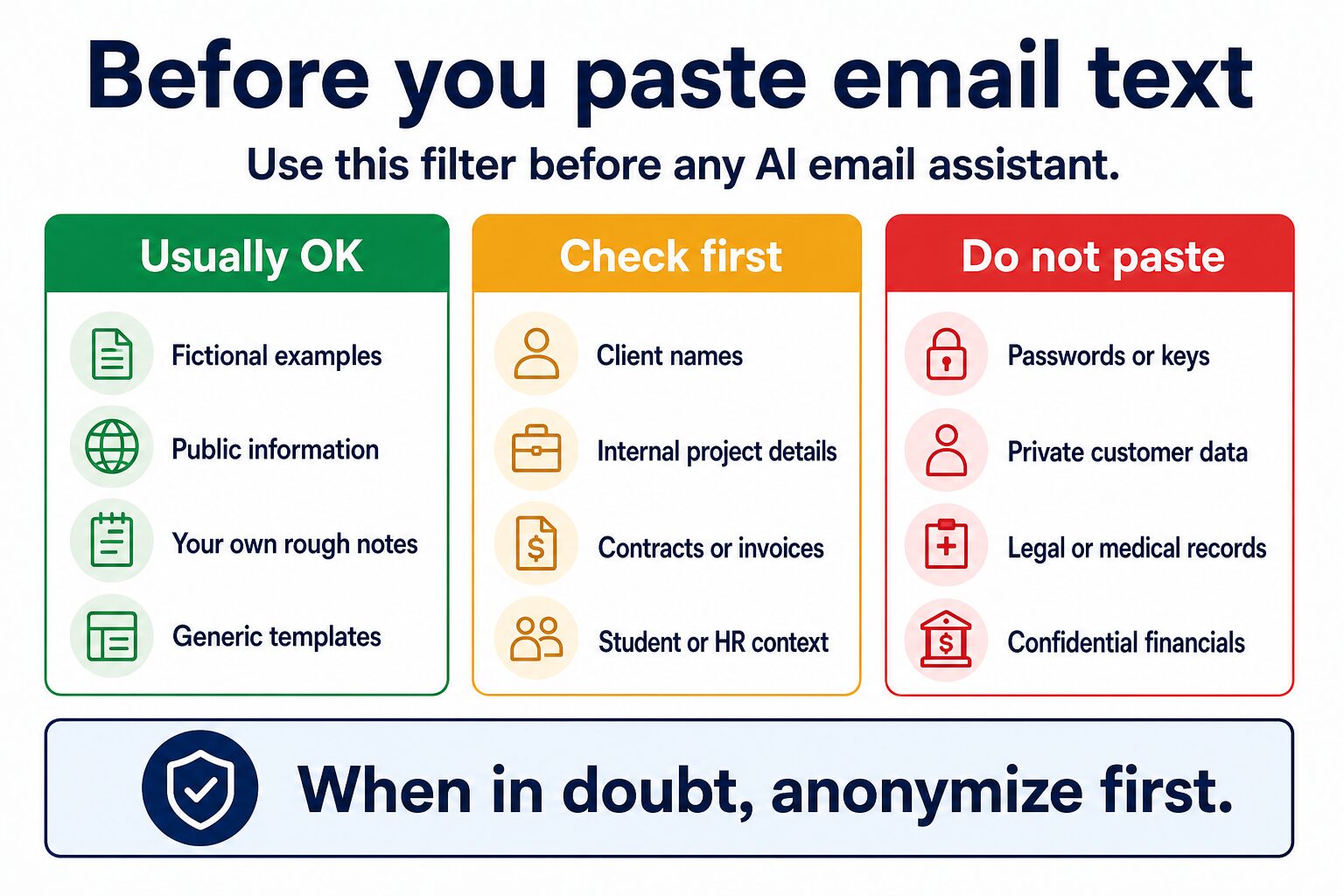
Email often contains more sensitive information than people notice. A message may include client names, internal project details, contract terms, interview feedback, legal language, student information, customer complaints, or financial data.
Before pasting email text into any AI tool, ask:
- Does this message include private customer, client, patient, student, employee, legal, financial, or confidential business information?
- Has my organization approved this tool and plan for work email?
- Can I remove names, numbers, attachments, account IDs, or private details before using AI?
- Does the tool’s official documentation explain data retention, admin controls, and training behavior clearly enough for my use case?
- Would this message create a problem if it were stored, reviewed, or exposed outside my organization?
When in doubt, use a fictional version of the email. The safest AI email workflow often looks like this: replace private details with placeholders, ask for tone or structure help, then apply the improvement manually inside the real email. Google also warns that Gemini features may suggest inaccurate or inappropriate information and should not be relied on for medical, legal, financial, or other professional advice; the same review mindset is useful for any AI email assistant.
Safer sample prompt: “Rewrite this fictional client follow-up so it sounds clear, polite, and concise. Keep the meaning. Do not add promises, deadlines, or facts.”
Why this works: it asks for tone and structure help without uploading the real client name, contract details, account number, or internal decision context.
Two Edge Cases: Shortwave And ChatGPT
The five primary picks above cover the clearest work-email roles. Two other tools can still make sense, but they should not be treated as interchangeable with a Gmail or Outlook assistant.
Shortwave: consider it when the inbox itself is the workflow
Shortwave is an AI-first email client rather than a writing layer you add to every app. It is worth a separate trial when triage, search, summaries, and follow-up inside the inbox are the bottleneck. Skip it when your employer requires the standard Gmail or Outlook interface, or when moving another inbox client into the data path creates an approval problem.
ChatGPT: use it around email, not as an inbox substitute
ChatGPT can help outline, shorten, translate, or rewrite a draft that you deliberately provide. It is not the same product decision as granting an assistant inbox access. Use a general assistant for isolated drafting tasks; choose Gmail-, Outlook-, or inbox-native tools only when integrated context and repetitive inbox work justify the extra access.
Which Tool Should You Try First?
Use this decision path:
- If you write in many places, try Grammarly first for broad professional polish.
- If one sentence sounds awkward, try Wordtune for rewrite options.
- If Gmail is your work hub, check Gemini for Google Workspace before buying a separate tool.
- If Outlook is your work hub, check Microsoft 365 Copilot with your organization’s admin context.
- If email volume is the main pain, evaluate Superhuman as an inbox productivity decision, not just a writing decision.
If you are unsure, start with a small recurring email task: one weekly update, one client follow-up, or one polite request. If a tool helps you produce a clearer email without changing your meaning, inventing facts, or adding privacy risk, then consider whether a paid plan is worth it.
FAQ
What is the best AI email writing assistant?
For most individual professionals, Grammarly or Wordtune is the easiest starting point because they help polish and rewrite email text without requiring a full business suite. For Gmail-first teams, check Gemini for Google Workspace. For Outlook-first teams, check Microsoft 365 Copilot. For high-volume inbox workflows, consider Superhuman as an email-client decision, not just an AI writer.
What if I searched for “rewrite this email professionally”?
Use a rewrite-focused workflow before buying a full email suite. Remove private details, ask for a clearer professional version that keeps the same meaning, then review every sentence yourself. The dedicated professional email rewrite workflow is a better fit than this comparison if you already have the message and only need cleaner wording.
Can AI write professional emails for me?
Yes, many AI tools can draft or rewrite emails. The practical question is whether the tool keeps your meaning intact, matches your workplace tone, and handles data safely. Always review the final message yourself.
Is it safe to paste work emails into AI tools?
Only if the content is safe and your organization allows that tool for work data. Remove confidential details when possible, and check official privacy, security, and admin documentation before using real client or company information.
Should non-native English professionals use AI email tools?
They can be helpful when used as editing support rather than a replacement for judgment. The goal is clearer professional English, better tone, and less editing friction while keeping your meaning intact, not hiding your voice or producing generic corporate language.
Do I need a paid AI email tool?
Not always. If you only rewrite a few messages each week, a free grammar or rewrite plan may be enough. A paid suite makes more sense when email is a repeated workflow, your team already uses the surrounding platform, or inbox speed is a daily bottleneck.
Should I choose a standalone writing tool or Gmail/Outlook AI?
Choose a standalone writing tool when the email draft already exists and you mostly need tone, grammar, or phrasing help. Choose Gmail or Outlook AI when the real value comes from working inside your existing inbox, calendar, documents, threads, and admin-approved workplace system.
Final Recommendation
For most readers, the best starting point is simple:
- Use Grammarly if your email draft needs broad professional polish.
- Use Wordtune if your sentence sounds stiff and you want alternatives.
- Use Gemini for Workspace if Gmail is already your work home.
- Use Microsoft 365 Copilot if Outlook and Microsoft 365 are already your company’s work system.
- Use Superhuman only if email volume and inbox speed justify a dedicated paid email client.
Do not buy the most powerful plan first. Pick one repeated email task, use safe or anonymized text, and upgrade only when the tool improves that real workflow every week and the plan fits your organization’s data rules.
For broader writing choices, start with AI writing tools for work. For grammar-focused decisions, compare grammar checkers for non-native English speakers or the Grammarly vs Wordtune guide. For email-specific follow-up, choose the professional email rewrite workflow or the Gmail and Outlook AI assistant comparison.