Best AI Dictation Apps for Writers and Professionals
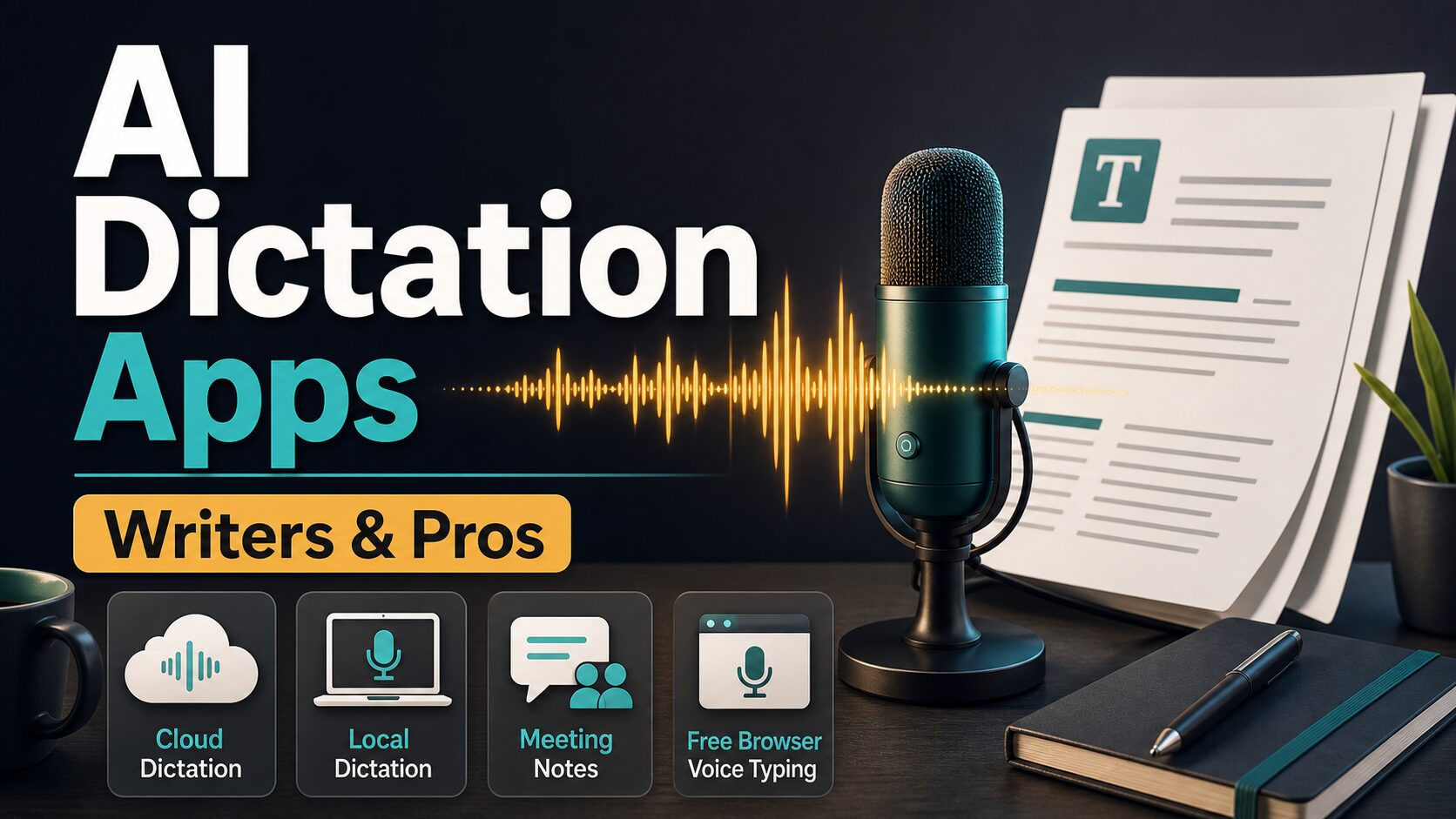
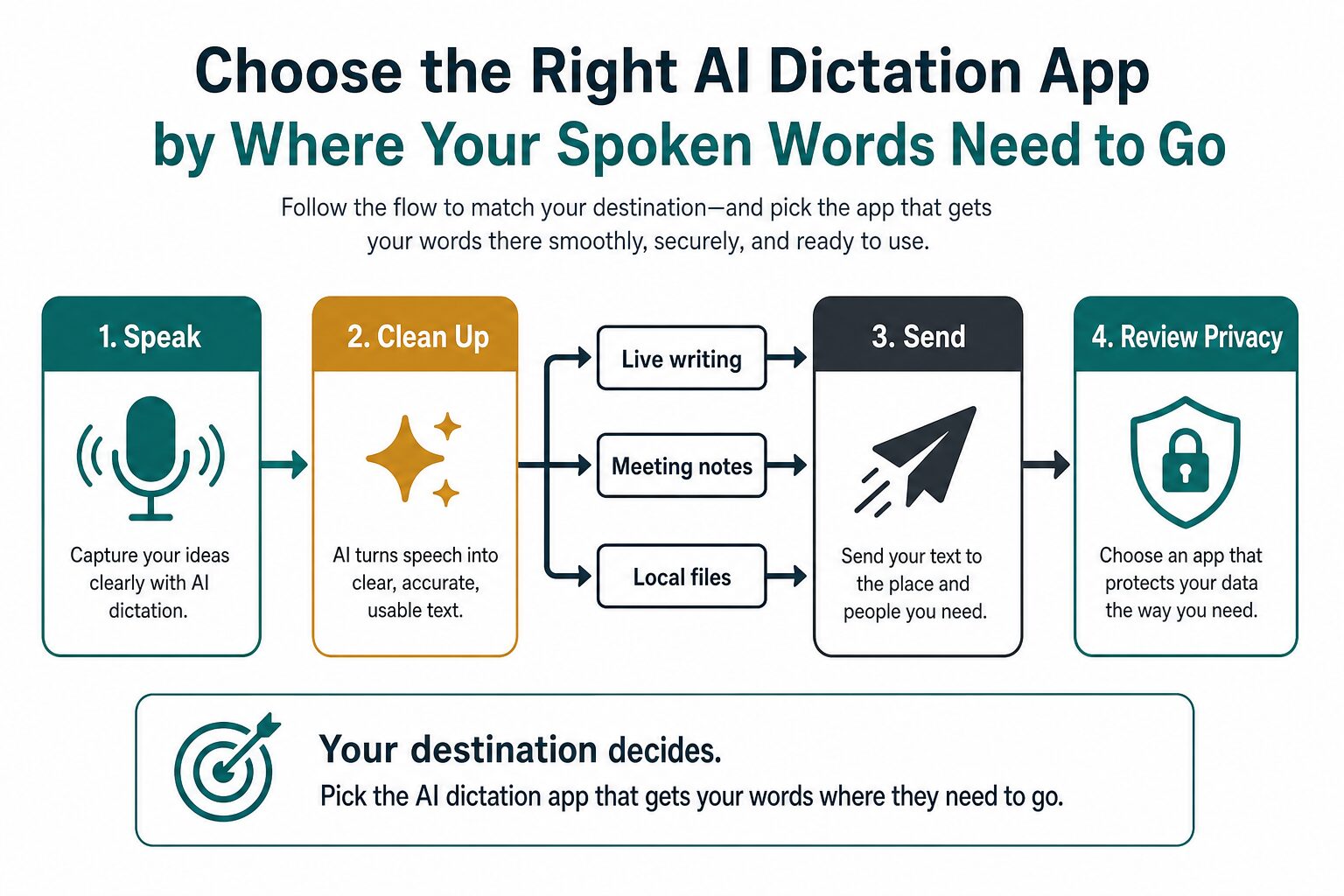
If you are looking for the best AI dictation app, start with the destination of your words. A writer drafting paragraphs needs a different tool from a manager recording meetings, a researcher transcribing local audio files, or a professional who only needs occasional free voice typing.
Quick verdict: Based on official information checked on June 8, 2026, start with Wispr Flow or Superwhisper for live writing, Otter.ai or Notta for meeting notes, MacWhisper for local Mac transcription, and Google Docs voice typing for a free occasional option. This guide is official-research-only, so it does not claim hands-on accuracy or speed rankings.
This article does not use monetized dictation links. Notta and related transcription programs are not approved for monetized routing in the local affiliate registry, so the links here are official product pages and relevant AI Work Toolkit guides only.
Best AI dictation apps at a glance
| Tool | Best fit | Free or entry point checked | Privacy angle to check | Skip if |
|---|---|---|---|---|
| Wispr Flow | Live dictation into everyday writing apps | Basic Free and Flow Pro trial shown on official pricing page | Privacy mode, security certifications, and plan-specific controls | You mainly need meeting summaries, not live writing |
| Superwhisper | Local/offline-aware voice-to-text for Mac, iOS, and Windows workflows | Free, Pro, and Enterprise options shown on official site | Local transcription claim and how cloud/local model choices work | You need team meeting-note collaboration first |
| MacWhisper | Mac users transcribing audio or video files locally | Official Gumroad purchase page reachable | Local file handling and model choice | You need browser-wide dictation into every work app |
| Otter.ai | Meetings, interviews, and shared transcripts | Basic Free, Pro, Business, and Enterprise shown | Recording consent, meeting data handling, and enterprise controls | You want lightweight personal dictation into an email or document |
| Notta | Meeting transcription, file transcription, translation, and team notes | Free, Pro, Business, and Enterprise shown | Security page, plan limits, and data controls | You need a simple one-person writing dictation tool |
| Google Docs voice typing | Free occasional dictation directly inside Docs | Docs/Slides feature, not a standalone paid app | Browser speech-to-text processing and workspace admin settings | You need polish, app-wide commands, file transcription, or meeting summaries |
1. Wispr Flow: best fit for live professional writing
Wispr Flow is the first option to check if your goal is live dictation into work apps: email, notes, documents, messages, and other places where you already write. Its official pricing page describes Flow as turning speech into polished text and lists Basic Free, Pro, and Enterprise plans.
As of the official pricing page checked on June 8, 2026, Wispr Flow showed Basic Free, a 14-day Flow Pro trial, Pro at $12 per user per month billed annually or $15 monthly, and an Enterprise option. The page also describes platform/word-limit differences and privacy mode language, so check the current plan table before you make it part of daily work.
Use it if: you think faster by talking and want your spoken draft to land inside normal writing tools.
Skip it if: your real problem is meeting capture, interview transcription, or a shared searchable meeting archive. In that case, start with the AI meeting assistant comparison or the broader transcription software guide.
2. Superwhisper: best fit if local/offline positioning matters
Superwhisper is worth checking when you want voice-to-text with a stronger local/offline posture. Its official site says Superwhisper works offline and supports predefined modes, custom words, local and cloud AI models, audio/video file transcription, and translation in paid tiers.
The privacy page says Superwhisper transcribes audio data locally on your device. That is a meaningful distinction for writers and professionals who dictate sensitive drafts, but you should still read the current privacy policy and plan details before using it with client, employer, legal, medical, or financial information.
Use it if: you want a voice-to-text workflow that emphasizes local processing and controlled formatting.
Skip it if: you need automatic meeting attendance, shared team notes, CRM workflows, or searchable call archives more than personal dictation.
3. MacWhisper: best fit for local Mac transcription files
MacWhisper is different from cloud dictation apps. It is better understood as a Mac transcription utility for audio and video files, not a full “talk into every app” writing assistant.
That difference matters. A writer who records voice memos, interviews, lecture clips, or draft notes may prefer a local file transcription tool. A professional who wants to dictate directly into email, Slack, Docs, or a project-management app may find MacWhisper too file-centered for the main job.
This run confirmed that the official MacWhisper purchase page is reachable, but the article avoids an exact price claim because the current scrape did not expose a stable price field. Check the live page before buying.
4. Otter.ai: best fit for meetings, interviews, and shared transcripts
Otter.ai belongs in this comparison because many people search “dictation app” when they really mean “record and summarize meetings.” Otter’s official pricing page shows Basic Free, Pro, Business, and Enterprise tiers, with meeting, file-import, and workflow limits.
For a writer, Otter is most useful when the source is a conversation: interviews, lectures, sales calls, team meetings, or research discussions. It is less ideal when the source is your own monologue and the destination is a polished paragraph inside a document.
Use it if: you need transcripts, summaries, speaker context, and meeting workflows.
Skip it if: you want private one-person dictation for drafts. Before recording other people, review your workplace policy and the AI tool privacy checklist.
5. Notta: best fit for meeting and file transcription with translation needs
Notta is another meeting and transcription platform rather than a pure writer’s dictation app. Its official pricing page shows Free, Pro, Business, and Enterprise tiers, including monthly transcription minutes and file-upload limits. Its security page describes SOC 2 Type II, ISO 27001, GDPR, CCPA, and HIPAA-related safeguards.
Notta can make sense if your use case includes meetings, file transcription, translation, or team sharing. It is less compelling if all you need is a fast way to dictate two paragraphs into a work email.
Important commercial note: This article links to Notta’s official pages only. The local AI Work Toolkit affiliate registry marks Notta as not joined, so there is no monetized Notta link in this article.
6. Google Docs voice typing: best free fallback for occasional use
Google Docs voice typing is the simplest free option if you already write in Docs. Google’s help page says voice typing works with recent Chrome, Edge, and Safari versions and that the web browser controls the speech-to-text service before sending text to Docs or Slides.
That makes it a practical fallback for occasional dictation, but it is not a full AI dictation workflow. You should expect to clean up formatting, punctuation, and structure yourself. It also may be disabled by a workplace or school administrator.
Use it if: you want to try voice drafting without buying anything.
Skip it if: you need app-wide dictation, custom vocabulary, transcript files, meeting summaries, or stronger administrative controls.
How to choose the right AI dictation app
Choose by destination first
If your words need to become a document, email, or message, prioritize live dictation tools. If your words come from a meeting, prioritize meeting assistants. If your words are already in audio or video files, prioritize transcription tools. If you only need occasional browser dictation, start free.
Check privacy before recording real work
Voice data can be more sensitive than typed notes because it can include client names, health details, student information, unreleased business plans, or identifiable speakers. Before using any app with real work, check whether it processes audio locally or in the cloud, whether your plan stores recordings, whether admins can control retention, and whether your workplace allows it.
Do not overbuy before you know your habit
Dictation only helps if you actually like speaking your drafts. A good first test is a low-risk paragraph: a meeting agenda, a personal note, or a draft introduction that contains no private information. If you spend more time correcting the transcript than writing, the tool may not fit your workflow yet.
Practical recommendations by reader type
| Reader type | Start with | Why | Second check |
|---|---|---|---|
| Writer drafting essays, posts, scripts, or notes | Wispr Flow or Superwhisper | They are positioned around live speech-to-text writing workflows | Try Google Docs voice typing for a free baseline |
| Consultant or manager with many calls | Otter.ai or Notta | Meeting capture and summaries matter more than personal dictation | Read the meeting assistant guide before recording clients |
| Researcher or interviewer with audio files | MacWhisper, Notta, or Otter.ai | File transcription matters more than app-wide voice typing | Check file limits, language support, and export options |
| Occasional user who wants a free test | Google Docs voice typing | No separate paid dictation app is needed for a first trial | Move to a paid tool only after the habit is clear |
What I would try first
If you mainly write, I would test a free or trial path with a low-risk draft and compare Wispr Flow, Superwhisper, and Google Docs voice typing. If you mainly record meetings, start from Otter.ai or Notta and read the meeting transcript action-item workflow before building a team habit around it.
If privacy is your main concern, do not start with the flashiest feature list. Start with the data path: where audio is processed, what is stored, what admins can control, and whether your workplace or school allows the tool. The AI tool privacy checklist is the safest next internal read.
Sources checked
Official pages checked on June 8, 2026: Wispr Flow pricing, Wispr Flow privacy, Superwhisper, Superwhisper privacy, MacWhisper purchase page, Otter.ai pricing, Otter.ai privacy policy, Notta pricing, Notta security, Notta privacy, and Google Docs voice typing help.
Evidence limit: This is an official-research-only comparison. It does not claim that AI Work Toolkit ran a controlled dictation test, measured accuracy, or ranked tools by real-world output quality.