Make vs Power Automate for Small Teams
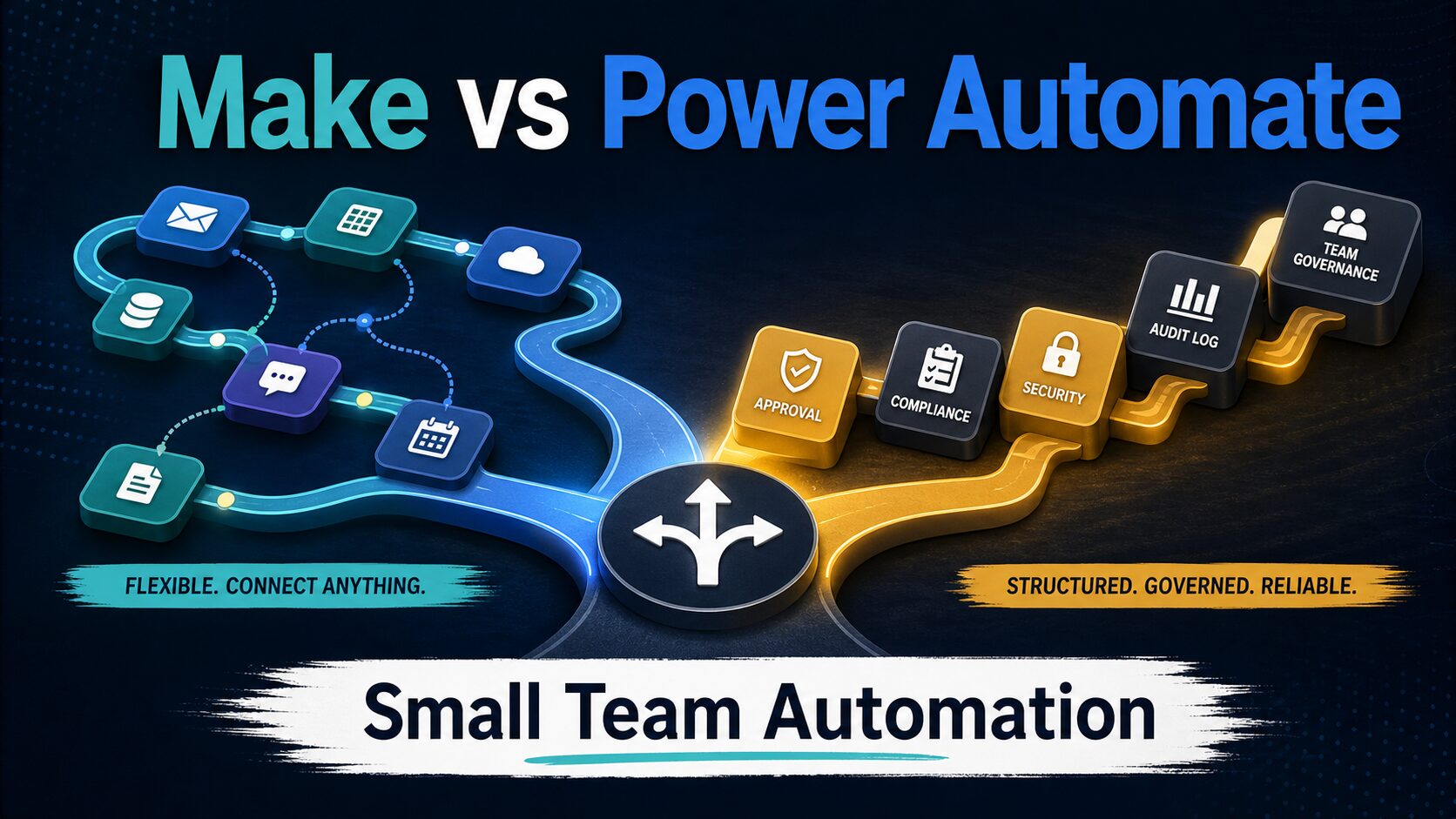
If your team is choosing between Make and Microsoft Power Automate, do not start with the longest feature list. Start with the stack you already use, the shape of the workflow, and who will maintain it after launch. Make is usually the better first test for visual, multi-app scenarios. Power Automate is usually the better first test when the workflow lives inside Microsoft 365 and needs Microsoft-side governance.
Quick Verdict
Choose Microsoft Power Automate if your team already works in Microsoft 365, SharePoint, Teams, Outlook, Excel, Dataverse, or Dynamics, and you need admin visibility, connector controls, approvals, desktop automation, or Power Platform governance.
Choose Make if the workflow crosses many non-Microsoft apps, needs visible scenario logic, routers, filters, data transformation, or a clearer canvas for an operations lead or contractor to maintain.
Pause before either tool if the automation will move customer records, employee data, invoices, contracts, health, legal, financial, or other sensitive information. Map the data path before connecting apps.
Evidence status: This article is based on official product, pricing, documentation, security, and privacy sources checked on June 29, 2026. It does not claim hands-on testing, speed benchmarks, or output-quality testing.
Make vs Power Automate: The Short Small-Team Answer
For a small team, Make and Power Automate can both connect apps and reduce repetitive work. The practical difference is where the automation should live.
Power Automate is strongest when automation belongs inside the Microsoft work system. Microsoft Learn describes cloud flows for scheduled, instant, or automated triggers, desktop flows for web and desktop automation, and business process flows for guided work. That makes Power Automate a natural first stop when the workflow touches Teams, SharePoint, Outlook, Excel, Dataverse, approvals, or Microsoft admin controls.
Make is strongest when the workflow is a visual operations map across many apps. Make’s official pages position it around visual workflows, integrations, scenarios, and credit-based execution. That makes Make a practical first stop when the workflow needs branching, repeated records, data cleanup, and a maintainer who benefits from seeing the whole scenario on a canvas.
| Decision point | Make | Power Automate | Small-team takeaway |
|---|---|---|---|
| Best fit | Visual multi-app workflows, routers, filters, and scenario logic. | Microsoft 365, Teams, SharePoint, Outlook, Excel, Dataverse, approvals, and Power Platform governance. | Pick the tool that matches where the workflow will be maintained. |
| Pricing unit to watch | Credit-based plans. The official pricing page should be checked for current credits and plan limits. | Microsoft licensing can depend on user, process, hosted process, connector, and environment needs. | Do not compare only the headline monthly price. |
| Learning curve | Visual canvas helps people inspect logic, but the builder still needs scenario discipline. | Familiar for Microsoft-heavy teams, but licensing, environments, and connector rules can add complexity. | Test the tool with the person who will maintain the workflow. |
| Governance | Check organization controls, team access, execution logs, data retention, and security terms. | Microsoft’s Power Platform docs cover DLP policies, connector classifications, environments, and admin controls. | Power Automate has an advantage when IT already governs Microsoft 365. |
| Skip if | You mostly need Microsoft approvals, SharePoint/Teams workflows, or IT-managed Power Platform controls. | You need a highly visual multi-app canvas and the workflow is not mainly Microsoft-based. | Skip both until data risk is mapped if sensitive records are involved. |
Use Power Automate When Microsoft 365 Is The Work System
Power Automate is the safer first test when your team already runs daily work through Microsoft 365. If the first workflow is “when a SharePoint item changes, notify a Teams channel, start an approval, update Excel, and keep the work inside a managed tenant,” Power Automate fits the environment better than a separate cross-app builder.
Microsoft’s official docs describe several flow types, including cloud flows, desktop flows, and business process flows. That matters because a small team may start with simple cloud automation, then later need desktop automation for older apps or guided business processes for repeatable approvals.
The tradeoff is licensing and administration. Power Automate can be powerful, but teams should verify the current Microsoft pricing page, premium connector requirements, Dataverse needs, request limits, and whether their Microsoft 365 license already includes enough capability for the workflow.
Use Make When The Workflow Needs A Visual Multi-App Canvas
Make is the better first test when your workflow is not mainly a Microsoft workflow. A small agency, ecommerce team, creator business, or solo operator may need to connect forms, email, spreadsheets, CRM, CMS, payments, calendar, AI steps, and notification tools across several vendors. Make’s visual scenario style can make that logic easier to inspect.
Make is also useful when the workflow branches. If a lead should go one way when it matches a service area, another way when it needs manual review, and a third way when required fields are missing, a visible scenario can be easier to maintain than a hidden chain of steps.
The tradeoff is ownership. A visual canvas does not automatically make an automation simple. If only one contractor understands the scenario, the business still has a maintenance risk. Ask for a short maintenance note that names the trigger, connected accounts, failure alert, owner, and expected monthly volume.
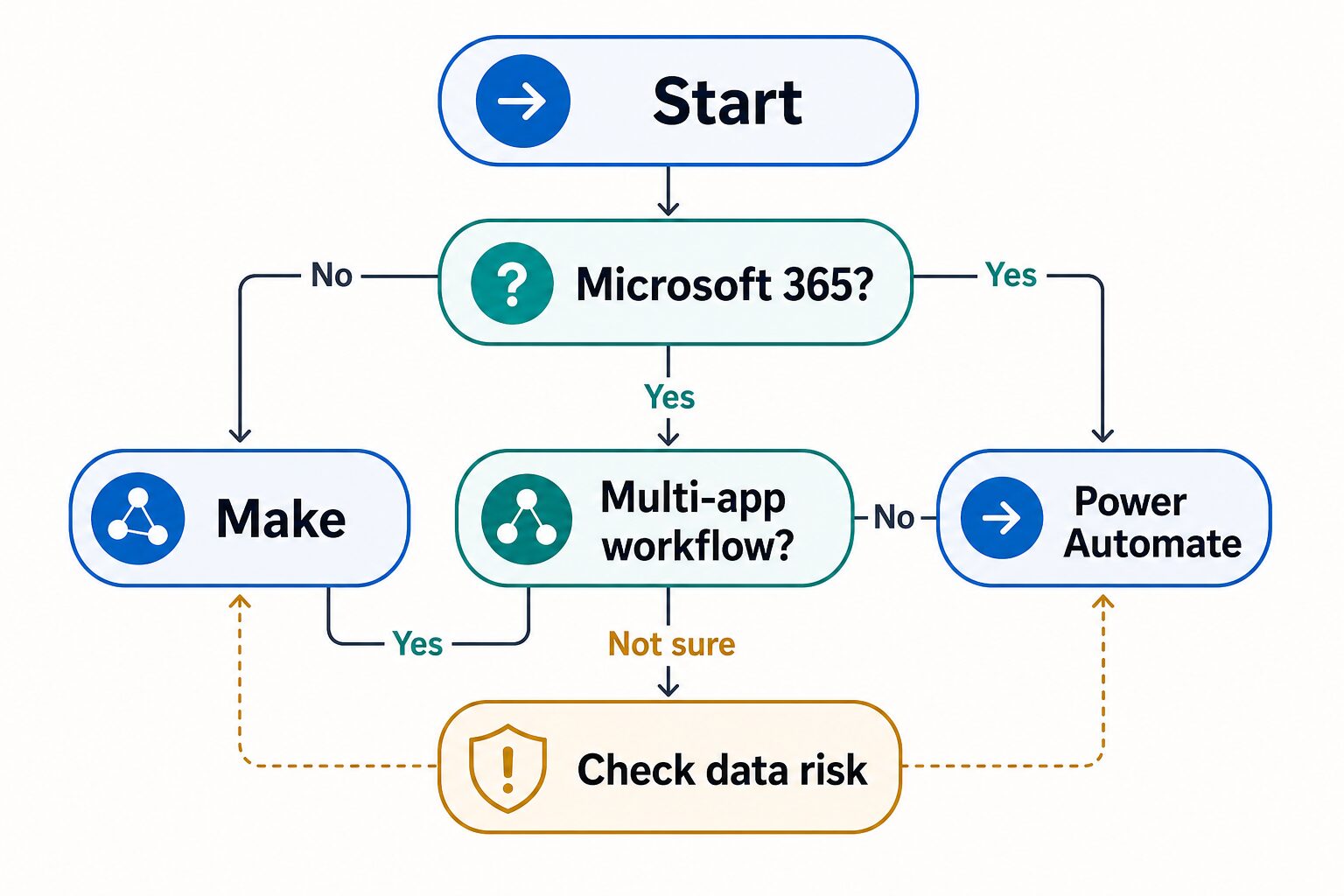
The Three-Question Setup Test
1. Does the workflow start in Microsoft 365?
If yes, test Power Automate first. Keep SharePoint, Teams, Outlook, Excel, and approvals close to the Microsoft admin layer.
2. Does the workflow branch across many apps?
If yes, test Make first. Routers, filters, repeated records, and transformations are easier to review on a visual canvas.
3. Does sensitive data move?
If yes, stop and map the data path first. The privacy and permission decision is more important than the builder choice.
Pricing Checks Before You Upgrade
Make and Power Automate are hard to compare by headline price because the bill grows in different ways. Make uses credits and plan limits. Power Automate can involve user licensing, process licensing, hosted process needs, premium connectors, environment choices, and Microsoft tenant settings.
Before paying, run a low-risk version of the same workflow and answer these questions:
- How many times will this run in a normal month?
- How many steps, modules, connectors, or actions happen each time?
- Does the workflow require premium connectors, Dataverse, desktop automation, or admin approval?
- Who receives the failure alert?
- Who can read the run history and connected app data?
If the team cannot estimate those items, do not upgrade yet. Build a smaller version first.
Privacy And Governance Checks
Automation tools often move more data than the person building the workflow remembers. A simple lead workflow may include names, email addresses, company names, message text, source campaign fields, and sales notes. A finance workflow may include invoice status, payment details, customer identity, and accounting context.
Microsoft’s Power Platform documentation includes data loss prevention policies that help admins classify connectors and manage which services can be used together. Make’s security and privacy pages describe security and data-handling commitments that readers should check before connecting production systems. These official pages are useful, but they do not replace your own data classification.
Use the AWT AI tool privacy checklist before automating customer, client, employee, legal, medical, financial, or confidential workplace data.
Where This Fits In Your Automation Stack
If this is your first automation decision, start with the broader AWT guide to AI automation tools for simple workflows. It helps separate simple task handoffs from deeper workflow systems.
If you are mainly trying to decide whether Zapier should stay in the stack, read Zapier alternatives for AI workflows and the newer Zapier vs Make for small business automation comparison. If technical control is also on the table, compare n8n vs Zapier for non-technical teams.
For a broader small-team work system, pair automation decisions with a practical AI tool stack for work so you do not create automations before the underlying tools are stable.
Final Recommendation
Start with Power Automate if the workflow is already inside Microsoft 365 and needs Microsoft-side governance. Start with Make if the workflow crosses several non-Microsoft apps and the team needs a visual scenario map.
The practical test is maintenance: can the person responsible for the workflow explain the trigger, data path, failure alert, owner, and monthly usage? If not, the workflow is not ready to become business-critical in either tool.
Official Pages To Check
Check current terms before paying because pricing, plan limits, connector rules, and security terms can change.
FAQ
Is Make better than Power Automate?
Make is often better when the workflow spans many non-Microsoft apps and needs visible scenario logic. Power Automate is often better when the workflow belongs inside Microsoft 365 and needs Microsoft-side administration.
Is Power Automate included with Microsoft 365?
Some Power Automate capabilities may be seeded with Microsoft 365 or available through trials, but premium connectors, process automation, Dataverse, RPA, and enterprise needs can require separate licensing. Check Microsoft’s current pricing and licensing pages before building around a paid feature.
Is Make cheaper than Power Automate?
Not necessarily. Make credits and Microsoft Power Automate licenses measure different things. Estimate real workflow volume, connector needs, owner access, and failure handling before comparing cost.
Which tool should a small business try first?
Try Power Automate first for Microsoft 365 workflows. Try Make first for visual multi-app workflows. If sensitive customer, employee, financial, legal, or health data is involved, map the data path before testing either tool.
Sources
- Make pricing, checked June 29, 2026.
- Make integrations, checked June 29, 2026.
- Make security, checked June 29, 2026.
- Make privacy notice, checked June 29, 2026.
- Microsoft Power Automate pricing, checked June 29, 2026.
- Microsoft Learn: flow types in Power Automate, checked June 29, 2026.
- Microsoft Learn: Power Automate connectors, checked June 29, 2026.
- Microsoft Learn: data loss prevention policies, checked June 29, 2026.
- Microsoft privacy statement, checked June 29, 2026.