Best AI Tools for Small Business Owners: Start With One Bottleneck
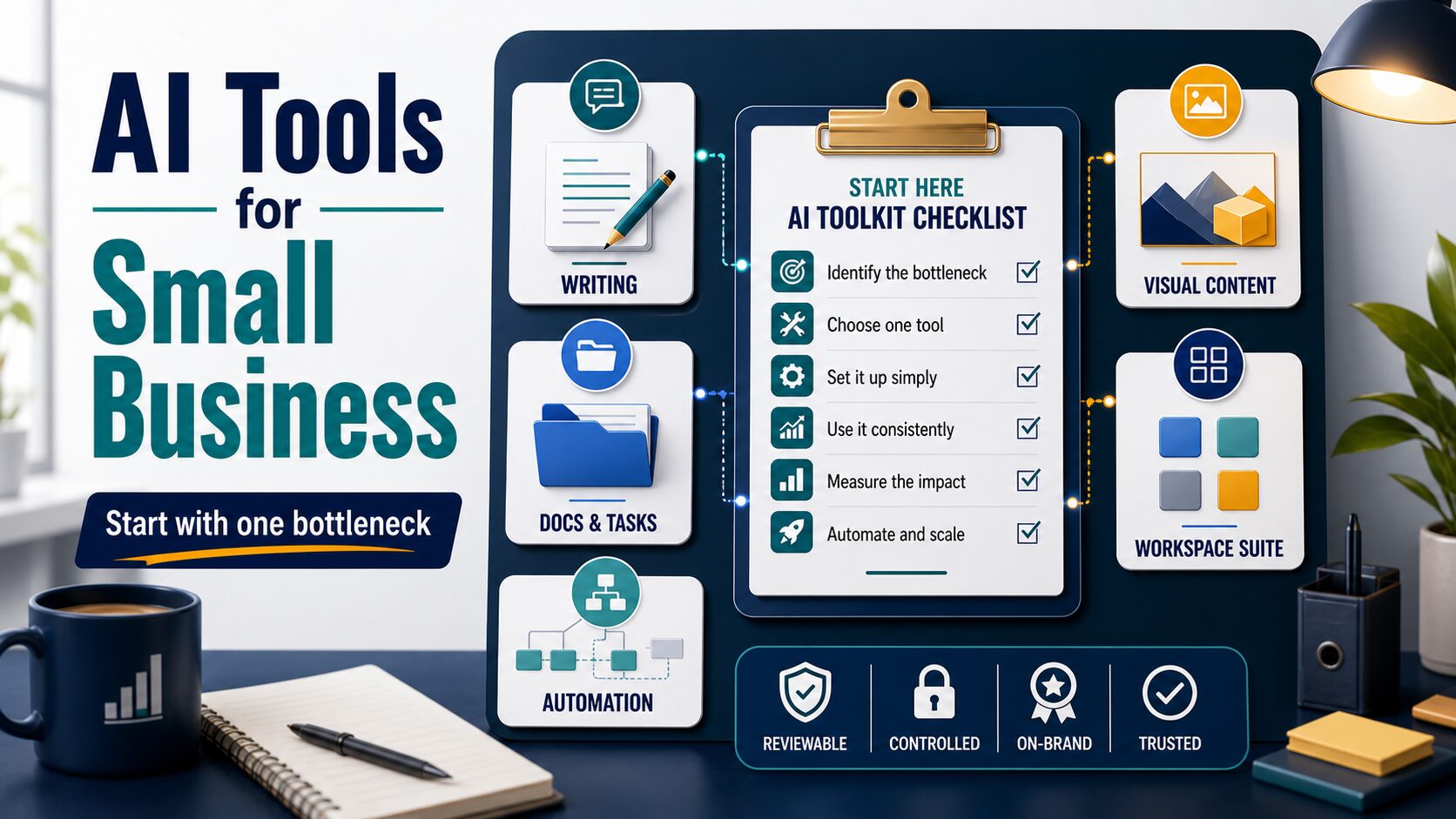
If you own a small business and still handle customer emails, quotes, service pages, social posts, files, meetings, and follow-up yourself, do not start with a giant AI stack. Start with the one task that slows the week down most.
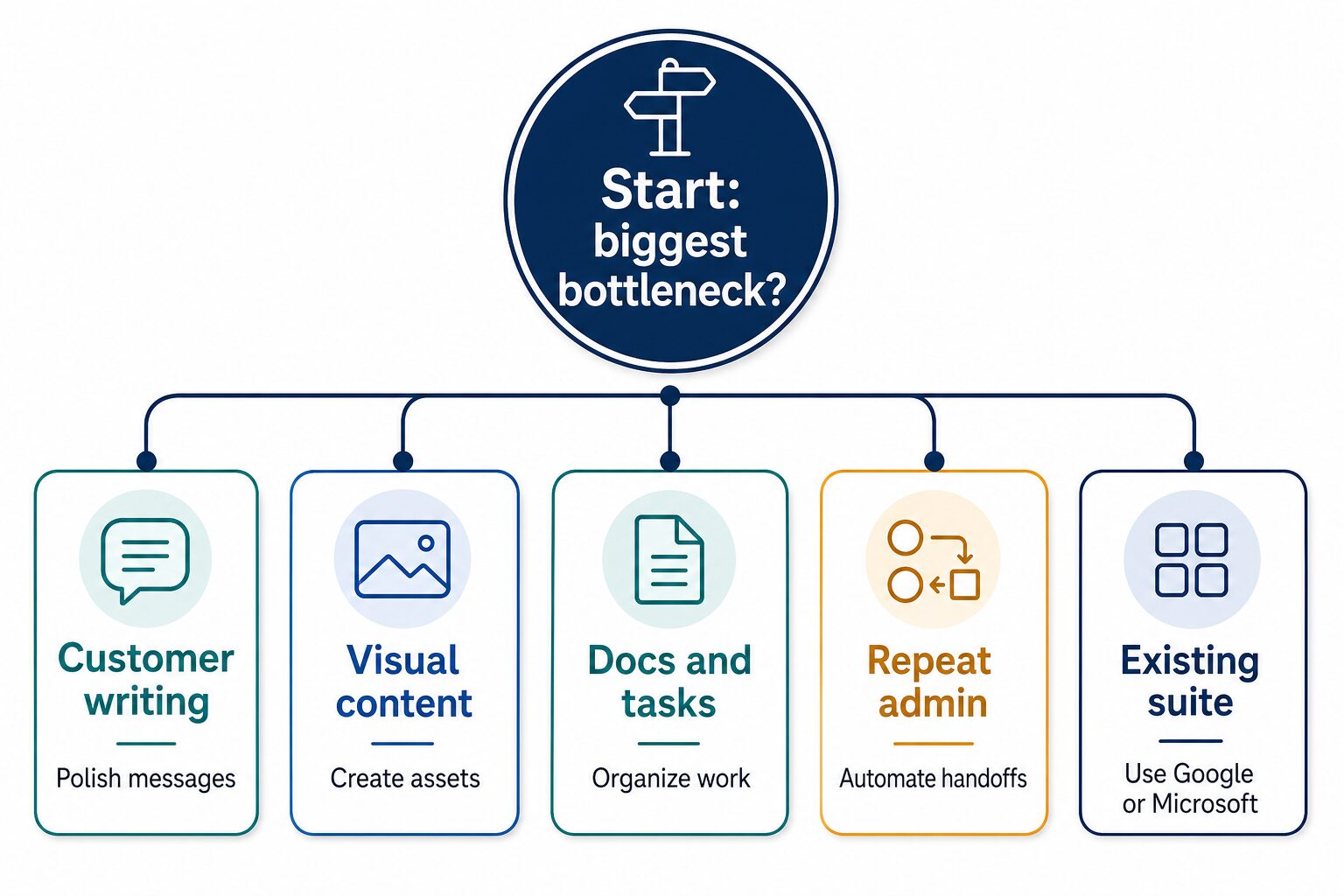
Quick verdict: Grammarly is the first check when customer writing needs polish. Canva is the first check when visual assets slow marketing down. Notion AI makes sense when notes, SOPs, and tasks need one home. Zapier fits only after a repeat handoff is already clear. Google Workspace with Gemini and Microsoft 365 Copilot are best when the business already runs inside that suite.
This July 4, 2026 rewrite is based on official product, pricing, and security pages, plus AI Work Toolkit’s small-business workflow criteria. It does not claim hands-on testing, speed benchmarks, output-quality rankings, revenue lift, or conversion data. The goal is simpler: choose one tool to test for two weeks, protect customer data, and avoid paying for overlapping subscriptions.
For a broader operator stack, use the AI productivity tools guide for solo operators and small teams. If the bottleneck is mainly customer language, compare our AI writing tools for work and AI email writing tools guides first.
Start With the Bottleneck, Not the Brand Name
The wrong question is “Which AI tool is best?” The useful question is “Which repeated task would I gladly stop doing by hand every week?” A small business owner usually needs fewer tools than a large team, but each tool has to earn its place quickly.
| Weekly bottleneck | Best first category | Tool to check first | Skip it if |
|---|---|---|---|
| Customer emails, proposals, service pages, or replies need clearer professional English. | Writing polish assistant | Grammarly | The real problem is offer clarity, task ownership, or business process design. |
| Posts, flyers, menus, ads, thumbnails, or simple presentations get delayed. | Design and content workspace | Canva | You have not approved the message, offer, or brand rules yet. |
| Notes, SOPs, tasks, client context, and project memory are scattered. | Workspace and knowledge base | Notion AI | Your team will not actually keep work in Notion. |
| Lead, order, meeting, form, or file data gets copied between apps by hand. | No-code automation | Zapier | The trigger, destination, owner, or failure check is still vague. |
| Gmail, Drive, Docs, Sheets, Calendar, and Meet already run the business. | Workspace-suite AI | Google Workspace with Gemini | The plan does not include the Gemini features you need. |
| Outlook, Word, Excel, Teams, SharePoint, and OneDrive already run the business. | Workspace-suite AI | Microsoft 365 Copilot | You only need occasional writing help or do not have the right Microsoft 365 setup. |
Best AI Tools for Small Business Owners
1. Grammarly: Best for Customer-Facing Writing Polish
Grammarly is the first tool to check when the weekly pain is writing quality: customer replies, proposals, job posts, service pages, support answers, and public descriptions. It is strongest as a final writing layer, not as a replacement for knowing what your offer should say.
The official Grammarly plans page shows Free, Pro, and Enterprise paths, with Pro adding rewrites, tone adjustment, fluency help, plagiarism and AI detection, and larger AI prompt allowances. The public page can localize currency and offers, so treat prices as page-check items, not fixed universal numbers. Grammarly’s security page is the source to review before a team uses it with customer or employee text.
Use it when: you already know what you want to say and need clearer, less rushed professional English.
Skip it for now when: the real blocker is sales process, visual content, task follow-up, or document storage.
2. Canva: Best for Visual Posts, Simple Ads, Flyers, and Presentations
Canva is the practical first check when the business needs more presentable public assets without waiting for a designer every time. It is useful because AI features sit inside an editable design workspace, not because AI can magically decide your message.
The official Canva AI page covers design, writing, image, video, presentation, document, and brand-oriented AI features. Check the Canva pricing page directly before choosing Free, Pro, Business, Enterprise, nonprofit, or education paths, because pricing and plan names can vary by region and account type.
Use it when: the approved message already exists and you need faster posts, flyers, menus, simple ads, slide decks, or lead magnets.
Skip it for now when: you still need to decide the offer, audience, service promise, or review process.
3. Notion AI: Best When Docs, SOPs, and Tasks Need One Home
Notion AI is most useful when Notion can become the place where work actually lives: pages, tasks, SOPs, notes, simple databases, project memory, and meeting notes. It is not the first purchase if your team will keep using separate notes, spreadsheets, and chat threads anyway.
The official Notion pricing page shows Free, Plus, Business, and Enterprise plan paths, with AI capabilities and trials surfaced in the plan comparison. Notion’s AI security and privacy practices state that Notion AI respects existing permissions and that customer data is not used by default to train models. Review the details before adding client notes, private SOPs, or sensitive workspace content.
Use it when: the business problem is scattered knowledge, repeat instructions, task memory, and follow-through.
Skip it for now when: you only need occasional rewriting or your existing project system is already working.
4. Zapier: Best for Repeat Admin Handoffs
Zapier is useful after the workflow is clear. If every lead form should create a spreadsheet row, every appointment should trigger a reminder, or every paid order should create a follow-up task, automation can reduce copy-paste work. If the process changes every time, automation will multiply confusion.
The official Zapier pricing page currently frames Free around Zap workflows, Tables, Forms, and a limited task allowance, while higher tiers support more advanced automation. Zapier’s AI page describes connecting AI tools to workflows and building AI agents across everyday apps. Before connecting email, forms, CRM, accounting, storage, or customer-support tools, define who checks failed runs and duplicate sends.
Use it when: you can describe the trigger, destination, owner, and failure check in one short sentence.
Skip it for now when: customer data is sensitive, the handoff is still changing, or nobody will review exceptions.
5. Google Workspace With Gemini: Best if Gmail and Docs Already Run the Business
Google Workspace with Gemini is a good first suite-level check if Gmail, Calendar, Drive, Docs, Sheets, Slides, and Meet already run the business. The appeal is less tool switching. The risk is assuming every Gemini feature is available on every plan.
The official Google Workspace pricing page compares Business and Enterprise plans and shows that Gemini availability differs by SKU. For small businesses, that makes the plan comparison more important than the feature headline. Check the exact Gemini access, storage, admin, and security controls before relying on it for customer work.
Use it when: the business already lives in Gmail, Docs, Drive, Calendar, Meet, and Sheets.
Skip it for now when: you use Google casually but do not need a full workspace suite.
6. Microsoft 365 Copilot: Best if Microsoft 365 Already Runs the Business
Microsoft 365 Copilot makes the most sense when Outlook, Word, Excel, Teams, SharePoint, and OneDrive already hold the business’s documents, meetings, spreadsheets, and customer context. It is rarely the cheapest way to get occasional AI writing help.
The official Microsoft 365 Copilot Business page lists Microsoft 365 Business Premium with Copilot and describes Copilot across Microsoft 365 apps, chat, agents, notebooks, create, and security. Microsoft’s Copilot data, privacy, and security documentation says Copilot uses Microsoft 365 permissions and tenant boundaries, so admin configuration and file permissions matter before rollout.
Use it when: Microsoft 365 is already the operating system and repeated document, meeting, email, or spreadsheet work justifies the cost.
Skip it for now when: the business only needs light writing polish, a visual tool, or a simple project workspace.
The Two-Week Test Before You Pay for Another AI Tool
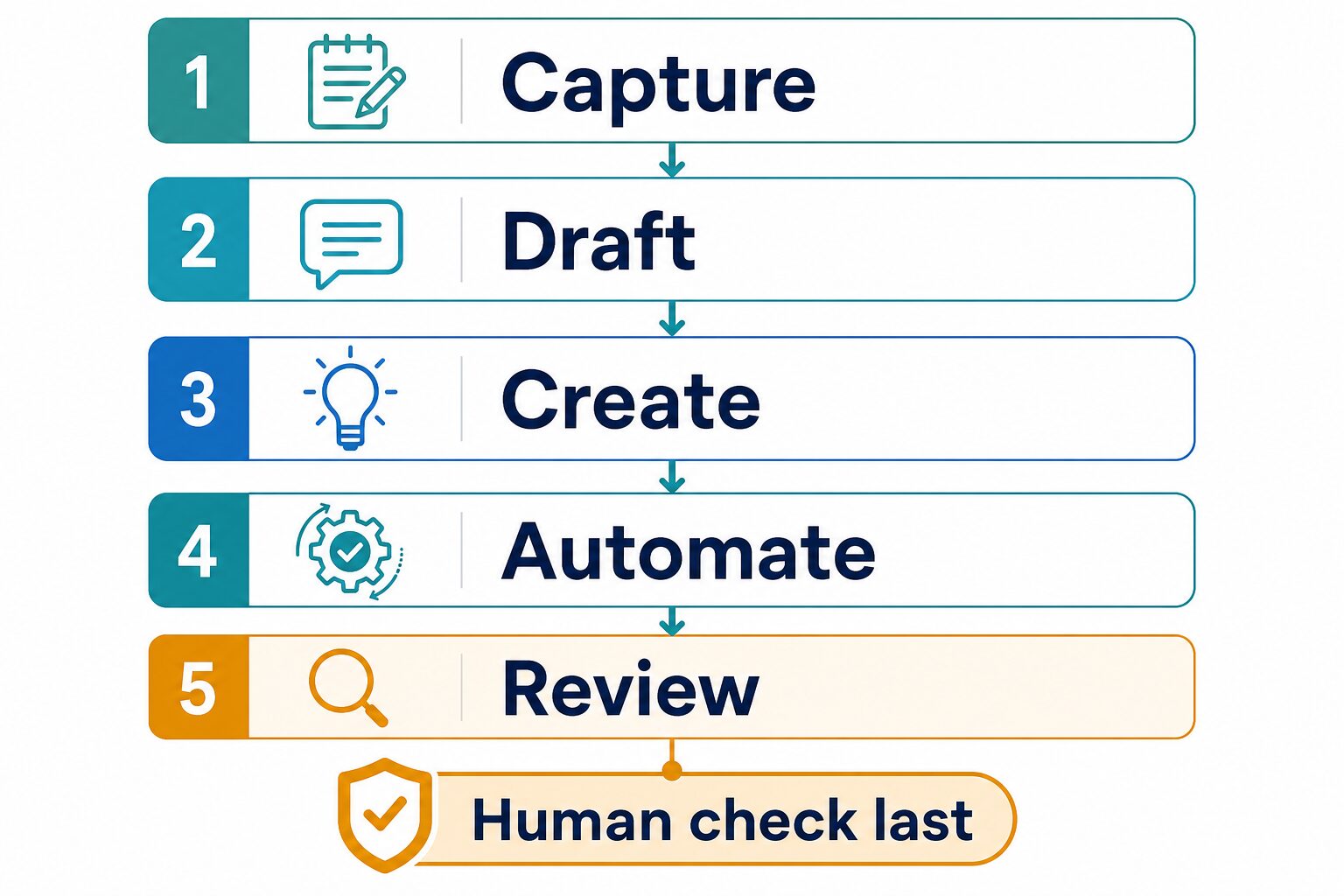
- Pick one bottleneck: writing, visual content, docs/tasks, repeat handoffs, Google-suite work, or Microsoft-suite work.
- Choose one tool only: avoid testing three overlapping subscriptions at the same time.
- Use ten real tasks: customer replies, posts, SOPs, forms, files, or meeting follow-ups that already happen in the business.
- Track review time: write down whether the tool reduced editing, rework, searching, copying, or missed follow-up.
- Cancel or keep: keep it only if it replaces a repeated task without creating a new review burden.
This test is intentionally simple. Small businesses do not need a perfect AI evaluation lab. They need to know whether a tool saves owner attention on real work without creating privacy risk or subscription sprawl.
Privacy Checks Before You Connect Business Data
- Customer details: avoid pasting full names, payment information, health details, legal facts, private addresses, or sensitive client context unless the tool and plan are appropriate.
- Training and retention: read whether customer data can be used for model training, retained by subprocessors, controlled by admins, or deleted on request.
- Connected apps: review permissions before connecting Gmail, Outlook, Drive, Slack, CRM, accounting, calendar, form, or storage apps.
- Failed automations: decide who checks duplicate sends, wrong folders, failed tasks, stale data, and incomplete handoffs.
- Human approval: keep a human check before sending customer messages, prices, promises, contracts, public claims, or private attachments.
If privacy is the deciding issue, read the AI tool privacy checklist before connecting business data. If repeat admin is the bottleneck, compare the AI automation tools guide and Zapier alternatives guide before building automations.
Where This Article Fits With Related AWT Guides
Use this page as the small-business owner checklist. Use AW013 when you want a broader productivity stack for solo operators and small teams. Use the AI PDF summarizers guide or the PDFelement review for AI PDF workflows when documents are the bottleneck. Use AI meeting assistants when meeting notes and follow-up create the admin load.
FAQ
What AI tool should a small business owner try first?
Try the tool that matches the repeated task you already do every week. If customer writing is the bottleneck, start with Grammarly. If visual content blocks marketing, start with Canva. If task memory is scattered, check Notion AI. If repeat handoffs are clear, check Zapier. If your business already lives in Google Workspace or Microsoft 365, check the suite AI option before adding another standalone tool.
Are free AI tools enough for small business admin?
Often, yes for occasional drafting, rewriting, brainstorming, or visual experiments. A paid plan is easier to justify when it replaces a repeated weekly task, supports the right admin/security controls, or reduces review time you can actually see.
Should I buy a suite AI add-on or a standalone AI tool?
Choose a suite AI option when the business already runs inside that suite. Choose a standalone tool when the bottleneck is narrower, such as writing polish, visual assets, task organization, or a specific repeat handoff.
Should I automate customer follow-up with AI?
Only after the handoff is predictable and a human review step is clear. Automating an unclear process can send duplicate messages, move files to the wrong place, create incorrect promises, or expose sensitive customer details faster than manual work.
Final Recommendation
For most small business owners, the best AI toolkit is smaller than the tool lists make it look. Choose one bottleneck, test one tool for two weeks, and keep the review step human. Start with Grammarly for customer-facing writing, Canva for visuals, Notion AI for shared notes and SOPs, Zapier for repeat admin handoffs, Google Workspace with Gemini for a Google-run business, or Microsoft 365 Copilot for a Microsoft-run business.
Do not buy a tool because it has the longest feature list. Buy it only if it replaces a repeated task, passes your privacy check, and leaves the business easier to run at the end of the week.
Official-source note: pages checked for this July 4, 2026 rewrite include Grammarly plans/security, Canva AI/pricing, Notion pricing/security, Zapier pricing/AI, Google Workspace pricing, and Microsoft 365 Copilot business/privacy pages. Prices, AI access, retention controls, admin features, and plan names can change by region and account type, so verify the official page before purchase or rollout.