
Best AI PDF Summarizers: Pick by PDF Type, Citations, and Privacy
AI PDF summarizers
Long PDFs create four separate decisions: what the document contains, whether the tool can point you back to the source, whether the file is safe to upload, and whether you actually need a summarizer or a PDF editor. The best AI PDF summarizer for a public research paper is not automatically safe for a client report, HR file, medical document, legal PDF, unpublished manuscript, or scanned form.
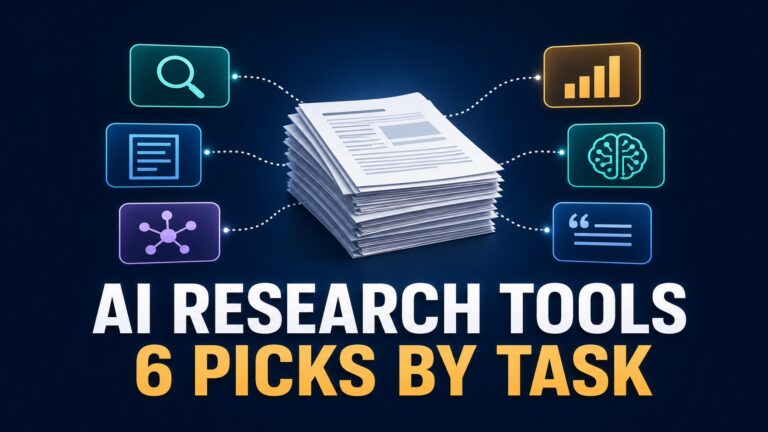
Quick answer: start with NotebookLM when you need source-grounded study notes from selected sources, ChatPDF for fast questions on public or low-risk PDFs, Adobe Acrobat AI Assistant if your PDF review already happens in Acrobat, SciSpace or Scholarcy for academic-paper reading support, and Smallpdf when summarizing is one task inside a broader PDF utility workflow. Before you pay, run the 15-minute safe-PDF trial below with a public sample and check file limits, citation visibility, export needs, privacy terms, and account controls.
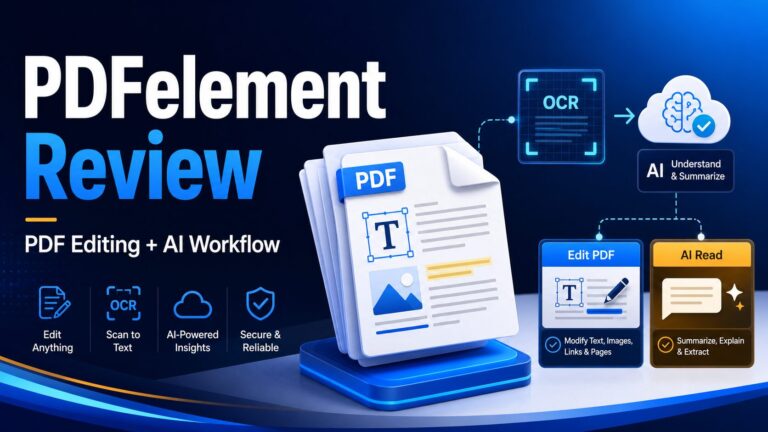
Affiliate disclosure: AI Work Toolkit may earn a commission from the Wondershare link in this article, at no extra cost to you. That link is used only for PDF editing, OCR, conversion, and cleanup workflows, not as a ranking signal for the summarizer recommendations.
Quick Verdict
July 7, 2026 refresh: this rewrite sharpens the search-result promise around PDF type, citations, privacy, free/paid limits, and the summarizer-versus-editor decision; preserves the existing AI-generated diagrams; and keeps the Wondershare link limited to editing, OCR, conversion, redaction, and PDF cleanup use cases.
How To Choose An AI PDF Summarizer
Do not choose by the longest feature list. Choose by the document type, the proof you need, the account policy you are using, and what could go wrong if the summary skips one caveat.
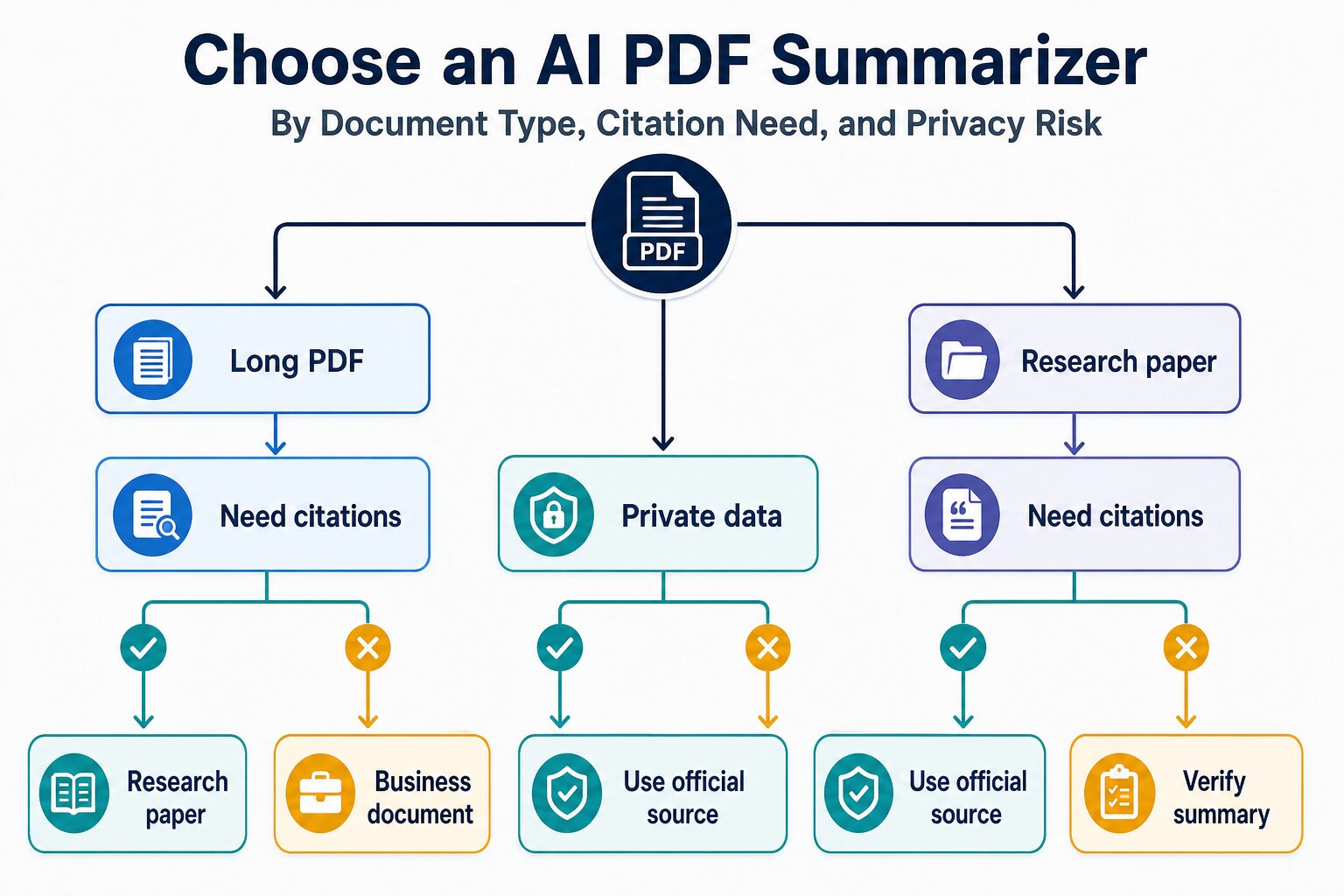
Use five questions first: Is the PDF safe to upload? Do you need page-level evidence? Is this a research workflow, a work-document workflow, or a quick utility task? Does the tool fit the file length and format? Would a PDF editor solve the real bottleneck better than a summarizer?
If the answer is “I am not sure,” treat the PDF as sensitive and test only with a public sample, anonymized excerpt, or school/work-approved account.
Two-Minute Upload Triage
Before you compare tools, classify the file. This small step prevents most bad PDF summarizer decisions.
- Public and low risk: published papers, public reports, manuals, product docs, and course materials you are allowed to use. ChatPDF, NotebookLM, SciSpace, Scholarcy, Smallpdf, or Acrobat AI Assistant can be reasonable starting points.
- Academic but citation-sensitive: papers for a thesis, dissertation, literature review, or grant background section. Prefer tools that keep source references visible, then verify methods, tables, limitations, and quoted claims in the original PDF.
- Private or policy-bound: client files, internal reports, HR records, legal documents, medical data, student records, unpublished manuscripts, and NDA-covered material. Stop until the tool, account type, admin controls, and organization policy explicitly allow upload.
- Scanned or messy PDFs: forms, scans, image-heavy reports, redaction tasks, and conversion problems. A summarizer may not be the first tool; OCR, cleanup, or a PDF editor may come first.
The 15-Minute Safe-PDF Trial
Do this before uploading a real school, work, client, or research PDF. It gives you a practical comparison without exposing sensitive information.
- Pick one public sample PDF. Use a public report, published paper, manual, or policy document that resembles your real file in length and structure.
- Ask the same three questions in each tool. Use one summary question, one detail question, and one limitation question, such as “What assumption or limitation does the document mention?”
- Check source visibility. Can you jump back to the page, paragraph, citation, figure, or table that supports the answer?
- Check workflow friction. Note upload limits, chat limits, export options, sharing controls, deletion controls, and whether the answer fits your account or organization policy.
- Pay only if the bottleneck repeats. Upgrade only when the same safe, verified PDF workflow will happen every week and the paid limit solves that exact bottleneck.
This test is not a performance benchmark. It is a decision filter: if a tool cannot help you verify a public sample cleanly, do not trust it with a private or high-stakes PDF.
Best AI PDF Summarizers Compared
The table below is based on official product, pricing, help, privacy, and security pages checked on July 7, 2026. It is not a performance ranking. Pricing and plan limits can change, so use the current official page or checkout screen before paying.
| Tool | Best fit | Free or pricing caveat | Source-check fit | Skip or verify first |
|---|---|---|---|---|
| NotebookLM | Students, researchers, and professionals working from a source set. | Google Help lists NotebookLM Standard limits such as 100 notebooks, 50 sources per notebook, 500,000 words per source, daily chat and audio-generation limits, and a 200MB local-upload limit; higher limits depend on account type or upgrade path. | Strong fit when you want answers tied to uploaded sources and a repeatable note workflow. | Verify work/school access, admin controls, and source-sharing rules before uploading private or institutional material. |
| ChatPDF | Fast PDF Q&A for public or low-risk documents. | ChatPDF’s official site says the free plan supports 2 document analyses per day and positions Plus for heavier use. Verify the current checkout screen before relying on paid limits. | Useful for quick questions, citations, and side-by-side checking on public documents. | Skip for confidential work unless security, retention, sharing, and deletion controls fit your use case. |
| Adobe Acrobat AI Assistant | People already using Acrobat for document review, comments, and PDF workflows. | Adobe’s public pages position Acrobat AI Assistant as an add-on or included feature depending on plan and region; Adobe pricing pages showed add-on references such as US$1.99/mo or US$19.99/yr for some Acrobat plans. Verify your current checkout screen. | Good fit when you want cited AI answers inside Acrobat rather than a separate PDF chat tool. | Check plan eligibility, regional pricing, enterprise controls, and source-review expectations before using it for work PDFs. |
| SciSpace | Academic-paper reading, literature workflows, and research explanations. | Official site positions it around AI research tasks including Chat with PDF, Literature Review, citation tools, data extraction, and AI writing. Numeric pricing is not included here because the plan table was not reliably confirmed. | Good fit when paper context, research vocabulary, and citation-backed research tasks matter. | Do not treat generated explanations as citations. Confirm every claim in the paper or source links. |
| Scholarcy | Structured summaries, flashcards, and study-oriented paper reading. | Official site emphasizes flashcard summaries, saved summaries, references, figures, tables, exports, Zotero import, and bibliography support. Verify paid limits at checkout. | Useful when you want a structured reading aid rather than a chat-only experience. | Skip if you need legal, medical, or compliance-grade document review. |
| Smallpdf | Occasional PDF utility tasks, including summarizing, compressing, converting, and editing. | Smallpdf pricing pages list a Free tier with limited document downloads and a Pro tier with unlimited access to 30+ tools, OCR, and AI-powered tools. Verify file-size, word-limit, and daily-use details before upgrading for long PDFs. | Best as a practical PDF utility, not a deep research workspace. | Check file-size, word-count, and daily-use limits before relying on it for long PDFs. |
1. NotebookLM: Best Starting Point For Source-Grounded Study Notes
NotebookLM is the first tool I would check if your real problem is not “summarize one random PDF” but “understand a set of sources.” Google’s NotebookLM Help lists source-based notebooks, 100 notebooks, up to 50 sources per notebook, 500,000 words per source, daily chat/audio limits, and up to 200MB for local uploads. For students and professionals, those source limits matter because one PDF is often part of a larger reading packet.
Use NotebookLM when you are reading lecture PDFs, research papers, policy documents, project materials, or public reports and want answers that stay close to the uploaded sources. It is especially useful when you will return to the same source set over multiple sessions, compare several readings, or turn verified notes into a literature review, class memo, or work brief.
Best for: study notes, research reading, document collections, and source-grounded Q&A.
Not best for: one-off PDF utility tasks such as compressing, converting, redacting, or signing files.
Before uploading: check the NotebookLM privacy guidance, your Google account type, work/school admin settings, and your institution’s policy. Do not upload unpublished, confidential, or institution-restricted material until you know the rules.
2. ChatPDF: Best For Quick Public-PDF Questions
ChatPDF is built around a simple promise: upload or provide a PDF, then ask questions about it. The official site frames it around summaries, citations, multi-file chats, side-by-side document viewing, and support for document formats beyond PDF. That makes it attractive when you have a public report, user manual, syllabus, or long document and want a faster way to locate the main points.
The practical advantage is low friction. The official FAQ says the free plan allows 2 document analyses per day, while Plus is aimed at heavier use. The practical risk is the same: because it feels easy, it is tempting to upload files that should not leave your organization, class, lab, or client environment. Use it for public or low-risk PDFs first, then verify the answer in the source before keeping the note.
Best for: quick summaries, direct questions, side-by-side checking, and lightweight document exploration.
Not best for: high-stakes academic citation work, regulated documents, or confidential business documents without policy review.
Pricing note: ChatPDF’s official site says the free plan supports 2 document analyses per day. Check the live checkout screen before relying on Plus limits for a class or work project.
3. Adobe Acrobat AI Assistant: Best If You Already Work In Acrobat
Adobe Acrobat AI Assistant is the sensible choice when the PDF workflow is already in Acrobat. Adobe’s official pages describe AI features for one-click summaries, cited responses, outlines, key points, PDF Spaces, and AI assistance inside documents.
This is not the simplest choice for a student who only needs to summarize an occasional PDF. It is more compelling for people who already review PDFs in Acrobat, share comments, compare files, redact content, organize pages, sign documents, or work inside an organization that standardizes on Adobe tools.
Best for: Acrobat users who want AI help without moving documents into a separate PDF chat app.
Not best for: readers who do not already use Acrobat or only need a free occasional summarizer.
Pricing note: Adobe’s public pricing and Acrobat AI pages vary by plan, region, and account context. The July 7 source check showed add-on references such as US$1.99/mo or US$19.99/yr for some Acrobat plans, but you should verify your current checkout screen before subscribing.
4. SciSpace: Best Fit For Academic-Paper Reading
SciSpace is most interesting when the PDF is a research paper rather than a generic document. Its public product positioning is tied to AI research tasks, Chat with PDF, literature review, citation generation, data extraction, AI writing, and citation-backed research results.
For graduate students, this category can be useful, but it also requires discipline. A tool can explain a paper in simpler language and still miss a limitation, method detail, conflict of interest, sample-size issue, or contradiction. Use it to reduce reading friction, not to replace reading the paper.
Best for: paper explanations, research vocabulary, citation-oriented research tasks, and academic reading support.
Not best for: casual users who only need a fast one-page PDF summary.
Pricing note: this rewrite does not publish numeric SciSpace pricing because the public source check did not provide a reliable plan table.
5. Scholarcy: Best For Structured Paper Summaries And Flashcards
Scholarcy is another research-oriented option, but its angle is more structured: flashcard summaries, saved summaries, references, figures, tables, export options, Zotero import, and bibliography support. That can be helpful when you want to turn a paper into a reading aid instead of chatting freely with a PDF.
It is a good candidate for students who prefer cards, key findings, and repeatable study notes. It is not a shortcut around the original source. If a claim matters for a literature review, thesis chapter, policy memo, or client deliverable, check the paper directly.
Best for: structured reading notes, flashcards, and paper summaries.
Not best for: people who want a general PDF editor or a business-document review workflow.
Before paying: check Scholarcy’s live pricing and limits because this article avoids publishing unverified checkout details.
6. Smallpdf: Best For Occasional PDF Utility Work
Smallpdf is a better fit if PDF summarizing is one of several PDF tasks you need. Its pricing page lists AI-powered PDF tools alongside conversion, compression, editing, OCR, signing, and other document utilities, which makes it a practical “PDF utility suite first, AI summarizer second” option. The Free tier is limited; Pro is positioned around unlimited access to 30+ tools, document downloads, OCR, and AI-powered tools.
Choose Smallpdf when you want a practical PDF utility suite and only occasional AI summarizing. If your main job is academic source management, long-term research notes, or deep source comparison, start with NotebookLM, SciSpace, or Scholarcy instead.
Best for: users who summarize PDFs occasionally and also need conversion, compression, editing, or other PDF tools.
Not best for: deep academic-paper workflows or source notebooks.
Before upgrading: compare your PDF length and file size against Smallpdf’s current AI-tool limits. Long PDFs can hit word or file-size limits before the summary quality becomes the main issue.
Verification Workflow: Do Not Trust A Summary Until You Check The Source
An AI PDF summary is a starting point, not proof. This matters most for academic papers, legal documents, financial reports, medical documents, policy PDFs, technical manuals, and any work where a missed caveat changes the decision. If your next step is citation, client advice, compliance, grading, publication, or a paid purchase, treat the AI answer as a lead that must be checked.
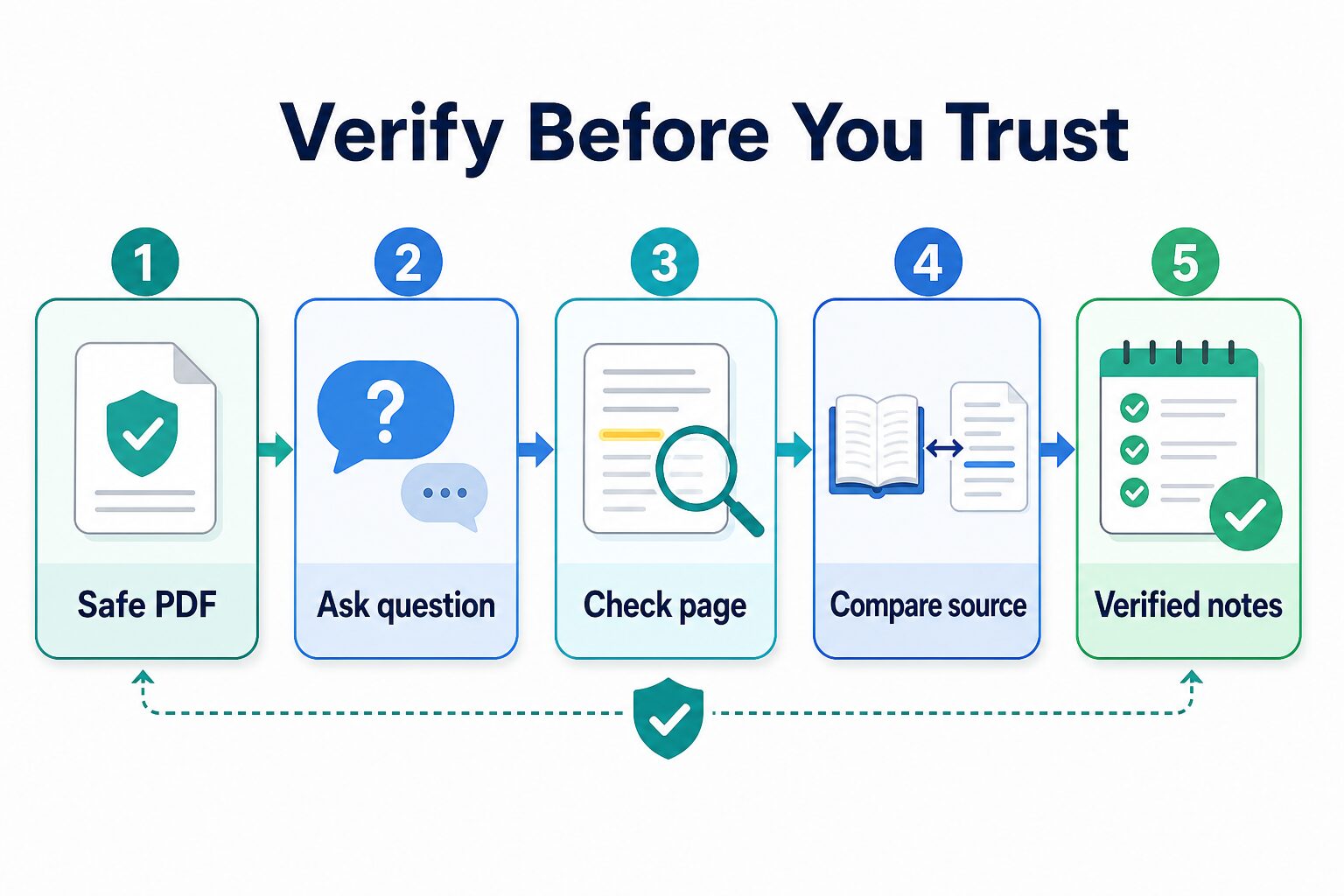
- Upload only a safe PDF. Use public, anonymized, or approved material first.
- Ask a focused question. “What is the main argument?” is weaker than “What limitation does the author mention in the methods section?”
- Check the quoted page or section. Do not rely on a citation-shaped answer just because it looks precise.
- Compare with the source. Read the original paragraph, table, figure, footnote, or limitation section, then check what the tool omitted: sample size, assumptions, exceptions, date range, or method limits.
- Save only verified notes. Keep a note only after it matches the original PDF and your use policy.
Academic integrity note: a PDF summarizer can help you understand a paper, but it should not invent citations, write your literature review for you, or replace your own reading. Your instructor, journal, or institution may have specific AI-use rules.
What Not To Upload
Before using any AI PDF tool, remove or avoid documents that contain private or restricted information. This includes client files, student records, HR documents, legal materials, medical information, financial records, unpublished manuscripts, grant drafts, internal strategy, proprietary data, and documents covered by a nondisclosure agreement.
If you need to evaluate a tool, use a public PDF first. If the workflow proves useful, then check the official privacy page, plan-level data controls, admin settings, retention rules, sharing defaults, deletion controls, feedback-review policy, and your organization or school’s policy before using real documents.
When A Free Plan Is Enough
A free or low-friction plan is enough when you summarize occasional public PDFs, ask a few document questions, and manually verify important claims. Do not upgrade after one impressive summary.
Consider a paid plan only when the same PDF workflow repeats every week, the tool supports your document length, the privacy terms fit your work, and the paid limit solves a real bottleneck. For students, that might be a semester-long reading workflow. For professionals, it might be recurring review of public reports, manuals, proposals, or policy PDFs.
Use one paid-tool test before committing: take a public PDF similar in length and structure to your real documents, ask three focused questions, verify the answers against the source, and check whether export, citation, sharing, and deletion controls fit the workflow you actually need.
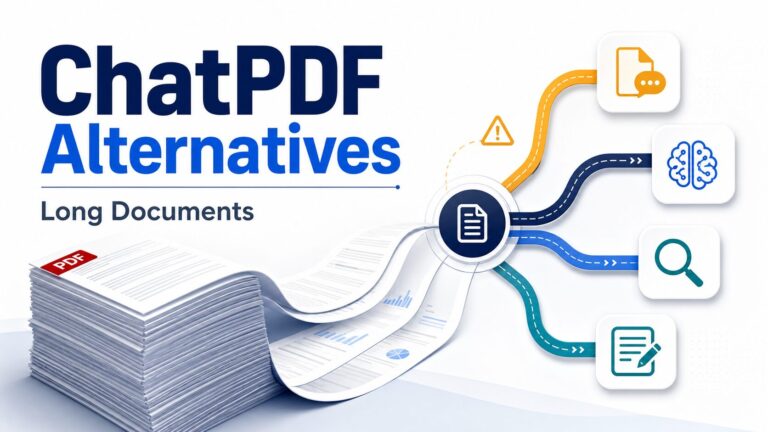
If your bottleneck is editing scanned PDFs, cleaning up forms, converting files, redacting pages, or running OCR after the summary step, compare a PDF editor separately. Summarizing and document cleanup overlap, but they are not the same buying decision.
Final Recommendation
If you are not sure where to start, use this order:
- NotebookLM for source-grounded study notes and multi-source reading.
- ChatPDF for quick questions on public or low-risk PDFs.
- Adobe Acrobat AI Assistant if you already live in Acrobat.
- SciSpace or Scholarcy for academic-paper workflows.
- Smallpdf for occasional PDF utility tasks with summarization included.
The safest habit is simple: upload less, ask better questions, verify the source before keeping the note, and separate summarizing from editing. If you are choosing tools for a broader research workflow, also compare AI research tools for graduate students, academic-paper summarization workflows, AI literature review tools, a NotebookLM research workflow, and the AI tool privacy checklist.
FAQ
What is the best AI PDF summarizer?
For most study and research workflows, start with NotebookLM because it is built around uploaded sources. For quick public-PDF Q&A, ChatPDF is simpler. For Acrobat users, Adobe Acrobat AI Assistant may fit better. For academic-paper structure, compare SciSpace and Scholarcy. For occasional utility work, check Smallpdf.
Can AI PDF summarizers handle research papers?
Yes, but use them as reading aids. They can help you find the main idea, define terms, and make a paper less intimidating. They should not replace reading the methods, limitations, tables, figures, original citations, or your institution’s AI-use rules.
Are AI PDF summarizers safe for work documents?
Only when the tool, account type, and organization policy allow that document to be uploaded. For private work PDFs, check data handling, retention, admin controls, feedback-review policy, and approved-tool rules first.
Should I trust page references from a PDF AI tool?
Treat them as leads, not proof. Open the original page or section and confirm that the answer matches the PDF. If the source is high stakes, verify more than once, look for omitted limitations, and record the exact source passage in your notes.
Which AI PDF summarizer should students try first?
Start with NotebookLM for source-based reading, then compare SciSpace or Scholarcy if you need more paper-specific explanations or study structure. Use public or approved course materials and follow your institution’s AI-use policy.
What should professionals try first?
If your company already uses Acrobat, start with Acrobat AI Assistant. If you only need a quick summary of a public PDF, try ChatPDF or Smallpdf. If the PDF contains client or internal information, stop and check policy before uploading.
When should I use a PDF editor instead of a summarizer?
Use a PDF editor when the job is OCR, form cleanup, conversion, redaction, page management, signing, or editing a scanned document. Use a summarizer when the job is understanding the content. If you need both, separate the decisions: first choose the safest summarizer, then choose the editor that fits your document workflow.
Official Sources Checked
Building a broader AI work stack? Start with the AI Work Toolkit Start Here guide, compare AI literature review tools if the document is part of a research project, or compare AI writing tools for work if your next bottleneck is emails, reports, or workplace English.