Best AI Video Editing Tools for Creators
The best AI video editing tool for creators is the one that matches the video job you repeat every week. A YouTuber cutting interviews, a blogger turning tutorials into short clips, and a solo business owner cleaning up product footage should not start with the same app.
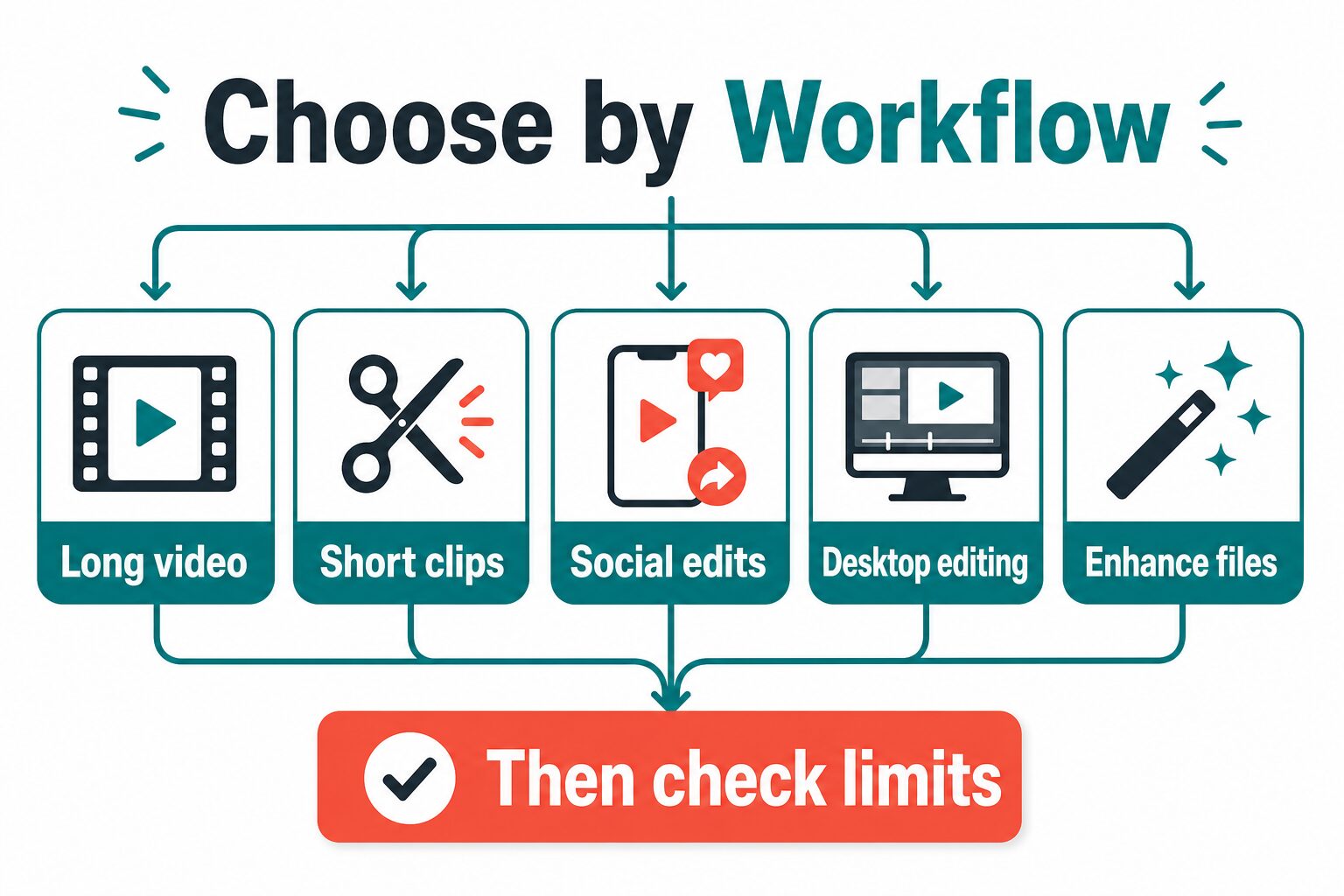
For the fastest decision, choose by workflow first. Start with Descript when editing begins with spoken words, CapCut when the output is short social video, OpusClip when you already have long videos to repurpose, VEED when you need browser captions or lightweight production, Wondershare Filmora when you want a desktop creative editor, and VideoProc Converter AI when the bottleneck is enhancement, conversion, compression, or repair.
This guide was refreshed on July 7, 2026 from official product, pricing, help, shop, privacy, and security pages. It is an official-research-only comparison, not a direct output-quality benchmark. For broader stack planning, see our guide to AI productivity tools for solo operators and small teams, our content repurposing tool guide, and our free AI tool starter stack.
Affiliate disclosure: This article includes one same-domain commercial link to Wondershare. Recommendations are based on workflow fit, official sources, and reader risk, not commission terms.
Quick Verdict: Choose by Video Workflow
| Creator workflow | Try first | Why it fits | Check before paying |
|---|---|---|---|
| Long videos, podcasts, interviews, lessons, or tutorials | Descript | Transcript-style editing, captions, screen recording, clips, AI speech, and team controls are central to the official product positioning. | Billing toggle, media hours, AI credits, watermark-free export, 4K needs, voice features, and workspace controls. |
| Short social edits, mobile-first creator work, fast templates | CapCut | Best fit when the publishing target is TikTok, Reels, Shorts, captions, effects, and quick social edits. | CapCut Pro price in your region and device, app-store terms, account data use, and whether your policy allows client footage. |
| Turning long videos into many short clips | OpusClip | Official pages focus on AI clipping, animated captions, reframe, B-roll, social scheduling, brand templates, and clip export. | Credits, upload size, clip review process, scheduler limits, export format, watermark status, and whether auto-selected clips fit your brand. |
| Browser editing, subtitles, translation, quick team assets | VEED | Useful when you want a web editor for subtitles, text, audio-to-text, translation, compression, conversion, avatars, hosting, or sharing. | Watermarks, export limits, subtitle and translation limits, account data processing, and exact plan price at checkout. |
| Desktop creative editing with templates, effects, and AI features | Wondershare Filmora | Stronger fit when you want a conventional editor with creative assets, watermark-free export, AI credits, and desktop workflow. | Current Basic, Advanced, or Perpetual offer, operating-system fit, AI credit allowance, renewal terms, and whether you want Filmora rather than another Wondershare product. |
| Enhancing, converting, compressing, recording, or fixing files | VideoProc Converter AI | More of a media utility than a social editor, with official positioning around AI enhancement, conversion, compression, download, record, and repair features. | Premium 365 renewal, Lifetime license device limits, watermark-free full-version exports, platform support, hardware needs, and whether you need utility work or editing. |
How We Selected These AI Video Editing Tools
This rewrite uses a conservative evidence standard. Product pages, pricing pages, help articles, shop pages, privacy pages, and security pages were checked, but the tools were not ranked by hands-on output tests. Video quality depends on your source footage, audio, caption language, export format, visual style, and review process.
The ranking is therefore a workflow map, not a universal “best output” claim. If two tools look similar, choose the one that removes the bottleneck you can name: transcript cleanup, short-form creation, long-to-short repurposing, browser captions, desktop editing, or file enhancement.
The selection criteria were:
- Workflow fit: the tool solves a real creator job, such as transcript editing, social clips, captions, desktop editing, or media enhancement.
- Plan clarity: the official pages provide enough pricing, trial, credit, or checkout information to know what to verify before paying.
- Export reality: watermarks, resolution, file formats, AI credits, subtitles, translations, storage, device limits, and renewal rules can matter more than the headline AI feature.
- Privacy relevance: video may contain faces, voices, client work, unreleased products, licensed music, whiteboards, location details, or private account data.
- Creator practicality: solo creators need a tool they can learn, review, and stop using if the workflow does not justify the subscription.
Prices, plan names, and limits can change quickly. Treat every pricing note below as a check-before-signup item, especially if you publish client work, monetized content, sponsored clips, course material, workplace recordings, or confidential footage.
The 30-Minute Trial Script for Creators
Before you compare every tool in this list, run a small trial with one harmless source file. Use a 60- to 120-second clip that does not include client data, private screens, unreleased products, licensed music, or anyone who has not consented to the test.
- Define the output: one YouTube cut, one vertical short, one captioned product clip, one translated subtitle test, or one enhanced file.
- Check the friction: upload path, editing speed, caption correction, export format, watermark, credits, storage, renewal terms, and whether the workflow still needs another editor.
- Review risk before quality: privacy terms, rights, consent, renewal price, team access, and whether you can delete test media afterward.
Only then judge the output. A tool that makes one impressive clip but creates export, privacy, or review problems is not the best AI video editor for recurring creator work.
The Two-Pass Fit Test Before You Choose
Before opening trial accounts, run the decision in two passes.
- Pass 1: output fit. Write down the next video you actually need to publish, the destination format, the source footage, the review owner, and the export requirement. If the answer is “one long interview becomes five clips,” start with repurposing. If the answer is “one tutorial needs transcript cleanup,” start with transcript editing.
- Pass 2: upload risk. Check whether the footage includes people, client material, unreleased products, licensed audio, workplace screens, account data, or anything that should not leave your device. If the risk is high, choose the tool only after checking privacy, security, consent, and local/offline alternatives.
If your decision is mostly Descript versus CapCut for short videos, read the focused Descript vs CapCut comparison after this overview. If you are mainly turning one source into many channel assets, start with the content repurposing guide instead of buying a full video editor first.
The Best AI Video Editing Tools for Creators
1. Descript: Best for Transcript-Based Editing and Long-Form Creator Work
Descript is the first tool to check if your editing process starts with speech: podcasts, interviews, talking-head videos, lessons, webinars, screen recordings, tutorials, or YouTube explainers. Its official pages emphasize video editing, podcasting, screen recording, captions, transcription, AI speech, clips, templates, AI avatars, translation, Studio Sound, and team workflows.
The practical advantage is the editing model. If you think in words first, transcript-based editing can feel closer to revising a document than pushing clips around a timeline. That does not prove Descript will create the best final video for your style. It means the workflow may fit creators who spend a lot of time cutting spoken content, cleaning rough takes, adding captions, and turning long material into reusable clips.
Descript’s pricing page checked on July 7, 2026 showed Free, Hobbyist, Creator, Business, and Enterprise options. The page showed Hobbyist at $16/$24 per person/month depending on billing context, Creator at $24/$35, Business at $50/$65, and free-plan media and AI-credit limits. Verify the billing toggle, media hours, AI credits, export resolution, watermark rules, voice features, and team controls before paying. Also review Descript’s security page and privacy page before uploading sensitive recordings.
Use Descript when: most of your videos are spoken, scripted, interviewed, or podcast-like, and you want editing to feel closer to editing text.
Skip or pause when: your work is mostly visual effects, advanced color grading, motion graphics, complex timeline editing, or cinematic post-production.
2. CapCut: Best for Social-First Short Video Editing
CapCut is the obvious tool to check when your output is short social video: TikTok, Reels, Shorts, product clips, quick captions, templates, creator effects, and mobile-first edits. It is a stronger fit for creators who publish frequently and want speed than for teams that need strict governance or a professional post-production pipeline.
CapCut’s official help article on CapCut Pro cost, dated April 3, 2026 and checked again on July 7, 2026, says pricing can vary by region, device, and promotion. It tells users to check pricing inside the web, PC, or mobile app account, and says monthly and yearly subscription plans are usually available. Because of that, this article does not quote one fixed global CapCut Pro price.
CapCut’s US privacy policy covers CapCut app, desktop, web, CapCut Commerce Pro, Pippit, and related services. That matters because creator footage can include identifiable faces, voices, branded assets, location details, account metadata, or client material.
Use CapCut when: you make frequent short social videos and care about fast edits, captions, templates, effects, and mobile or desktop convenience.
Skip or pause when: you need stable team controls, enterprise review, long-form editing depth, or a fixed public price before account-specific checkout.
3. OpusClip: Best for Repurposing Long Videos into Short Clips
OpusClip is built around turning longer videos into short clips. Official pricing and plan pages checked on July 7, 2026 emphasized AI clipping, virality score, animated captions, AI reframe, AI B-roll, social scheduling, brand templates, a video editor, import sources, Adobe Premiere Pro and DaVinci Resolve export on higher plans, and team workspace features.
That makes OpusClip a strong fit for podcasters, YouTubers, webinar hosts, course creators, agencies, and founders who already have long-form source material. The real question is not whether OpusClip can create clips. The question is whether the selected clips, captions, framing, and posting workflow fit your brand after human review.
The official pricing page checked on July 7, 2026 showed Free, Starter, Pro, and Business options. Starter was shown at $15/month with 150 credits, and Pro was shown with $29/month and annual-billing contexts, larger credit packages, and more team and export features. The Free plan was shown with 60 credits, 1080p rendered clips, watermarking, and export availability limits. Verify the current credit package, upload limits, scheduler limits, social-account connections, export options, team settings, and the meaning of any score before relying on it for publishing decisions. Review the OpusClip privacy policy before uploading private videos.
Use OpusClip when: you already create long videos and want a faster way to find, caption, reframe, and schedule short clips.
Skip or pause when: you do not have long source material, your clips need careful editorial nuance, or you expect the tool to replace final judgment about what your audience should see.
4. VEED: Best Browser-Based Editor for Captions, Translation, and Lightweight Production
VEED fits creators who want a browser-based video workspace rather than a desktop editor. Its public pages checked on July 7, 2026 surfaced editor tools such as adding music, subtitles, text, audio-to-text, captions, compression, conversion, video-to-text, and translation, along with AI tools such as video generation, avatars, image generation, background removal, noise removal, voice dubbing, voice generation, eye contact, and text-to-speech video.
VEED is worth checking when the workflow is light production: caption a video, trim a clip, translate or subtitle content, record or host something, create a quick social asset, or collaborate around a web editor. It may be overkill if you only need one simple mobile edit, and it may be too light if you need a full offline editing pipeline.
The public pricing page exposed a start-free path but did not expose reliable static plan amounts in this readback, so this rewrite does not quote VEED prices. Check VEED’s pricing page directly before upgrading. VEED’s privacy policy says uploaded audio or video files may include visual or audio identifiers and metadata, so review VEED’s privacy page and Trust Center if your videos include workplace, client, student, or customer material.
Use VEED when: you want a web editor for captions, quick edits, translation, social assets, hosting, or team-adjacent production without installing a desktop suite.
Skip or pause when: you need one stable offline editor, advanced timeline editing, or a workplace policy that does not allow uploading video to a browser service.
5. Wondershare Filmora: Best Desktop Creative Editor to Check if You Want a Full Editing App
Wondershare Filmora is the best fit in this list when your real need is a desktop editor with AI-assisted creative features, templates, effects, text tools, audio tools, creative assets, and export workflows. It is more editor-like than clip-repurposing tools and more desktop-oriented than browser-first tools.
Filmora is useful to evaluate if you make YouTube videos, tutorials, product clips, course videos, creator promos, or small-business media and want an app that feels closer to a conventional editor. It is not automatically the right choice for every creator. If your work is mostly transcript editing, short social templates, or long-to-short repurposing, Descript, CapCut, or OpusClip may fit first.
The official Filmora shop checked on July 7, 2026 showed Basic, Advanced, and Perpetual purchase options, with Basic shown as US$49.99/year, Advanced shown as US$59.99/year, and Perpetual shown as a US$79.99 one-time payment context. The page also mentioned features such as watermark-free export, 4K HD export, creative assets, cloud storage, AI credits, AI Mate conversations, and advanced editing features. Verify the current offer, renewal, platform, AI credit allowance, major-version policy, and included assets before purchase. Review the Wondershare privacy page before using AI features or uploading sensitive media.
Use Filmora when: you want a desktop creative editor and are comfortable checking the current Wondershare/Filmora offer before buying.
Skip or pause when: your main need is auto-clipping long content, editing from a transcript, or browser-based captioning rather than a full desktop editor.
If you want to evaluate the Wondershare ecosystem from AI Work Toolkit, use the same-domain Wondershare route and confirm that the destination, current offer, and product fit your use case before purchasing.
6. VideoProc Converter AI: Best for Enhancement, Conversion, Compression, and Utility Work
VideoProc Converter AI should not be evaluated like a social video editor. Its official purchase page positions it as a one-stop media solution for AI-enhancing videos, images, and audio, digitizing DVDs, converting, downloading, compressing, editing, and recording. The page also lists AI features such as super resolution, face restoration, photo colorization, frame interpolation, stabilization, vocal remover, and noise suppression.
That makes VideoProc more relevant when your problem is file quality, format, size, conversion, upscaling, stabilization, denoising, or offline media handling. A creator might use it alongside an editor, not necessarily instead of one.
The official purchase page checked on July 7, 2026 showed Premium 365 at $34.95/year for 3 PCs or Macs with annual auto-renewal language, Lifetime License at $54.95 for 1 PC or Mac, and Family License at $79.95 for 3-5 PCs or Macs. The page also stated that current Premium 365 renewal pricing may be $39.95 USD, that sales tax may apply based on location, and that AI-driven video enhancement can require substantial computing power. Verify current platform, device-license, renewal, hardware, upgrade, and export details before purchase. This article links VideoProc through its official page only; it does not use a VideoProc affiliate route.
Use VideoProc when: your bottleneck is enhancing, converting, compressing, downloading, recording, or preparing files for another editor.
Skip or pause when: you need a creator-first editing workflow with captions, templates, collaboration, or social scheduling as the main feature.
Before You Upload Video to Any AI Editing Tool
Video editing tools touch more sensitive data than many writing tools. A rough clip can include faces, voices, names on screens, license plates, office locations, unreleased products, customer data, whiteboards, student or client records, copyrighted music, or branded assets that you do not have the right to reuse.
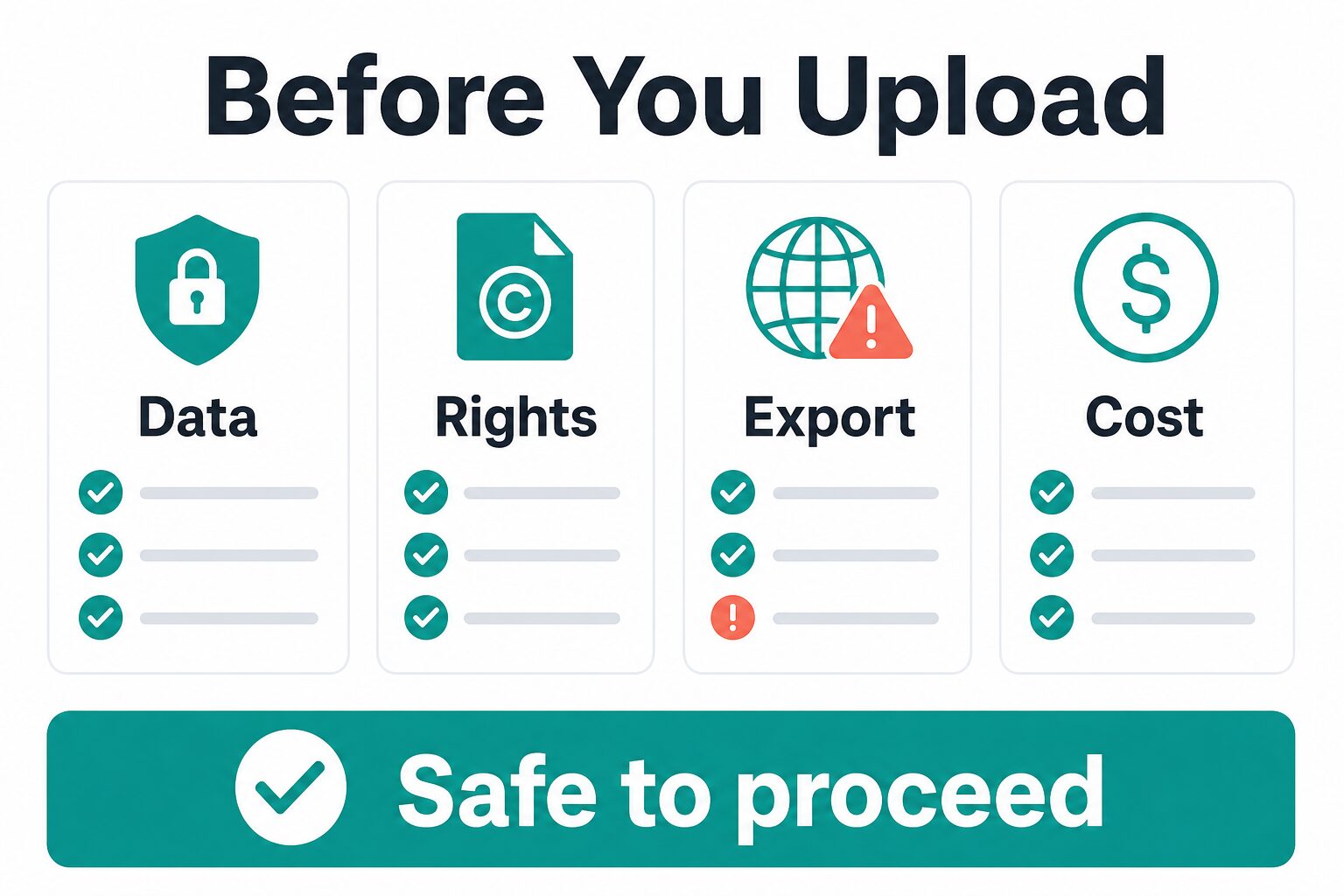
Use this checklist before you upload:
- Data: remove or blur confidential, client, HR, finance, legal, medical, student, or internal information unless your account and policy allow it.
- Consent: confirm that people in the video can be recorded, edited, translated, dubbed, clipped, or republished in the planned context.
- Rights: confirm you can use the video, audio, music, images, logos, fonts, templates, B-roll, and generated assets in the way you plan to publish.
- Export: check watermarks, resolution, duration, file type, subtitles, translations, storage, and download limits before editing a long project.
- Cost: understand whether the plan uses credits, minutes, renewals, device licenses, team seats, app-store pricing, or location-specific tax.
- Review: watch the final video for wrong captions, awkward cuts, mistranslations, licensing problems, misleading AI-generated media, disclosure issues, and brand-fit problems before publishing.
For a broader version of this risk check, read our AI tool privacy checklist for professionals.
How To Build a Small AI Video Tool Stack
Most creators should not sign up for all six tools. A smaller stack is easier to review, cheaper to maintain, and safer for client or workplace content.
- One main editor: Descript, CapCut, VEED, or Filmora, depending on your editing style.
- One repurposing layer: OpusClip only if long-to-short clips are a repeated workflow.
- One utility layer: VideoProc only if conversion, compression, enhancement, or file repair is a recurring bottleneck.
- One review process: human review for captions, cuts, claims, rights, privacy, and brand tone before anything goes public.
If you do not already publish video every week, start with the free or trial path and one low-risk project. If you publish for clients, customers, students, employees, or regulated work, check privacy, consent, and licensing before you upload real footage.
FAQ
What is the best AI video editing tool overall?
There is no single best tool for every creator. Descript is the first check for transcript-based long-form work, CapCut for social-first edits, OpusClip for turning long videos into clips, VEED for browser captions and lightweight production, Filmora for desktop editing, and VideoProc for enhancement and conversion work.
What is the best free AI video editor?
Start with the tool whose free path matches the workflow you need. CapCut is often the first check for social clips, Descript and VEED are worth checking for web/editor workflows, and Filmora or VideoProc may offer free downloads or trials. Always verify current watermarks, export limits, credits, platform restrictions, and renewal terms before starting a real project.
Can I upload client video to AI video editing tools?
Only after checking the client agreement, workplace policy, consent rules, license rights, and the vendor’s privacy or security terms. When in doubt, test with sample footage, blurred material, or a non-confidential project first.
Are AI clip generators accurate enough to publish automatically?
Do not publish automatically. AI can help find clips, captions, reframes, translations, or B-roll, but the creator still needs to review context, claims, timing, brand fit, licensing, and privacy before posting.
Should creators pay for AI video editing tools?
Pay only when the tool improves a repeated workflow. A paid plan may be justified if it removes watermarks, unlocks needed exports, saves editing time on every video, adds team controls, or handles a recurring bottleneck. Do not pay just because the tool has many AI features or a temporary discount.
Final Recommendation
Choose the AI video editing tool by workflow first. Use Descript for transcript-based editing, CapCut for social-first clips, OpusClip for repurposing long videos, VEED for browser captions and lightweight production, Filmora for desktop creative editing, and VideoProc for enhancement, conversion, compression, or repair work.
Before paying, verify the current official price, export limits, watermark rules, AI credits, privacy terms, renewal terms, hardware requirements, and rights for your footage. The best AI video editing tool is the one that helps your actual publishing workflow without creating a data, licensing, cost, or review problem you cannot control.