AI Content Repurposing Workflow: Turn One Source Into Short Videos
Workflow-first guide for creators
If you want to turn one webinar, podcast, product demo, newsletter, or long YouTube video into short videos, do not start by buying the flashiest AI clipper. Start by deciding what the short video must do: pull out one useful idea, keep the original context intact, protect private material, and give the viewer a clear next step.
Quick verdict: use AI for the shortlist, not the final judgment
The best AI content repurposing workflow for short videos is source, find clips, edit, package, publish, and learn. Use ChatGPT or Claude to turn transcripts and articles into hooks, clip briefs, and captions. Use OpusClip, Descript, VEED, CapCut, or a similar editor only for the step they actually solve. Use Canva for packaging. Use VideoProc when the file itself needs conversion, compression, enhancement, or cleanup.
Start manually first when the source includes client work, employee conversations, unreleased products, student data, medical, legal, financial, or confidential details. In that case, create a human-reviewed clip list before uploading the full source to any external AI or video platform.
Evidence note: Product, pricing, privacy, and security references were refreshed from official sources on July 2, 2026. This page is a workflow guide based on official information and editorial criteria; it does not claim hands-on output testing or rank tools by unverified clip quality.
The five-step AI repurposing workflow
Repurposing fails when the workflow starts with “make me ten clips” and ends with a folder of energetic fragments. A safer workflow separates the editorial decision from the production task. AI can speed up the shortlist, captions, resizing, and cleanup, but a human still decides whether the clip is accurate, useful, and safe to publish.
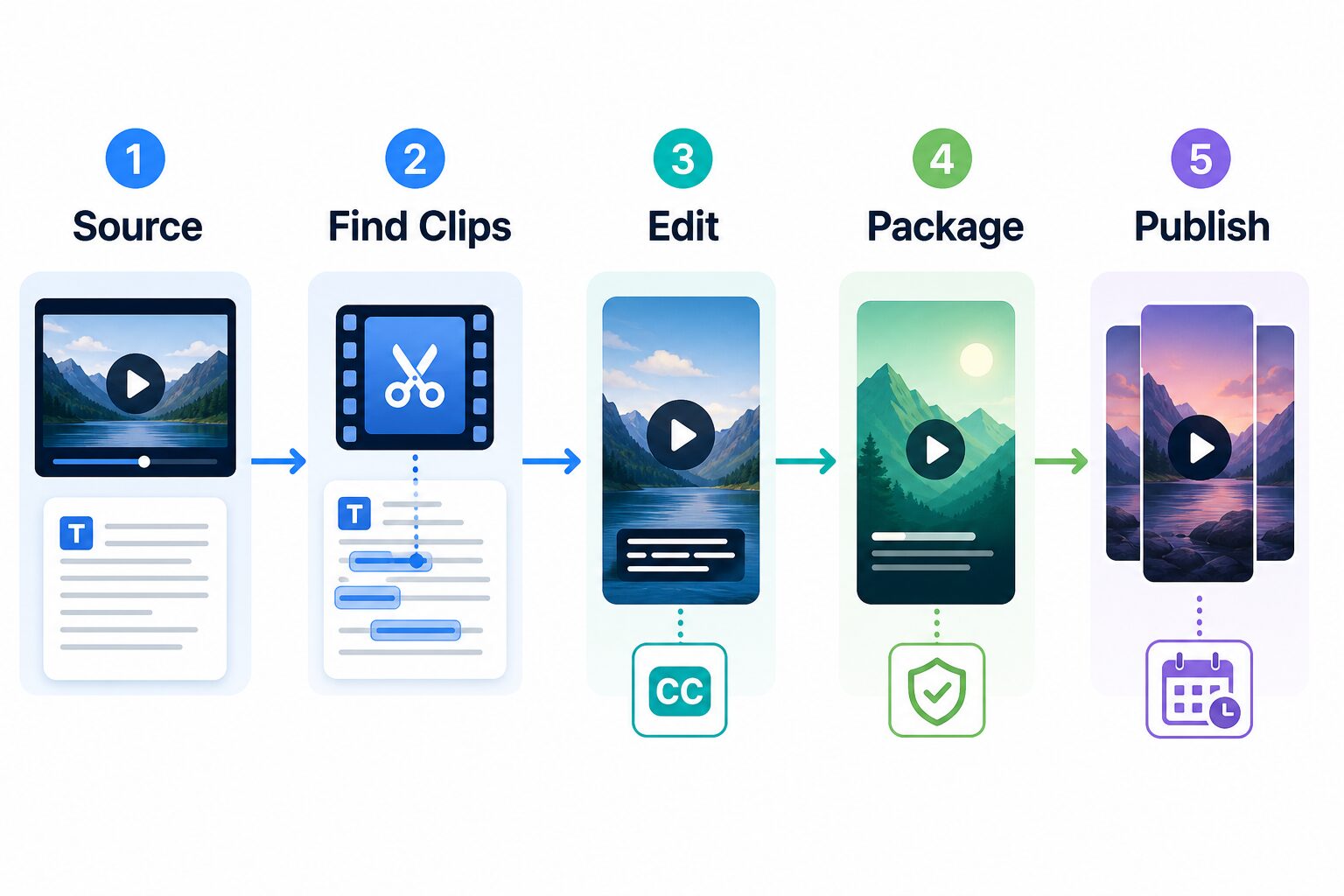
1. Source: pick one asset with a real point
Choose one asset that already contains useful substance: a customer-safe demo, an interview, a webinar section, a tutorial, a podcast episode, a written guide, or a newsletter. If the source is weak, AI can create more variations, but it cannot turn a vague idea into a strong clip strategy.
Before uploading anything, remove names, client details, private screenshots, internal roadmap notes, student information, medical or legal details, financial data, and unreleased product material. If the source came from a call, confirm consent and reuse rights first.
2. Find clips: create a shortlist, not a finished post
For a transcript or article, ask ChatGPT or Claude for candidate moments with the viewer problem, one-sentence hook, likely platform, and reason the idea works without the full source. For long video, tools such as OpusClip, Descript, and VEED can help detect candidate clips. Treat those suggestions as leads for review, not proof that a clip will perform.
3. Edit: make the clip stand alone
A short video should make sense to someone who has never seen the original. Add a clear opening line, remove filler, keep captions readable, check vertical framing, and preserve any caveat that changes the meaning. Descript, CapCut, VEED, and similar tools can fit here depending on whether you prefer text-based editing, mobile-style editing, or browser-based editing.
4. Package: adapt the same idea for each platform
Packaging includes the title, caption, cover, on-screen text, aspect ratio, and call to action. Canva can help with branded covers and social cards. ChatGPT or Claude can draft caption variations, but the final wording should still sound like your brand and match the platform.
5. Publish and learn: scale the decision, not the noise
Publish fewer clips with clearer intent before scaling. Track which source topics, hooks, lengths, and formats lead to useful engagement. Then feed that learning back into the next source asset. The productivity gain comes from turning editorial judgment into a repeatable system, not from outsourcing the judgment completely.
A 15-minute triage before you choose a tool
Use this quick triage before you pay for a tool or upload a long recording.
- Write the viewer job: “After this clip, the viewer should understand…”
- Mark the risk: private data, consent, rights, incomplete context, or unsupported claims.
- Choose the bottleneck: ideas, clip discovery, editing, packaging, file cleanup, or publishing cadence.
- Pick one tool category: planning assistant, AI clipper, editor, design tool, or media utility.
- Set a reject rule: discard any AI-selected clip that cannot stand alone in 30-60 seconds.
This triage is the original value of the workflow. It stops you from using a clipping tool when the real problem is privacy, using a media utility when the real problem is story structure, or using a writing assistant when the real problem is caption burn-in and export quality.
Tool-fit table for short-video repurposing
The right tool depends on which part of the workflow is slow. The table below uses official source information and conservative pricing notes. Always check the current official pricing page before upgrading because plan names, limits, credits, watermark rules, and regional prices can change.
| Tool | Best role in the workflow | Current official-source caveat | Skip if |
|---|---|---|---|
| ChatGPT | Turn transcripts, articles, and notes into hooks, clip briefs, captions, and alternate angles. | ChatGPT’s pricing page lists Free, Go, Plus, Pro, Business, and Enterprise options; use account-level data controls and business privacy terms before uploading sensitive content. | You need timeline editing, automatic clip export, caption burn-in, or platform scheduling. |
| Claude | Condense long transcripts, preserve nuance, and create cleaner clip outlines or caption variants. | Claude’s pricing page lists Free, Pro, Max, Team, and Enterprise options; Team/Enterprise pages include business controls that matter for workplace content. | You need a dedicated video editor instead of writing, synthesis, or planning help. |
| Descript | Edit audio and video through text, refine clips, add captions, and manage creator video projects. | Descript lists Free plus paid creator plans; its data/privacy documentation says AI training uses opt-in controls and enterprise data sharing is disabled by default. | You mainly want mobile-first templates, quick effects, or platform-native social editing. |
| CapCut | Manual short-video editing, captions, templates, effects, mobile/desktop polish, and fast creator edits. | CapCut’s official help says Pro pricing can vary by region, device, and promotion, so verify the in-app price and export limits before paying. | You need transcript-first editing, collaborative review, or automated long-video clip discovery. |
| OpusClip | Find candidate clips from long-form video and prepare social-ready short-form outputs. | OpusClip’s pricing page lists a free plan, Starter, Pro, and Business; its privacy policy explains that uploaded videos and transcripts are user-generated content processed by the service. | You need careful manual editorial control before any upload, or your source includes sensitive material. |
| VEED | Browser-based recording, editing, captions, and social video creation. | VEED promotes starting for free and upgrading for more features; check the current pricing, watermark, export, privacy, and security terms before using private source material. | You prefer a desktop editor or need strict internal data controls that browser tools do not satisfy. |
| Canva | Create branded covers, simple visual cards, thumbnails, and social packaging around the clip. | Canva’s public pricing page is the source to verify Free, Pro, Teams, and Enterprise availability; pricing can be region- and account-specific. | You need AI clip detection, transcript-first editing, or timeline-heavy editing. |
| VideoProc | Convert, compress, enhance, stabilize, or prepare media files before or after the social editing workflow. | VideoProc’s store page currently lists VideoProc Converter AI with a free trial and a full-license offer; use it for media utility tasks, not content strategy. | Your main job is social clip selection, captions, platform packaging, or writing hooks. |
A practical workflow example
Assume you have a 35-minute webinar recording and want three useful short videos for LinkedIn, YouTube Shorts, and Instagram Reels.
- Export a transcript and remove private or irrelevant sections before using any AI tool.
- Ask for clip candidates with a prompt such as: “Find five moments that can stand alone as a 30-45 second short video. For each, give the timestamp, hook, viewer problem, missing context risk, and why it works without the full webinar.”
- Choose three clips manually based on clarity, source rights, consent, and whether the idea helps the audience.
- Edit the chosen clips in Descript, CapCut, VEED, OpusClip’s editor, or your preferred editor. Keep captions readable and remove any context that could mislead.
- Package each clip separately with a platform-specific caption and cover. A LinkedIn caption can be more direct and professional; a Shorts or Reels caption may need a faster hook.
- Review before publishing for privacy, claims, brand fit, source accuracy, and whether the clip tells one complete idea.
Good original-value test: If a clip cannot answer “who is this for, what problem does it solve, and what should the viewer do next?” it is not ready to publish, even if the AI-selected moment looks energetic.
Privacy and rights checklist before uploading content
Short-video repurposing often starts with raw recordings, and raw recordings can contain more risk than a finished public article. Run this checklist before using an external AI or video platform.
- Consent: Do you have permission to reuse the recording, voice, face, slides, examples, and transcript?
- Confidential details: Did you remove customer names, student data, employee issues, legal/medical/financial details, unreleased product material, and private screenshots?
- Tool policy: Did you check the official privacy, security, and data-use pages for the tool you plan to upload to?
- AI training controls: For general AI assistants and creator tools, did you check account-level data sharing and business-data terms?
- Rights and assets: Are music, images, templates, fonts, and stock assets cleared for the intended commercial or public use?
- Final review: Could the clip be misunderstood when separated from the source?
OpenAI publishes ChatGPT data controls and enterprise privacy guidance. Descript, OpusClip, VEED, Canva, CapCut, and VideoProc each have their own privacy, security, or legal terms. The safest habit is to check those official pages before uploading sensitive material, not after a clip has already been created.
How to choose the right starting path
Choose script-first if your source is written or rough
If your source is an article, newsletter, outline, or rough idea, start with ChatGPT or Claude. Ask for clip concepts, hooks, and a short script. Then record or create the video intentionally instead of trying to extract clips from weak source material.
Choose clipping-first if the source is already strong on video
If the recording already has strong spoken moments, demos, or interviews, start with clip discovery. OpusClip, Descript, VEED, and similar tools can speed up the first pass. Your job is to reject weak candidates and keep only clips that work without the full source.
Choose edit-first if the clip is known but messy
If you already know the exact moment to publish, use Descript, CapCut, VEED, or your usual editor to tighten the clip, add captions, correct framing, and create a clean opening. This is often faster than asking an AI clipping tool to rediscover what you already know.
Choose cleanup-first if the file is the problem
If the issue is format, compression, shaky footage, audio noise, or media preparation, a utility such as VideoProc can fit before or after the social editing step. Do not confuse media cleanup with content strategy. A sharper file still needs a useful idea.
Common mistakes to avoid
- Publishing too many weak clips: More clips do not help if each one lacks a clear point.
- Using the same caption everywhere: Adapt the hook and context for the platform.
- Ignoring data rules: Raw video and transcripts can contain sensitive details that were never meant for public tools.
- Trusting “viral score” language too much: Treat AI scoring as a sorting aid, not proof that a clip will perform.
- Skipping the source review: A clip can become misleading if it removes an important caveat from the original.
- Buying before the bottleneck is clear: A clipper, editor, design tool, and utility solve different problems.
Recommended lean stack for a solo creator
For most solo creators and small marketers, start with a two-tool or three-tool stack instead of signing up for every platform at once.
- Planning and captions: ChatGPT or Claude.
- Clip discovery or editing: Descript, OpusClip, VEED, or CapCut depending on your source and editing preference.
- Packaging: Canva or your existing design tool for covers and supporting social cards.
- File cleanup: VideoProc or another utility only when format, compression, enhancement, or stabilization is the actual bottleneck.
FAQ
What is the best AI content repurposing workflow for short videos?
The most practical workflow is source, find clips, edit, package, publish, and learn. Use AI to speed up transcript analysis, clip discovery, captions, and packaging, but keep human review for privacy, context, brand voice, and final selection.
Can AI turn one long video into short videos automatically?
Some tools can generate candidate clips from long videos. That does not mean every generated clip is ready to publish. Review each clip for context, accuracy, consent, caption readability, and whether it has a clear viewer benefit.
Should I use ChatGPT or Claude for short-video repurposing?
Use ChatGPT or Claude when you need hooks, caption variants, clip ideas, or script outlines from a transcript or article. They are not replacements for timeline editing, caption burn-in, social scheduling, or video export tools.
Is CapCut enough for repurposing content?
CapCut can be enough when you already know what clip you want and need quick editing, captions, templates, and platform-ready polish. It is less ideal when the hard part is searching a long source for the best moments.
When should I skip AI repurposing tools?
Skip or delay external AI tools when your source contains private data, unclear rights, sensitive workplace material, confidential client details, or a message that requires careful human judgment before it becomes public.
Final recommendation
Do not buy a short-video AI tool until you know which step is slow. If you need ideas and captions, start with ChatGPT or Claude. If you need candidate clips from a strong recording, try a clipping or video-editing workflow. If you need polish, use CapCut, Canva, Descript, or VEED depending on your editing style. If you need file cleanup, consider a utility path such as VideoProc.
The best AI content repurposing workflow for short videos is the one that keeps the original point intact, protects private material, and produces fewer but clearer clips that a viewer can understand without seeing the full source.
Official sources checked
Sources refreshed on July 2, 2026: ChatGPT pricing, OpenAI data controls and enterprise privacy, Claude pricing, Descript pricing/account data/security, CapCut pricing help, OpusClip pricing/privacy, VEED pricing/privacy/security, Canva pricing, and VideoProc store pages.