How to Rewrite a Professional Email With AI (Prompt + 5 Checks)
Professional email rewrite prompt + send gate
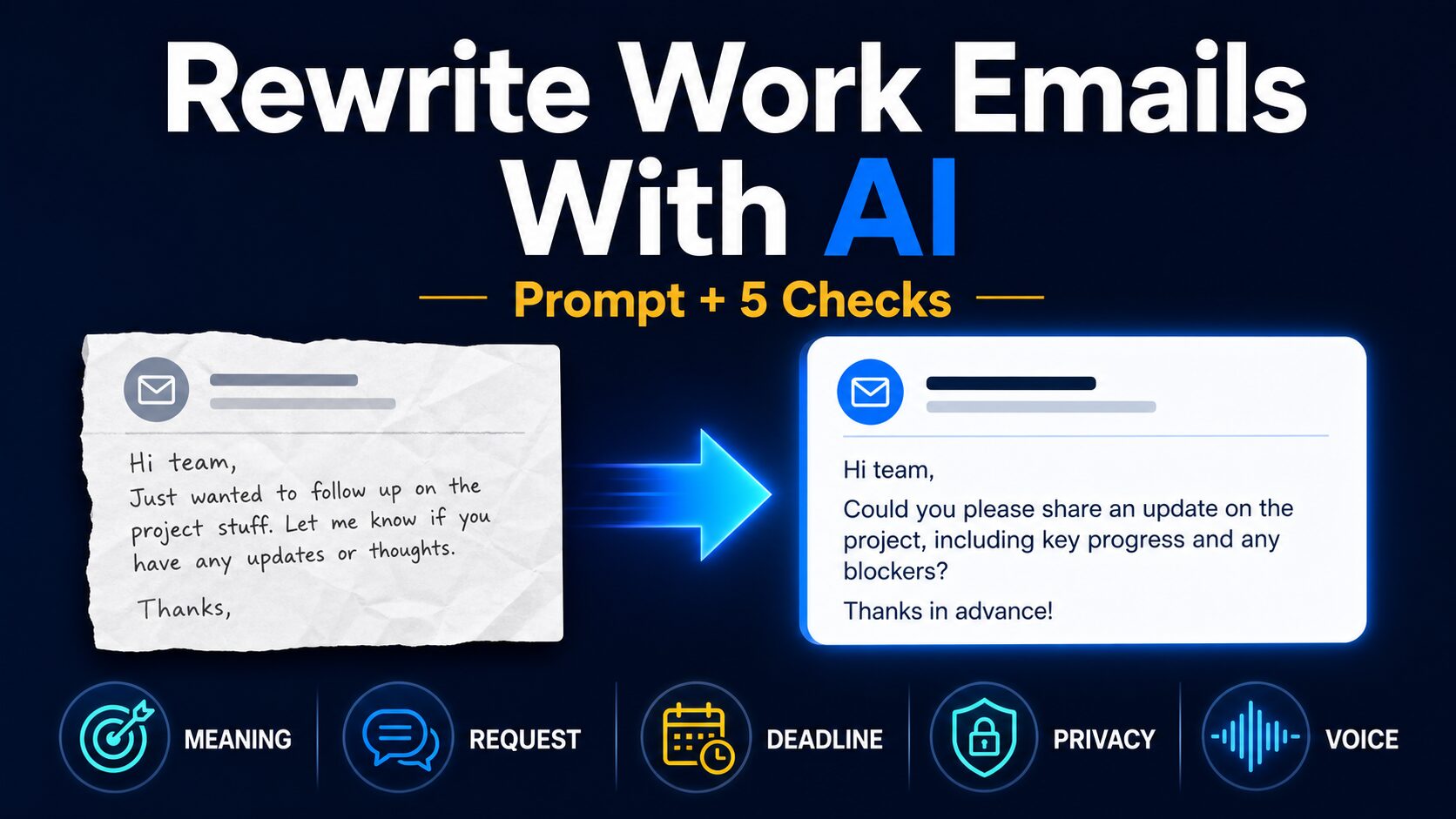
To rewrite a professional email with AI, give the tool your recipient, goal, deadline, and a short list of facts it must not change. Then review the result for meaning, request, deadline, privacy, and your voice before you send it.
The biggest risk is not bad grammar. It is a polished rewrite that quietly softens your request, adds a promise, moves a deadline, or makes you sound unlike yourself. The prompt and five checks below are designed to prevent that.
Quick Answer: Give AI the Draft, Not the Decision
Start with this instruction: “Rewrite this email for clear professional communication. Keep the same meaning, request, deadline, responsibility, and relationship. Do not add facts or promises.” Ask for two versions, choose the one closest to your voice, and run the five checks below.
Write the rough message yourself. Plain English is useful because it usually contains your real intent, even when the grammar is imperfect.
Add the recipient, goal, deadline, relationship, and “must not change” facts before asking for better wording.
The message contains regulated, confidential, legal, medical, student, employee, or client data that your approved workplace system cannot process.
Compare the rewrite with your original. A smoother sentence is not an improvement if it changes ownership, urgency, or the action you need.
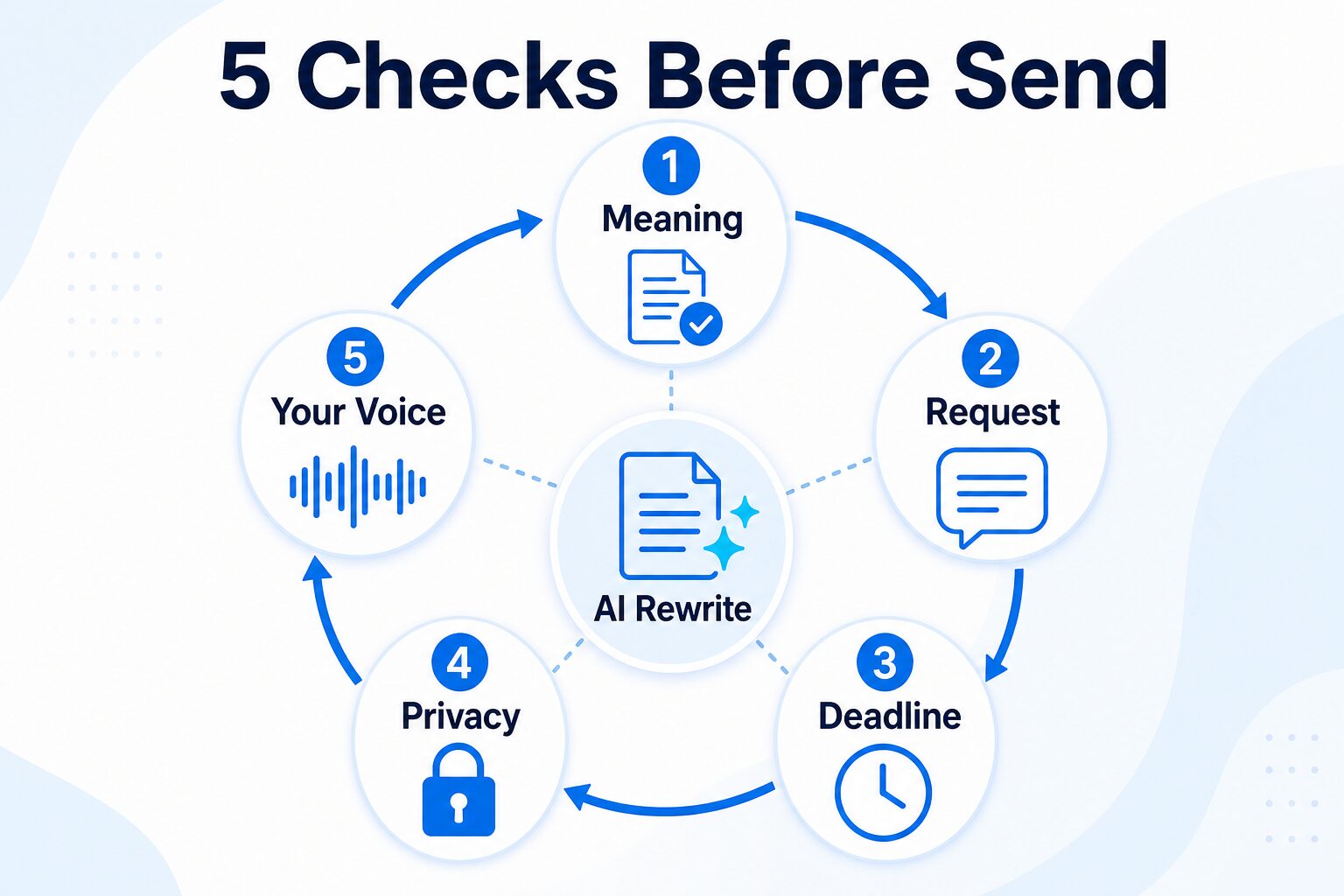
The Five Checks That Catch a Polished but Wrong Rewrite
Read the rewrite once for style, then a second time as an audit. Check each item against your original draft rather than judging the AI version on its own.
- Meaning: Does the message still say what you intended?
- Request: Is the action still clear and assigned to the right person?
- Deadline: Are the date, urgency, and sequence unchanged?
- Privacy: Did you remove names or details the tool did not need?
- Your voice: Would you actually use these words with this person?
- Delete added apologies, excuses, promises, and corporate filler.
Build a 60-Second Meaning-Control Card
“Make this more professional” gives the AI too much freedom. A small control card tells it what it may improve and what it must preserve.
| Control | Example | Failure it prevents |
|---|---|---|
| Recipient + relationship | “Client I know well, but they are busy.” | Stops the email becoming too stiff or too casual. |
| One required action | “Confirm the revised date.” | Prevents a polite rewrite from hiding the request. |
| Locked facts | “Friday 3 p.m.; I own the next draft; budget is unchanged.” | Prevents new dates, promises, or responsibility shifts. |
| Tone boundary | “Warm and direct; no apology; under 120 words.” | Prevents filler, over-polishing, and unnecessary deference. |
What “Professional” Should Mean in Your Prompt
Professional does not automatically mean formal. For most workplace emails, it means the request is easy to find, the details are accurate, the tone fits the relationship, and the reader knows what to do next.
Put the reason and requested action near the top instead of surrounding them with a long polite opening.
Keep the real file, meeting, project, decision, and deadline visible. Specific details make a message sound less generic.
A short update should stay short. A boundary should stay firm. An apology should not become a confession or a long excuse.
You remain responsible for facts, promises, tone, recipients, attachments, and the final send decision.
Before You Paste Anything, Remove Sensitive Details
For work emails, privacy is part of the writing process. Before using any AI chat tool or writing assistant, remove details that do not need to be processed by the tool.
Do not paste: client names, private financial details, medical or legal facts, student records, passwords, confidential documents, internal strategy, unpublished contracts, or anything your workplace policy says should stay inside approved systems.
Use placeholders instead: [client], [project], [deadline], [manager], [invoice amount], and [meeting date].
Official privacy and data-use controls differ by provider and account type. OpenAI, Anthropic, Grammarly, and Wordtune all publish policy or help pages that readers should check before using AI tools for sensitive workplace content. If the email includes client data or regulated information, use the AI tool privacy checklist before choosing a tool.
Copy This Prompt to Rewrite a Professional Email
This prompt separates editing from decision-making. It asks the AI to improve expression, show alternatives, and disclose possible meaning changes instead of silently choosing for you.
Act as an editor, not the sender. Rewrite the email below for clear professional communication.

Keep exactly the same:
- meaning and requested action
- dates, amounts, names, and attachments
- ownership and level of responsibility
- apology, boundary, or urgency when present

Do not invent facts, promises, excuses, greetings, or background. Do not reply as the recipient.

Give me two versions:
1. concise and direct
2. warm but still clear

Then add a short audit:
- Meaning changes: [none, or list them]
- Added commitments: [none, or list them]
- Generic phrases to remove: [list]
- One sentence the sender must verify: [quote it]

Context:
Recipient: [manager / client / teammate / recruiter / professor]
Relationship: [new / familiar / formal / friendly but busy]
Goal: [what I need the person to do]
Deadline: [date or no deadline]
Locked facts: [request / apology / deadline / amount / ownership / boundary]
Tone boundary: [direct / warm / formal / no apology / under 120 words]
Words I would not use: [list]

Draft:
[paste a privacy-safe version of your email]
If you only want one short output, add: “Return only the best version under 120 words.” If the email is sensitive, replace names, amounts, company details, legal/medical/student information, and internal project names with placeholders before using any tool.
A Five-Step Workflow for Real Work Emails
Step 1: Write the decision in one sentence
Before the email, write the outcome you need: “Please approve the revised date by Thursday” or “I cannot take this task until Monday.” This sentence becomes your meaning anchor.
Step 2: Remove data the tool does not need
Replace names, customer identifiers, amounts, internal project names, and confidential facts with placeholders. If the email cannot be made safe without losing its purpose, use an approved workplace tool or edit it manually.
Context:
Recipient: a client I know well
Goal: confirm the revised delivery date
Locked facts: Friday, 3 p.m.; I own the next draft
Tone boundary: warm, direct, under 100 words
Step 3: Generate two controlled options
Two versions are enough to reveal the tradeoff between directness and warmth. More options often create review work without improving the decision.
Step 4: Compare against the meaning anchor
Check the requested action, date, ownership, apology, and boundary line by line. Reject a version that is elegant but less accurate.
Step 5: Make it sound like one person wrote it
Remove stock openings and repeated thanks. Restore one phrase you naturally use. Read the message aloud, verify recipients and attachments, then send from your email app—not from the AI tool.
Before and After: Difficult Messages Where Meaning Matters
These are editorial examples, not product-output tests. Each one shows a risk that grammar-only advice can miss.
Follow-up with a real deadline
Rough draft: Did you see my message? I need the file soon for the report.
Controlled rewrite: Could you send the file by Thursday at 2 p.m.? I need it to complete the report before Friday’s review.
Meaning check: The rewrite turns “soon” into a deadline only because the sender supplied that deadline. AI should never invent it.
Boundary without an accidental promise
Rough draft: I cannot finish this today. I can look tomorrow.
Controlled rewrite: I cannot complete this today. I can review the request tomorrow morning and confirm the delivery timing after that.
Meaning check: “Review tomorrow” is not the same as “deliver tomorrow.” Keep that distinction.
Apology without added liability
Rough draft: Sorry—the attachment was missing. It is attached now.
Controlled rewrite: Sorry about that. The attachment was missing from my previous email, and I have attached it here.
Meaning check: The rewrite acknowledges the mistake without inventing a cause or broader responsibility.
Status update without blame
Rough draft: The task is blocked because another team has not replied.
Controlled rewrite: The task is waiting on input from the other team. I followed up today and will update you when I receive their response.
Meaning check: It reports the dependency and the sender’s action without hiding the blocker or escalating blame.
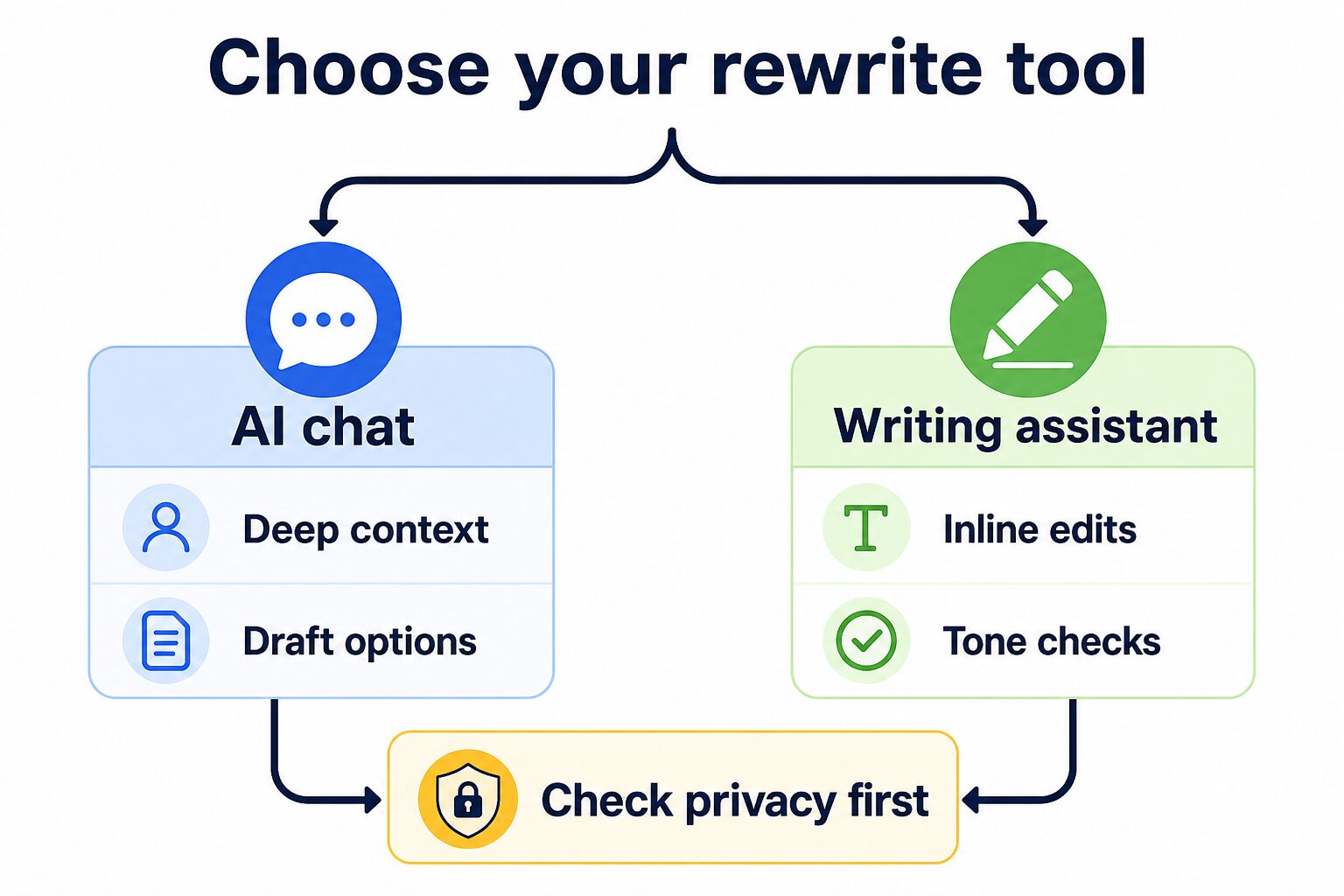
When You Should Use AI Chat vs a Writing Assistant
Tool notes were refreshed from official product, plan, help, and privacy pages on 2026-07-11. This is a workflow comparison based on official information, not a hands-on output ranking.
| Tool path | Best fit | Use it when | Skip or verify first | Evidence label |
|---|---|---|---|---|
| ChatGPT or Claude | Context-heavy rewriting and prompt-based drafting | You want several versions, tone options, or a careful check for meaning changes. | Consumer data controls, temporary-chat behavior, workspace controls, and workplace policy before pasting sensitive content. | Official research only |
| Grammarly | In-line writing, tone, and full-sentence rewrite support | You write inside email, documents, or team apps and want suggestions while drafting. | The official plan page currently lists 100 AI prompts/month on Free and 2,000/member/month on Pro; verify current limits, app coverage, and privacy settings. | Official research only |
| Wordtune | Sentence-level rewording, tone changes, and shorter/longer phrasing | You already know what to say but want alternate wording for one sentence or paragraph. | Current plan limits, app availability, and the privacy policy’s treatment of content and sensitive information before workplace use. | Official research only |
Start with the workflow above. If you rewrite emails often, compare AI email writing tools, broader AI writing tools for work, grammar checkers for non-native English speakers, the Grammarly vs Wordtune comparison, and the AI tool privacy checklist.
When a Free Tool Is Enough
A free plan can be enough for occasional, privacy-safe drafts when you can review every change. The free tier does not remove the need for placeholders, workplace approval, or a human send gate.
Paying may be justified when you repeatedly hit usage limits, need in-line suggestions in your work apps, or need a managed business workspace with administrative and data controls. Do not upgrade because one email sounded awkward. First run the same five-check workflow for a week and identify the actual bottleneck.
Troubleshooting: Fix Common AI Email Problems
| Problem | Prompt fix | Human edit |
|---|---|---|
| The email sounds too formal | “Make this polite but conversational. Avoid legal or corporate-sounding phrases.” | Replace long phrases with words you would actually use. |
| The request is too weak | “Keep the deadline and ask clearly for the next action.” | Put the request in one sentence near the top. |
| The rewrite adds details | “Do not add facts, promises, excuses, or background details.” | Compare the rewrite against your original draft line by line. |
| The email is too long | “Cut this to under 120 words and keep only the essential request.” | Delete repeated thanks, long openings, and unnecessary explanation. |
| It sounds generic | “Make this sound like a specific workplace email, not a template.” | Add one concrete detail: the project, deadline, meeting, file, or next action. |
The 30-Second Send Gate
- Meaning: The message still says what you intended.
- Request: The recipient can find the next action quickly.
- Deadline: Dates, amounts, ownership, and urgency are unchanged.
- Privacy: No unnecessary confidential details remain.
- Your voice: The wording fits the relationship and sounds like you.
- Mechanical check: Names, recipients, links, and attachments are correct.
FAQ
What should I tell AI before rewriting a professional email?
Tell it the recipient, relationship, required action, deadline, locked facts, and tone boundary. Add words you would not use and ask the tool to list any possible meaning changes.
How do I rewrite a business communication message with AI?
Paste a privacy-safe draft, explain the recipient and goal, ask the AI to keep the meaning unchanged, and request a concise, warm, and slightly formal version. Also ask it to list any wording that could change the meaning before you choose a final version.
What prompt should I use to make a message sound professional?
Use: “You are a text editor. Rewrite this message for professional workplace communication. Keep the same meaning, intent, deadline, request, and responsibility. Do not reply to the message, add greetings, change the topic, or add details.” Then paste a privacy-safe draft.
Can I use ChatGPT to rewrite professional emails?
Yes, if your workplace policy allows it and you remove sensitive details first. Use clear instructions about meaning, tone, relationship, and what must not change.
How do I make an AI-written email sound less generic?
Start with a real decision and one concrete detail, request two controlled versions, delete stock openings, and restore one phrase you naturally use. Specificity matters more than adding warmth words.
Should non-native English professionals use AI for email?
AI can be useful for clarity, tone, and structure. The goal is not to erase your voice. The goal is clearer professional English that keeps your meaning intact.
Can I use a free AI tool for client emails?
Use a free tool only for privacy-safe drafts with placeholders, and only if your workplace policy allows it. For client, legal, financial, medical, student, or confidential information, check approved workplace tools and vendor privacy controls first.
Is Grammarly or Wordtune better for rewriting emails?
Use Grammarly when you want broader writing and tone suggestions while drafting. Use Wordtune when you want alternate sentence wording. For a deeper comparison, read Grammarly vs Wordtune.
Final Recommendation
Use AI as an editor, not as the sender. Write the decision first, remove unnecessary private details, generate two controlled options, compare the result with your meaning anchor, and run the five checks before sending. If the task becomes frequent, choose a tool based on where you write and what data controls your workplace requires—not on a single polished demo.
Official Sources Checked
Tool notes were refreshed on 2026-07-11 from official pages: ChatGPT plans, OpenAI business plans, OpenAI data controls, Claude Pro plan help, Grammarly plans, Grammarly Trust Center, Wordtune Rewrite, and Wordtune privacy policy.
This article uses official source links and internal comparison links only.