Canva vs Adobe Express: Which AI Design Tool Should You Try First?
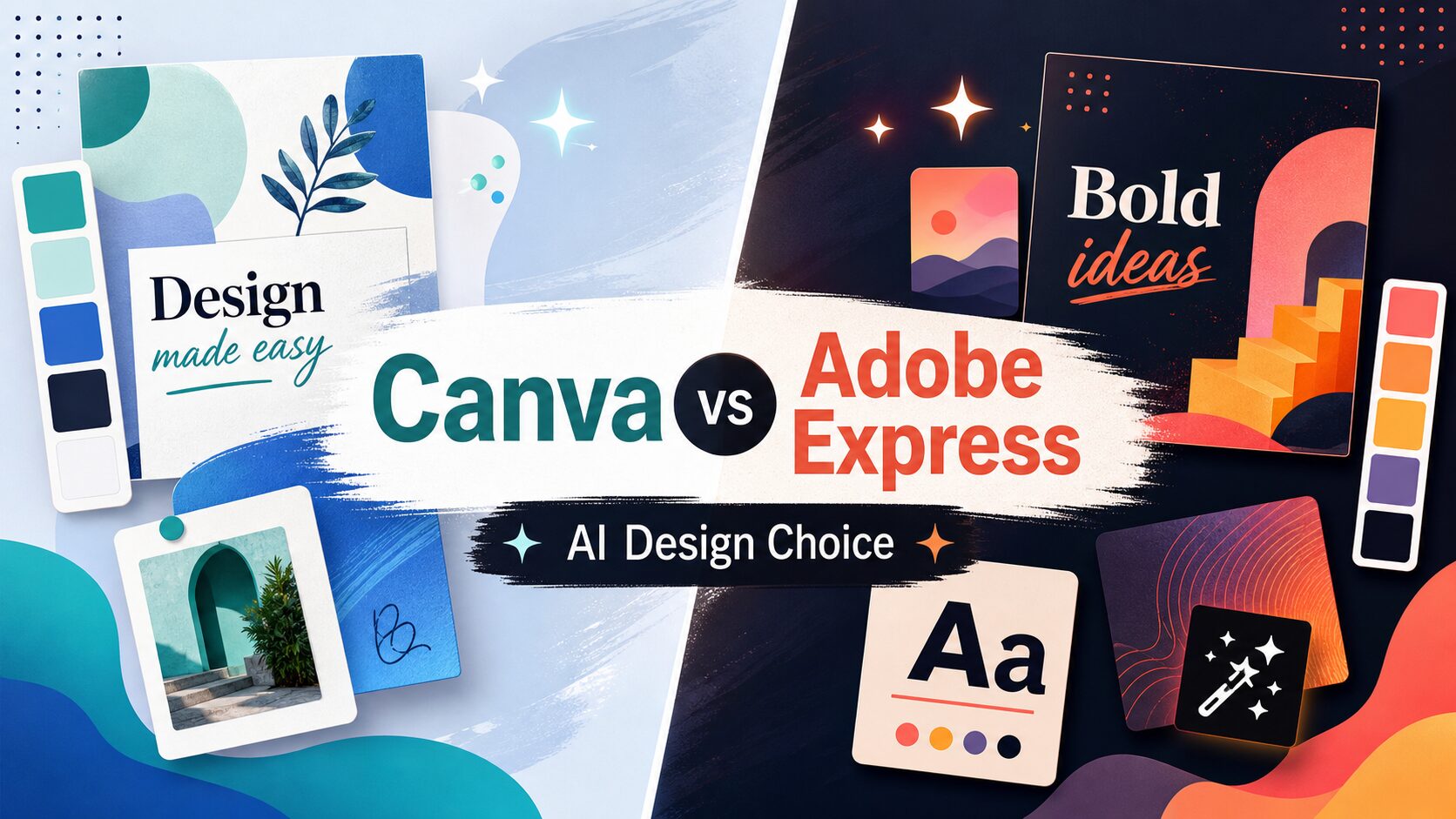
Canva is the better first tool to try if your real job is making repeatable creator assets fast: blog thumbnails, social posts, carousels, simple presentations, and branded templates. Adobe Express is the better first tool to try if your work already depends on Adobe files, Firefly, Photoshop, Creative Cloud assets, Acrobat-style document workflows, or a design team that lives in Adobe’s ecosystem.
Quick verdict: try Canva for template speed, Adobe Express for Adobe fit
- Try Canva first if you need the fastest path from idea to publishable visual and you do not want to think like a designer.
- Try Adobe Express first if the design work must connect with Adobe apps, Firefly, Photoshop files, Adobe Fonts, Creative Cloud libraries, or Acrobat-driven content workflows.
- Do not pay for either yet if you only need one occasional graphic, if your bottleneck is content strategy, if you cannot name the weekly asset you will repeat, or if your files are too sensitive for the available plan controls.
Evidence status: this comparison is based on official Canva and Adobe sources checked again on July 8, 2026, plus editorial workflow analysis. AI Work Toolkit did not run a fresh hands-on benchmark of output quality, speed, or brand consistency for this article, so the recommendation is based on workflow fit and official-source claims.
The simplest decision rule
Start with the work you repeat every week. If the job is “make five clean visuals from one content idea,” Canva is usually the safer first trial. If the job is “turn Adobe-connected assets into a quick campaign without opening a full pro app every time,” Adobe Express deserves the first trial. If the job is “make one graphic this month,” neither paid plan has earned the upgrade yet.
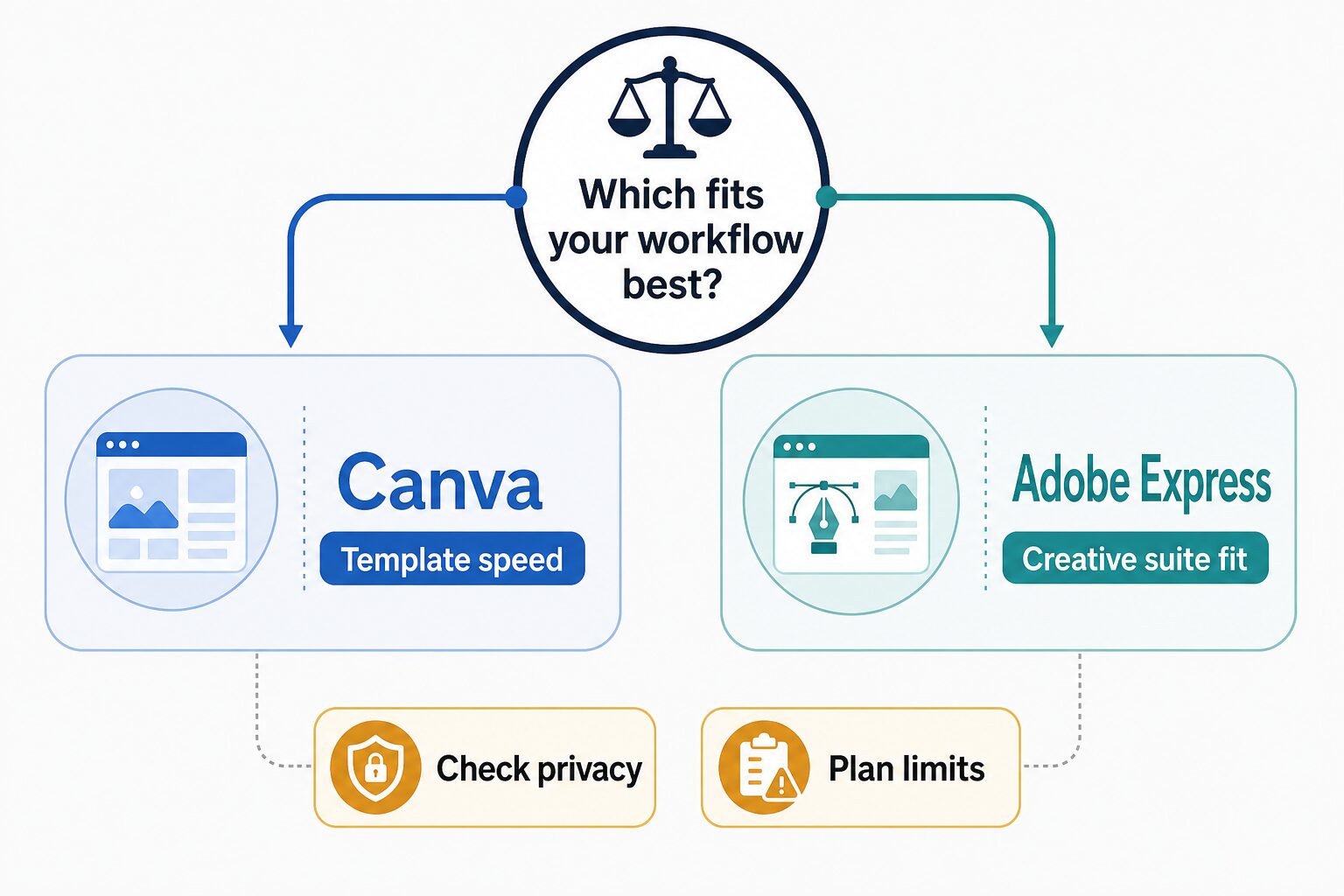
| Decision point | Canva fits better when… | Adobe Express fits better when… |
|---|---|---|
| Primary job | You need quick blog visuals, social posts, simple presentations, thumbnails, and reusable template systems. | You need lightweight design plus Adobe file, Firefly, Photoshop, Adobe Fonts, or Creative Cloud alignment. |
| AI use | You want AI help inside a broader template, brand kit, resize, and publishing workflow. | You want Adobe’s Firefly-connected AI tools, generated assets, Acrobat-style document workflows, and Adobe-style creative workflow. |
| Brand work | You want non-designer-friendly brand kits, templates, resizing, and fast repeat production. | You want brand assets to stay close to Adobe creative workflows, fonts, files, and team libraries. |
| Learning curve | You want the least friction for a solo creator, blogger, or small business operator. | You already understand Adobe logic or want a bridge into an Adobe-heavy workflow. |
| Before paying | Check current Canva pricing, AI usage limits, export needs, Brand Kit access, and privacy controls. | Check current Adobe Express pricing, monthly generative credits, Firefly needs, storage, included apps, and whether a bundle is more than you need. |
Canva: best for template speed and repeatable creator assets
Canva’s advantage is not just that it has AI features. Its advantage is that AI sits inside a tool many creators already use for templates, brand kits, resizing, presentations, social assets, and lightweight visual publishing. Canva’s official AI pages frame the product around idea-to-design creation, editable layouts, generated elements, brand-aware design, and faster content production.
That makes Canva a practical fit for a creator who needs a visual production system rather than a traditional design suite. If you publish blog posts, newsletters, and social content, Canva can become the packaging layer after the idea, source material, and message are already clear. For a narrower Canva-only look, see the Canva AI review for blog and social content.
Canva fit checklist
- Use Canva when: you create many small visuals and want templates, brand consistency, AI-assisted drafts, and format resizing in one place.
- Be careful when: you expect AI to solve strategy, research, writing quality, rights clearance, or brand judgment without your review.
- Check before paying: current pricing, plan limits, AI usage limits, export needs, Brand Kit access, and privacy settings on Canva’s official pages.
Adobe Express: best for Adobe ecosystem fit and Firefly workflows
Adobe Express is strongest when the tool choice is not only “which template app is easier?” but “which design workflow fits the rest of my creative stack?” Adobe’s official Express pages position it as a quick design, photo, video, and PDF app with AI design tools, brand kits, resize, content scheduling, and integration with Photoshop, Firefly, and Creative Cloud.
That matters if your files already live in Adobe’s world. Adobe Express can make sense for a small business, marketing operator, or creator who wants a simpler front door into Adobe assets without opening a full professional app for every thumbnail, flyer, short video, or social post.
Adobe Express fit checklist
- Use Adobe Express when: you already use Adobe tools, need Firefly-connected AI features, or want Express to sit near Photoshop, Adobe Fonts, and Creative Cloud assets.
- Be careful when: you only need the fastest possible template library and do not care about Adobe files, Adobe apps, or ecosystem fit.
- Check before paying: current regional pricing, monthly generative credits, storage, Firefly needs, included apps, Acrobat/Creative Cloud bundle fit, and team features on Adobe’s official pages.
Pricing and free-plan checks
Both tools can be tried before a paid commitment, but do not make the decision from price alone. The real question is whether the paid plan removes a repeated bottleneck: faster resizing, stronger templates, brand controls, more AI usage, better exports, team sharing, or closer fit with the tools you already use.
| Tool | Free-plan decision | Paid-plan trigger | Official page to verify |
|---|---|---|---|
| Canva | Use Free first if you only need occasional blog and social visuals or want to test the workflow. | Consider paying when premium templates, Brand Kit, exports, collaboration, or AI usage limits become a repeated constraint. | Canva pricing and AI Product Terms |
| Adobe Express | Use Free first if you want basic content creation and a limited taste of generative AI features. | Consider an upgrade only when monthly generative credits, premium assets, Adobe Fonts, resize, storage, Firefly, Photoshop, Acrobat, or Adobe libraries matter. | Adobe Express pricing |
Adobe’s Express pricing page currently shows free and paid upgrade paths, with Adobe Express Premium listing monthly generative credits and higher bundles offering more Adobe app coverage. Canva’s pricing should also be checked directly before purchase. Exact prices are not quoted here because plan names, regional pricing, AI credits, storage, team features, and promotional checkout details can change.
When both tools can fit
There are cases where the answer is not either-or. A creator may use Canva for the weekly publishing rhythm and Adobe Express for occasional Adobe-connected work. That split is reasonable only when each tool has a clear job. For example, Canva can handle recurring blog thumbnails, LinkedIn carousels, newsletter headers, and quick presentation graphics. Adobe Express can handle projects where Firefly, Photoshop, PDF assets, Adobe Fonts, or Creative Cloud libraries are already part of the workflow.
The mistake is paying for two overlapping tools because both added AI features. If you cannot name the distinct weekly task for each subscription, choose one tool and build the habit first. A lean creator stack is usually stronger than a crowded one: one writing workflow, one visual workflow, one publishing workflow, and one analytics review rhythm. For video-heavy creators, the better next comparison may be Descript vs CapCut AI or the broader AI video editing tools guide.
Privacy and AI caution
AI design tools are easy to underestimate because the output looks visual and low-risk. The input can still be sensitive. Prompts, uploaded screenshots, client brand files, unpublished product concepts, HR materials, student records, legal notes, medical details, financial information, and private customer examples should not be treated as harmless design material.
Before uploading real work, check these four things
- Content sensitivity: would a client, employer, school, or customer object if this material were processed by a third-party AI design tool?
- Plan controls: does your plan include the privacy, admin, and sharing controls your work requires?
- AI review: have you reviewed generated text, layout, images, and claims before publishing?
- Rights and brand use: are you avoiding copyrighted marks, private assets, and brand elements you do not have permission to use?
Canva’s AI terms and privacy materials describe usage controls, AI-related inputs, uploaded content, activity data, and privacy settings that should be reviewed before client work goes into the tool. Adobe’s generative AI guidelines say prompts, inputs, and generated results may be reviewed for abuse prevention and content filtering, and they warn users to validate outputs and avoid sensitive personal information unless a product is designed for that use.
A practical 30-day trial plan
If you are deciding between Canva and Adobe Express, do not compare every feature. Build the same small, non-sensitive content set in both tools:
- One blog thumbnail: test title readability, brand fit, export quality, and how long revision takes.
- One social carousel: test template editing, resizing, and whether the design still looks good after copy changes.
- One simple promo video or animated post: test whether the workflow is practical for your channel.
- One brand-kit task: test fonts, colors, reusable elements, and whether you can keep visuals consistent.
- One non-sensitive AI prompt: test whether AI output helps your workflow without uploading private or client material.
Upgrade only if one of these is true
- You repeat the same asset every week: thumbnails, social carousels, short promos, lead magnets, or client campaign graphics.
- The free plan blocks a real workflow: brand controls, resize, exports, premium templates, storage, credits, or collaboration.
- The ecosystem saves rework: Canva for template habit and brand kits, or Adobe Express for Firefly, Adobe Fonts, Photoshop, Acrobat, and Creative Cloud handoff.
Then choose the tool that makes the repeated workflow easier. For broader creator-tool planning, compare this decision with the AI tools for bloggers guide and the AI content repurposing workflow.
Final recommendation
If you are a solo creator, blogger, small business owner, or non-designer who mainly needs polished recurring visuals, start with Canva. Its template-centered workflow is usually the fastest path from content idea to publishable graphic.
If you already use Adobe tools or you specifically care about Firefly, Photoshop, Creative Cloud assets, Adobe Fonts, and Adobe-style creative workflows, start with Adobe Express. It is the stronger choice when ecosystem fit matters more than template habit.
If neither tool removes a repeated bottleneck after a month, do not pay yet. Improve the content workflow first: planning, editing, repurposing, and publishing discipline often matter more than another design subscription. The best AI content repurposing tools guide is a better next step if the real problem is turning one piece of content into many formats.
Official sources checked
Official Canva and Adobe pages were checked again on July 8, 2026. Pricing, AI credits, usage limits, privacy controls, storage, and plan names can change, so verify the official pages before paying.