
OpusClip vs Descript for Short Clips
Compare OpusClip vs Descript for Short Clips with pricing checks, privacy cautions, and clear guidance on who should use or skip each tool.
Choose OpusClip first when you already have a usable long video and your bottleneck is turning it into several short candidates. Choose Descript first when the source itself still needs transcript-led editing, recording, or a more complete video-production workspace. The practical choice is not a universal winner; it is the tool that solves the next weak link in your source-to-short workflow.
Quick verdict
Pick OpusClip if you routinely start with finished interviews, webinars, podcasts, or videos and need a focused route to short-form candidates. Pick Descript if you need to revise the source through a transcript, record or organize a project, then create clips as part of a broader editing process.
Skip both for now if you do not yet have permission to repurpose the recording, a clear publishing goal, or a review step for captions, crops, context, and claims. Automation can create a candidate; it cannot approve a post for you.
Evidence boundary: This comparison is based on official product, pricing, and privacy documentation checked July 12, 2026. It is not a hands-on test of clip quality, speed, accuracy, support, or publishing results.
How to choose between OpusClip and Descript
These tools overlap at short clips, but they begin from different assumptions. OpusClip is positioned around converting longer source material into short-form video. Descript is positioned around transcript-based editing and a wider recording-and-editing workflow, with clip creation as one capability inside that workspace. That difference matters more than a long feature checklist.
Start with the material you actually have. A polished webinar that only needs several social cuts has a different problem from an interview with weak sections, filler, a missing intro, unclear wording, or edits that must happen before anyone sees a clip. If you mix up those problems, you can end up paying for more automation than you need—or spending time in a full editor when batch repurposing was the real job.
| Decision point | OpusClip | Descript | What to check first |
|---|---|---|---|
| Best starting workflow | Focused long-to-short repurposing when the source is ready enough to mine for candidate moments. | Transcript-led editing and broader production work when the source still needs shaping before clipping. | Write down whether your next task is “improve the source” or “create several short candidates.” |
| Free / paid checkpoint | The official pricing page lists a free trial and paid Starter and Pro options; verify current credits, billing cycle, and plan terms before checkout. | The official pricing page lists a Free plan with 60 media minutes per month and paid plans with media-hour and AI-credit limits. | Run the same small source clip through the option you are considering before comparing a paid tier. |
| Editorial control | A better fit when automation should propose several short-form starting points from a finished recording. | A better fit when you want the transcript to be part of the edit and need more room to revise the source. | Decide who will review wording, cuts, captions, crops, and any factual statement before publishing. |
| Privacy and rights | Official documentation says individual-user data may be used to improve AI models; review the current terms before uploading sensitive media. | Official documentation describes data-sharing settings and its AI-training posture; review them for your account and organization. | Do not upload client, workplace, student, medical, legal, or financial material until permissions and policy requirements are clear. |
Choose OpusClip when repurposing is the bottleneck
OpusClip is the more natural starting point when the long video is already coherent and the work is finding short-form candidates for channels such as YouTube Shorts, TikTok, or Reels. Its official pricing page describes AI clipping, animated captions, an editor, and social-posting features in its paid plans. That makes it a sensible tool to evaluate when your team is sitting on usable recordings but lacks a repeatable way to turn them into several first-pass clips.
Best for: a podcast host, webinar marketer, course creator, or small business with a backlog of approved long-form recordings and a regular short-form publishing rhythm.
Skip it if: you still need to make substantial editorial changes to the source, are not ready to review every proposed clip, or need a single workspace for recording, transcript editing, and project-level production.
The current official pricing page lists Starter at $15 billed monthly and Pro at $29 monthly. Treat those as a live checkpoint, not a permanent price promise: compare credits, billing terms, social-account limits, and the exact feature you need on the plan page before paying. A plan that produces more candidates is not automatically a better plan if you have no editorial process for reviewing them.
Choose Descript when editing the source comes first
Descript is the better starting point when the source video needs work before it becomes a short clip. Its official materials position the product around text-based editing, recording, and a wider set of video and audio capabilities, while its pricing page includes clip-creation tools alongside its media-hour and AI-credit limits. This can be a more coherent path when a creator wants to shape the spoken content, remove or revise a section, and make short clips from the resulting project.
Best for: podcasters, interview-based creators, teams that edit from transcripts, and small businesses that need to improve the source before deciding which moment deserves a short-form cut.
Skip it if: you already have finished, approved videos and primarily need a dedicated batch-repurposing workflow. In that case, a broader workspace can be more software than the immediate job requires.
As checked July 12, 2026, Descript’s Free plan lists 60 media minutes per month. Its official page lists Hobbyist at $16 per editor/month on annual billing or $24 monthly, with 10 media hours per month. Verify current media-hour, AI-credit, export, storage, and renewal details before checkout, especially if several people will work in the same project.
Run a 20-minute source-to-short trial before upgrading
Do not compare the tools on a vague promise to “make better clips.” Use one short, low-risk recording that you are allowed to repurpose. The goal is not to score either product; it is to find out where your own workflow slows down. This trial also keeps a creator from treating a generated caption, crop, or suggested moment as final editorial approval.
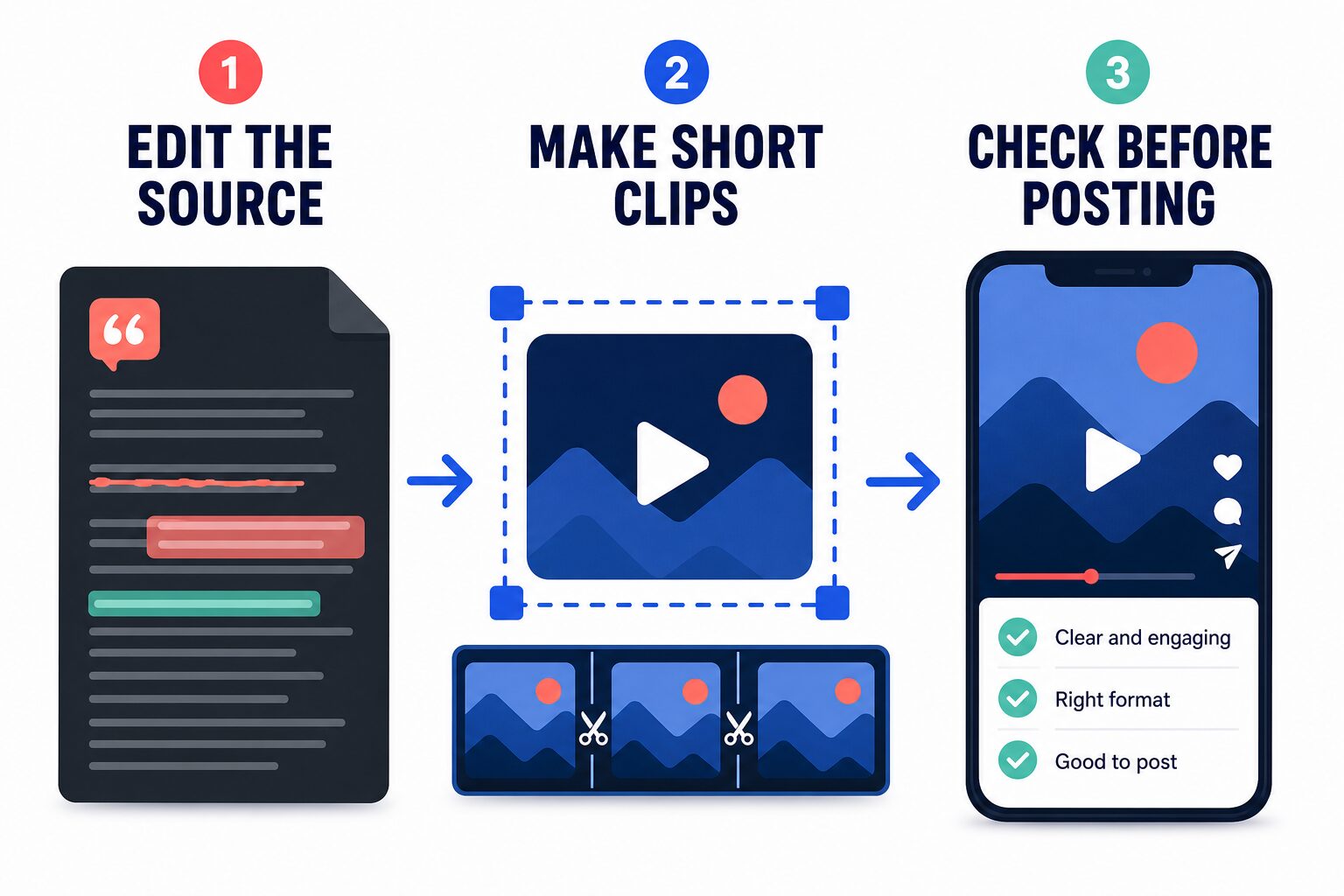
- Choose a safe source. Use a three-to-five-minute recording with clear ownership and no private client or workplace details. Write the intended audience and one publishing channel before importing it.
- Edit the source first if needed. If the useful point is buried, the wording needs correction, or the opening lacks context, prioritize source editing. That is the strongest reason to begin with a transcript-led workspace.
- Create short candidates. Make two or three candidate cuts, not a promise to publish everything the software suggests. Note whether the moment still makes sense outside the long-form conversation.
- Check the final format. Review the vertical crop, caption timing, names, on-screen text, music rights, links, and any claim that could be misunderstood without the original context.
- Decide only after the review. Upgrade only if the workflow reduced a real recurring task without removing the review step you need to protect your brand, client relationship, or audience.
Use the trial result to make a workflow decision
Start with OpusClip if your source is already publishable
Choose OpusClip first when the recording is already approved, the main message is clear, and the recurring problem is extracting several possible clips. The important word is possible: a suggested cut is not proof that the hook, caption, crop, or claim belongs on a public account. Use it to reduce the blank-page step, then keep a human review for context and permissions.
Start with Descript if the source needs a content edit
Choose Descript first when the valuable part of the recording needs to be found, tightened, or rewritten through the transcript before it becomes a short clip. This is especially relevant for interviews, explainers, and client-facing recordings where a sentence can lose meaning when it is removed from its original context. A broader editing workflow is worth considering only if that source-level work is genuinely recurring.
Use both only when the handoff is clear
Some teams may eventually use a source editor plus a focused repurposing tool. That is not automatically more professional. It is useful only when the handoff is specific: one person or step approves the source, another creates candidates, and someone checks each short before it posts. If that handoff is vague, start with one workflow and document the review checklist first.
For a broader product short list, see our AI video editing tools for creators. If you are deciding between a transcript-led workflow and a fast social-first editor, compare Descript vs CapCut for short videos. For the bigger content-reuse process, use this guide to AI tools for content repurposing.
Privacy, permissions, and brand checks
Video tools process more than a file. A source can include client names, a speaker’s likeness and voice, unreleased product details, account credentials shown on screen, sensitive conversations, and rights that belong to someone else. That is why the safe question is not simply “Does this tool have AI?” It is “May this material be uploaded, processed, clipped, and published under our current agreement and policy?”
Use a safer upload rule
Upload only material you have the right to process. Before publishing, check names, captions, visual context, music or stock permissions, private screens, and whether the clip turns a nuanced statement into a misleading one. For business, academic, healthcare, legal, or financial content, involve the responsible reviewer before using an AI-video workflow.
OpusClip’s official documentation says individual-user data may be used to improve its AI models, while its enterprise terms differ. Descript’s help documentation explains its data-sharing settings and AI-training posture. Those pages do not decide your organization’s policy for you, so read the current terms and configure the account before importing sensitive material.
Final recommendation
Start with OpusClip if the source is finished and your recurring job is making a small batch of short-form candidates. Start with Descript if the source still needs transcript-led editing and the short clip is one part of a broader production process. In either case, use a low-risk 20-minute trial, compare the live plan limits, and keep a real human review between automated suggestions and publication.
Frequently asked questions
Is OpusClip or Descript better for YouTube Shorts?
OpusClip is the more direct starting point when you have finished long videos and need short-form candidates. Descript is a better fit when the source needs transcript-led editing before any cut is ready. The right choice depends on the next task in your workflow, not a blanket “better” claim.
Can I use the free plans before paying?
Both products publish free or trial options, but limits and eligibility can change. Descript’s pricing page currently lists 60 media minutes per month on its Free plan. Check the live OpusClip and Descript pages for current credits, billing, export, and plan details before you rely on them.
Do these tools make clips safe to post automatically?
No. You still need to review the message, crop, captions, names, rights, private information, and context. A generated candidate can be a useful starting point, but it is not an editorial or legal approval.