How To Build a Weekly Review System With AI
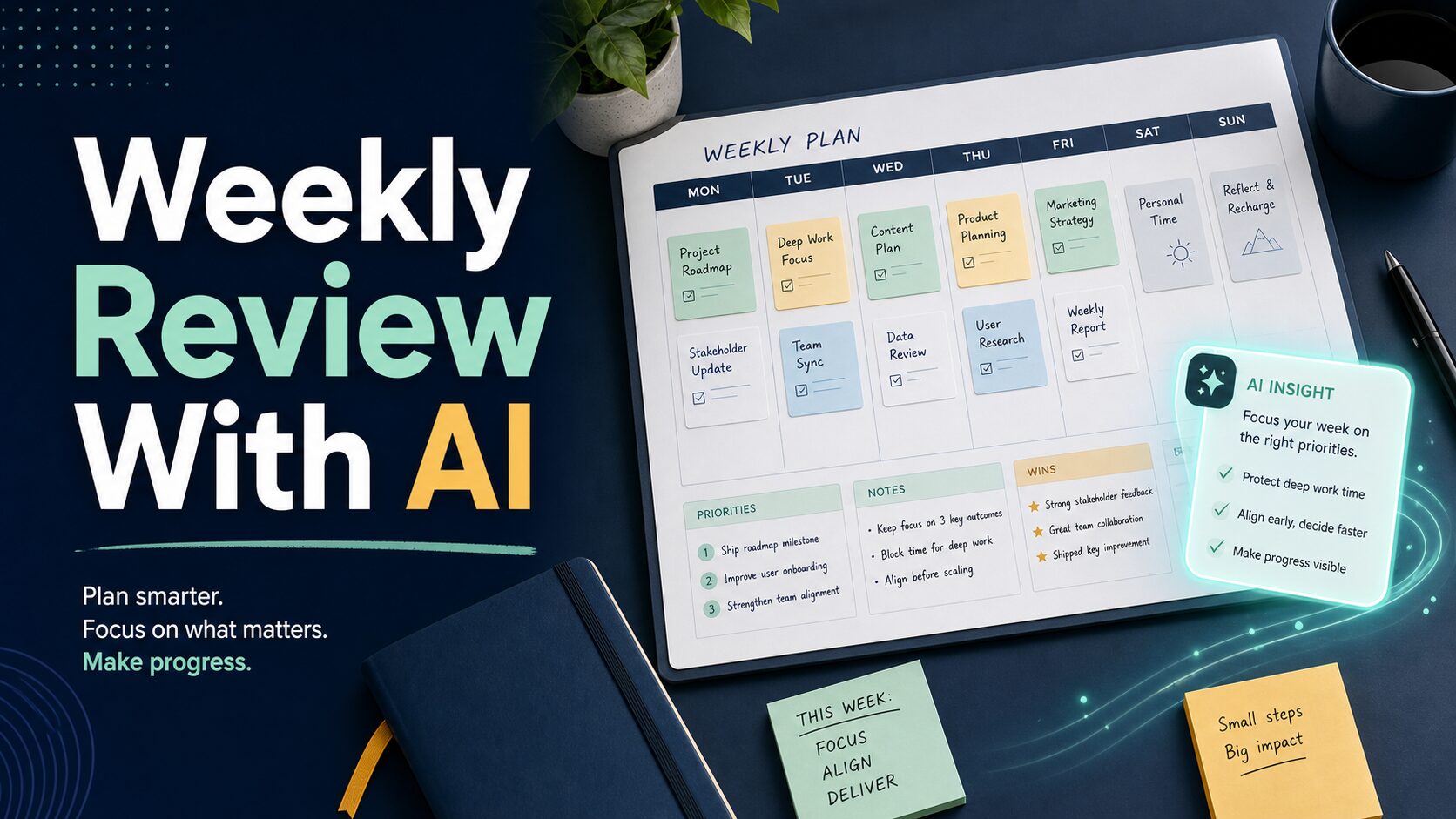
A good AI weekly review does not ask AI to run your life. It uses AI to collect the loose pieces of the week, find patterns you might miss, and turn scattered notes into a short decision list. You still choose the priorities, protect the calendar, and decide what is safe to share.
For most solo operators and remote workers, the best setup is simple: one AI assistant for reflection, one task source, one calendar, and one privacy rule. Do not buy a new productivity platform until this loop works with the tools you already use.
Quick Verdict
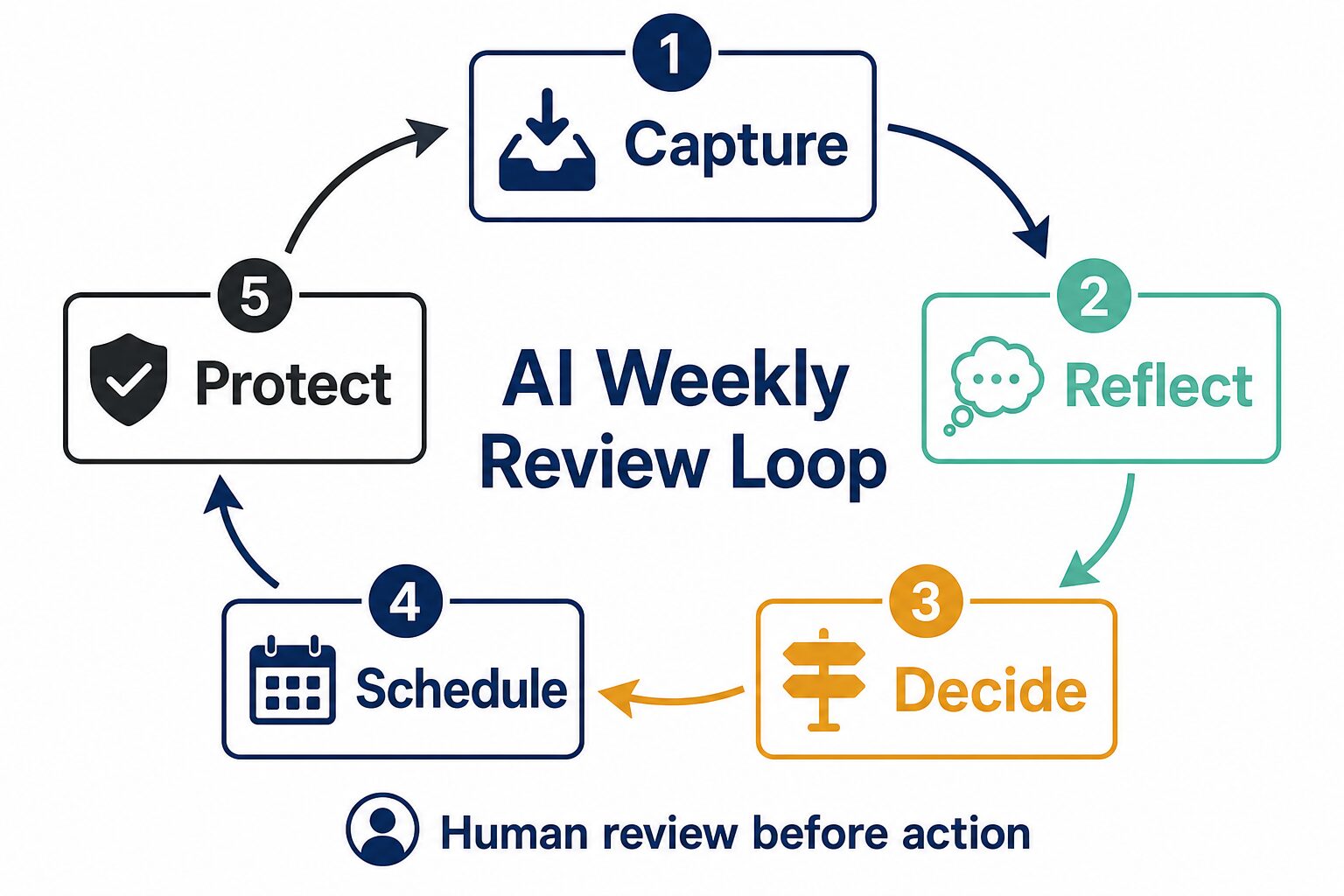
Use a five-step loop: capture everything from the week, reflect with AI, decide your real priorities, schedule the next week, and protect focus time and sensitive data.
Use ChatGPT or Claude for a weekly brain dump and priority questions. Use Todoist if tasks are your source of truth. Use Notion AI if your work lives in notes, docs, and project pages. Use Google Calendar to turn the review into real time blocks, task dates, and focus time.
What AI Should Do In A Weekly Review
AI is useful in a weekly review because memory is selective. By Friday afternoon, you may remember one urgent problem and forget a quiet pattern: the client follow-up that slipped twice, the repeated meeting that blocks deep work, or the task category that keeps expanding.
The useful role for AI is preparation. It can summarize a messy brain dump, group tasks by project, turn meeting notes into follow-ups, and ask better review questions. The risky role is delegation of judgment. AI should not decide what matters most, promise deadlines for you, or process confidential work data without your organization’s approval.
If you are choosing the broader tool stack first, start with our guide to AI productivity tools for solo operators and small teams. If your main issue is the task app itself, compare the current options in our AI task management tools guide.
The Minimal AI Weekly Review Stack
This article is based on official product, pricing, help, and privacy pages checked on June 11, 2026. It is not a lab ranking of AI output quality. Treat the table as a practical role map, then verify the official pages before paying or connecting work data.
| Tool layer | Use it for | Official access or pricing note | Privacy check | Skip if… |
|---|---|---|---|---|
| ChatGPT | Brain dumps, weekly summaries, priority questions, draft plans, and reflection prompts. | The official ChatGPT pricing page lists a free option and paid individual/business plans. Verify live regional pricing. | Review OpenAI enterprise privacy before using workplace data. | You need a structured task database or calendar scheduling more than a general assistant. |
| Claude | Longer reflective reviews, careful tradeoff analysis, and writing a concise weekly summary. | The official Claude plan guide lists Free, Pro, Max, Team, and Enterprise paths. | Check Claude data-use settings for your account type. | Your weekly data is too sensitive to paste into a consumer assistant. |
| Todoist | Task capture, recurring review checklist, project lists, and next-action cleanup. | The official Todoist pricing page says users can start for free and upgrade for more features. | Review what tasks, email content, comments, or files you put into the task system. | Your task decisions depend heavily on docs, notes, and project knowledge in another workspace. |
| Notion AI | Reviews where tasks, meeting notes, documents, and project pages live together. | The official Notion pricing page lists plan and AI credit details that should be checked live. | Read Notion AI security practices before relying on workspace AI. | You only need a simple list and do not want to maintain a workspace. |
| Google Calendar | Dates, time blocks, focus time, task visibility, and next-week commitments. | Google Help documents how to create and manage tasks in Calendar and use focus time. | If you use Workspace AI features, review Google Workspace AI privacy and your organization’s settings. | You cannot trust the calendar as the final commitment layer. |
Step 1: Capture The Week In One Place
Start by collecting the raw material. Do this before asking AI for advice. A weekly review fails when it begins with vibes instead of evidence.
Use a short checklist:
- Open your task list and copy unfinished tasks into a review note.
- Scan your calendar for meetings, deadlines, focus blocks, and repeated interruptions.
- Pull action items from meeting notes or transcripts. If this is your bottleneck, use the workflow in turning meeting transcripts into action items with AI.
- Add a quick brain dump: what felt urgent, what was avoided, what moved, what stalled.
- Remove or anonymize sensitive details before pasting anything into an AI assistant.
If you use Todoist, this step can be as simple as reviewing overdue tasks, recurring tasks, and project lists. If you use Notion, create one weekly review page that pulls together project notes, decisions, blockers, and next actions.
Step 2: Ask AI To Reflect, Not Decide
Once you have the raw material, ask AI to organize it. The prompt should ask for patterns and questions, not final orders.
Weekly Review Prompt
Paste a cleaned and non-sensitive summary of my week below. Organize it into: completed work, unfinished commitments, delayed decisions, recurring blockers, meetings that created follow-up work, and possible priorities for next week. Do not decide my priorities yet. Ask me five questions that would help me choose the right next actions.
ChatGPT and Claude both fit this stage. Use whichever assistant you already trust and understand. If your review contains business, client, student, financial, legal, HR, medical, or unpublished strategy information, stop and use a sanitized version instead.
Step 3: Choose Three Priority Outcomes Yourself
The best output of a weekly review is not a giant task list. It is a short commitment list for the next week.
After AI summarizes the week, choose three priority outcomes manually. Good outcomes are specific enough to schedule:
- Ship the revised proposal to Client A by Wednesday.
- Finish the first draft of the comparison page before Friday.
- Clear five overdue follow-ups and close the stale task list.
Weak outcomes sound productive but do not guide action:
- Work on marketing.
- Improve the system.
- Be more consistent.
Ask AI to challenge the priorities after you choose them. A useful prompt is: “Here are my three priorities for next week. What conflicts, hidden dependencies, or calendar risks should I check before committing?”
Step 4: Turn The Review Into Calendar Blocks
A weekly review is not done until the next week has time reserved. This is where Google Calendar becomes the commitment layer.
For each priority, add one of these to your calendar:
- A focus block for deep work.
- A deadline or task date for a concrete deliverable.
- A preparation block before an important meeting.
- A small follow-up block for email, client messages, or admin cleanup.
Google Help documents task creation inside Calendar and focus time behavior. Focus time can be useful, but availability and options such as muting Chat notifications or automatically declining meetings may depend on account type. Check your own account before assuming the feature will behave the same way at work.
Step 5: Protect Privacy And Review Quality
The more useful a weekly review becomes, the more sensitive the input can become. A real review may include client names, revenue notes, health appointments, employee issues, student records, contracts, or private strategy. That is exactly the kind of data you should filter before using AI.
Before You Paste Weekly Data Into AI
- Replace real names, client names, account numbers, and private figures with placeholders.
- Check whether your workplace allows the AI tool and plan for work data.
- Review model-training, retention, and admin-control settings for the specific account type.
- Keep final commitments human-reviewed before they become customer, colleague, student, or public promises.
- Use the AI tool privacy checklist for professionals before connecting work accounts.
A Simple 30-Minute Weekly Review Agenda
Use this agenda on Friday afternoon or Monday morning:
- 5 minutes: collect inputs. Tasks, calendar, meeting notes, inbox notes, and a short brain dump.
- 7 minutes: ask AI to organize the week. Request categories, unfinished commitments, blockers, and questions.
- 8 minutes: choose priorities. Pick three outcomes and remove or defer the rest.
- 7 minutes: schedule the work. Add focus blocks, prep blocks, task dates, and follow-up windows.
- 3 minutes: write the one-line rule for next week. Example: “Protect mornings for the proposal before accepting new calls.”
If you work mostly in general AI assistants, compare the current role differences in ChatGPT vs Claude vs Gemini for work. For this weekly review use case, the main difference is not abstract model quality. It is whether the tool fits your privacy rules, input length, and review habit.
Troubleshooting: Why AI Weekly Reviews Fail
The AI gives you a huge plan
Ask for three outcomes, not twenty tasks. A review should reduce choices.
The review feels vague
Add better input. AI cannot find useful patterns if you only paste “busy week, many meetings.” Include tasks, calendar constraints, blocked work, and decisions you avoided.
You keep skipping the review
Make the review smaller. Start with a 15-minute version: capture, summarize, choose one priority, schedule one block.
The tool stack keeps expanding
Pause new tools. Run the same review in your existing assistant, task app, and calendar for two weeks before changing platforms.
Official Sources Checked
Official product, pricing, help, and privacy pages were checked on June 11, 2026. The article uses official source review and workflow fit, not measured product testing.
FAQ
What is an AI weekly review?
An AI weekly review is a weekly planning routine where AI helps organize tasks, notes, calendar events, blockers, and reflections. The human still chooses priorities and decides what gets scheduled.
Which AI tool is best for a weekly review?
Use ChatGPT or Claude if you want a general assistant for reflection. Use Notion AI if your tasks and notes live in Notion. Use Todoist for task capture and Google Calendar for scheduled commitments.
Can AI plan my whole week automatically?
It can draft a plan, but you should not accept it blindly. Check real deadlines, energy, meetings, client commitments, and sensitive data before using the plan.
How long should a weekly review take?
Start with 30 minutes. If that is too much, run a 15-minute version: collect tasks, ask AI for a summary, pick one priority, and schedule one protected block.
Is it safe to paste my work week into AI?
Only if your data is safe for that tool and account type. Remove sensitive information, use placeholders, and check your organization’s rules before pasting client, employee, student, legal, financial, or confidential business data.
Final Recommendation
Do not start by buying a new productivity app. Run one AI weekly review with the tools you already use: a cleaned brain dump in ChatGPT or Claude, tasks in Todoist or your current task app, context in Notion if you already use it, and final commitments in Google Calendar.
After two weeks, upgrade the tool only if you can name the exact friction it solves. If task capture is the problem, compare AI task management tools. If privacy is the blocker, review the AI privacy checklist before connecting more work data.