6 Best AI Meeting Assistants for Remote and Hybrid Teams
AI meeting notes
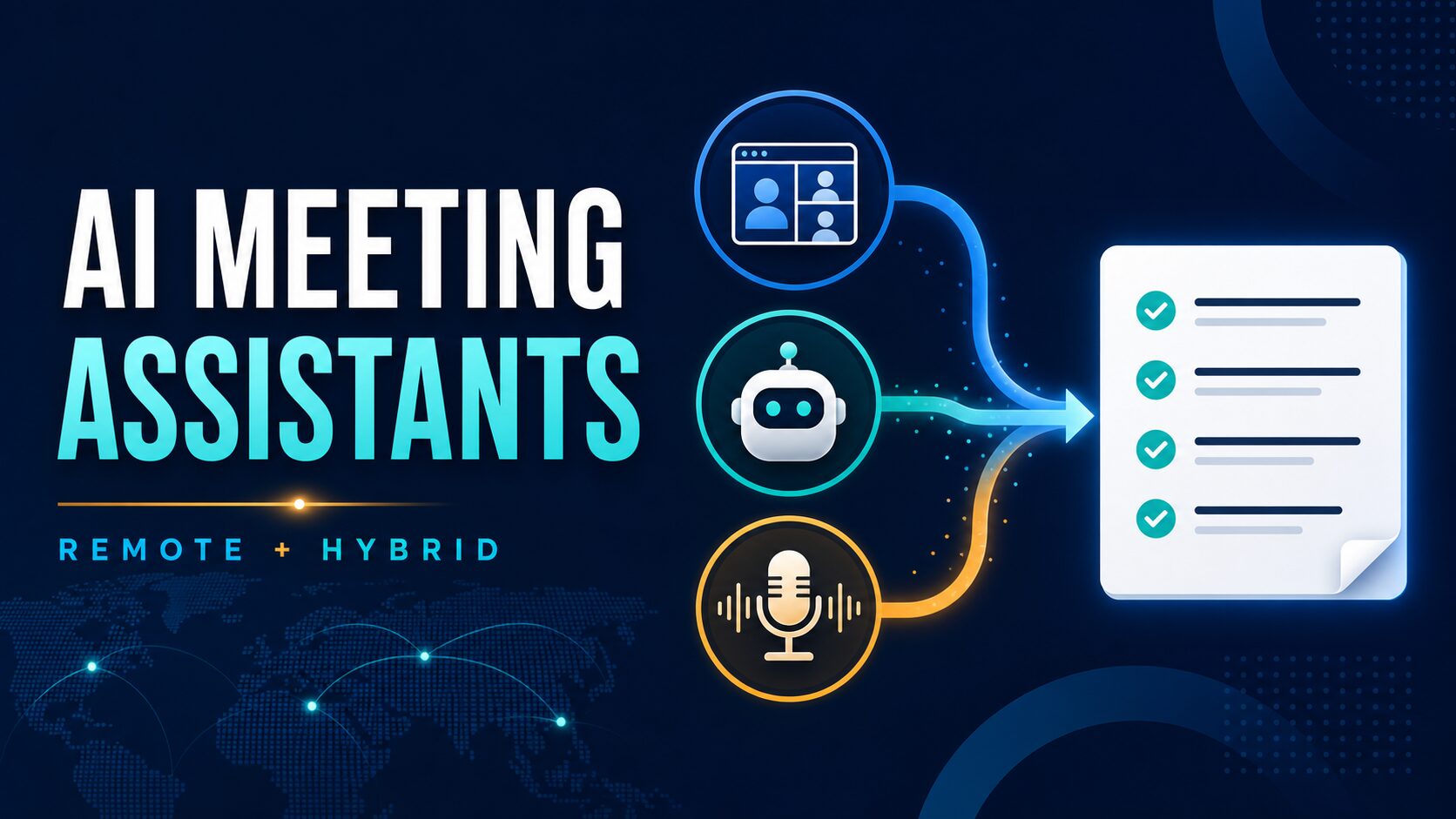
The best AI meeting assistant for a remote-only call may be the wrong choice for a hybrid room. Before comparing summaries, decide how the meeting can be captured: with a feature built into Zoom or Teams, a visible bot that joins the call, or a bot-free desktop app that listens to device audio.
Quick answer: start with Fathom for individual follow-up, Otter.ai for shared team transcripts, Fireflies.ai for searchable archives and integrations, Granola for human-guided bot-free notes, tl;dv for reusable customer-call clips, and Notta for transcription-heavy or multilingual work. If your meeting platform already includes an approved note feature, test that built-in route first. For hybrid meetings, no shortlist is complete until you review speaker labels from your real room audio.
Quick Verdict
Do not start with the tool. Start with permission and transcript risk. Recording laws, company policy, client agreements, school rules, and participant expectations can all matter. This is a practical product guide, not legal advice. When in doubt, ask before recording, transcribing, sharing a clip, or letting an assistant join a meeting.
Choose The Capture Path Before The App
An AI meeting assistant can be built into the meeting platform, join as a visible bot, or capture device audio without joining. That choice affects participant notice, audio quality, speaker attribution, transcript ownership, and what happens when an external guest or IT policy blocks a bot. Pick the capture path first, then compare apps inside that path.
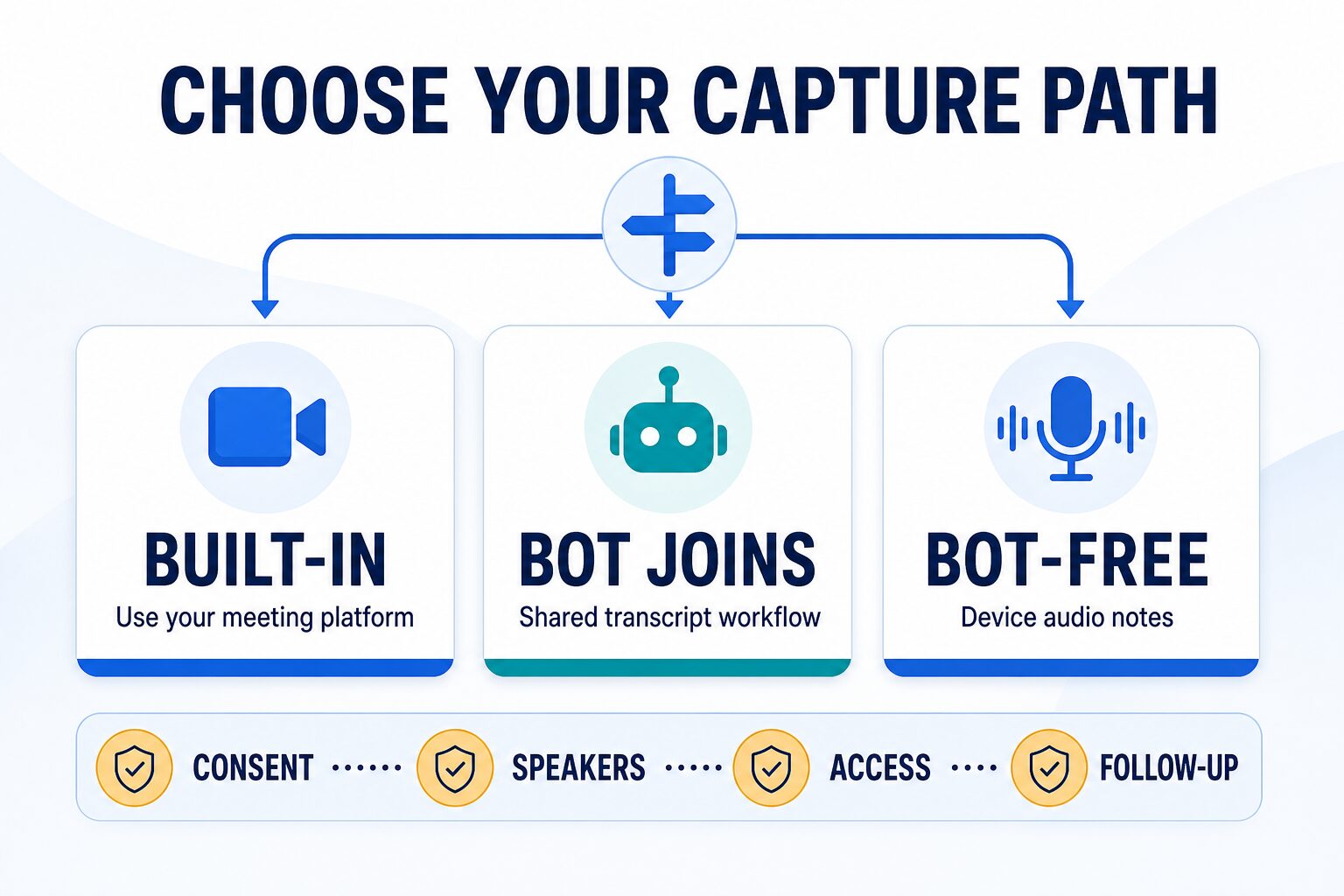
Use this decision order before you sign up:
- Built-in: start here when Zoom, Teams, or another approved platform already provides the notes your team needs.
- Bot joins: use this route when visible participant notice and a shared recording/transcript workflow are acceptable.
- Bot-free: use this route when a desktop app is easier to deploy, but never treat the lack of a visible bot as permission to transcribe silently.
- Speaker review: test the actual remote and in-room audio pattern before relying on names, quotes, or action items.
- Access: decide who owns, can share, can export, and can delete the transcript before building a meeting archive.
- Follow-up: pay only when the notes reliably move into one useful next step such as action items, CRM updates, or a reviewed email.
Best AI Meeting Assistant Comparison
The table below uses official product, pricing, and privacy pages checked on July 14, 2026. Pricing, limits, supported platforms, and plan names can change, so treat each pricing page as the final source before you pay. The recommendations are editorial fit based on official information, not hands-on accuracy rankings.
| Tool | Best fit | Capture and current plan note | Speaker attribution / hybrid meeting check | Best upgrade reason | Skip or verify first |
|---|---|---|---|---|---|
| Fathom | Personal meeting notes, summaries, action items, and follow-up points. | Free, Premium, Team, Business, and Enterprise routes are listed. Fathom currently offers bot capture plus a bot-free beta for supported Macs. | Trial speaker labels on your normal calls before relying on action items or follow-up drafts. | Upgrade when you need advanced summaries, broader team search, collaboration, CRM sync, SSO, or retention controls. | Verify policy before using it on client, legal, HR, medical, or confidential calls. |
| Otter.ai | Team meeting notes, transcripts, summaries, and shared meeting history. | Basic, Pro, Business, and Enterprise are listed. Basic includes live transcription and speaker identification with limited monthly usage. | Review live transcript labels and mixed-room audio before treating speaker names as final. | Upgrade when you need longer meetings, higher limits, integrations, admin controls, or team workspace features. | Verify participant notice and transcript-sharing settings before using it broadly. |
| Fireflies.ai | Searchable meeting repository, summaries, action items, and integrations. | Free, Pro, Business, and Enterprise are listed. The free route includes transcription and summaries but has limited team storage. | Check how recordings, summaries, speaker labels, and synced notes appear in connected apps. | Upgrade when your team needs more storage, downloads, team analytics, video recording, SSO, or compliance controls. | Verify who can access recordings, summaries, and synced meeting data. |
| Granola | No-bot meeting notes for people who want AI-organized notes without a visible meeting attendee. | Granola lists Basic, Business, and Enterprise. It captures device audio without a bot and keeps limited history on Basic. | Use it for note cleanup and review; do not treat no-bot notes as automatic speaker-proof transcripts. | Upgrade when unlimited history, advanced integrations, centralized billing, API access, SSO, or admin controls matter. | Do not treat no-bot notes as no-risk; meeting consent and policy still matter. |
| tl;dv | Recorded customer calls, meeting clips, async sharing, and review workflows. | tl;dv currently promotes a free-start route plus paid plans and now describes both bot recording and bot-free desktop capture. | Check speaker names, clip context, and transcript review before sharing customer-call excerpts. | Upgrade when you need fewer AI limits, older storage access, integrations, recurring reports, analytics, or CRM workflows. | Verify recording permission and clip-sharing rules before using it on external calls. |
| Notta | Transcription-heavy meetings, interviews, and multilingual note workflows. | Free, Pro, Business, and Enterprise are listed. Free currently allows 120 minutes monthly but only 3 minutes per conversation. | Use a sample interview or hybrid meeting to review speaker labels, export format, and language handling. | Upgrade when you need more minutes, longer recordings, exports, translation, video recording, or admin controls. | Verify language, storage, export, and privacy requirements before uploading sensitive audio. |
1. Fathom
Fathom is the first tool I would look at if you are a remote worker who mainly wants cleaner notes after calls. It is not the right choice because every meeting should be recorded. It is a good fit when you already have permission to use an assistant and want the meeting to produce a useful summary, action-item list, and follow-up draft.
Fathom’s pricing page currently lists Free, Premium, Team, Business, and Enterprise routes. The free route includes unlimited recordings and transcriptions, and Fathom now offers a choice between bot capture and a bot-free beta on supported Macs. Look at paid tiers only when action items, advanced summaries, team search, CRM sync, SSO, or retention controls justify the cost.
If speaker attribution matters, use Fathom as a trial candidate rather than an automatic answer. Run one normal meeting, review who was assigned each action item, and confirm whether the transcript is good enough for your follow-up style.
- Use it when: you want personal notes, action items, and quick follow-up material from regular remote meetings.
- Be careful when: the meeting involves clients, HR, legal issues, or confidential strategy.
- Official pages: pricing and privacy.
- Compare next: if Fathom is your shortlist, use Fathom vs Granola for classic assistant vs no-bot notes, or Zoom AI Companion vs Fathom if your team already lives in Zoom.
2. Otter.ai
Otter.ai is a strong fit for teams that want meetings to become searchable notes and transcripts. If your team repeatedly asks “what did we decide last week?”, a shared meeting record can be more useful than isolated personal notes.
Otter.ai’s pricing page currently lists Basic, Pro, Business, and Enterprise tiers. Basic gives a limited way to try live transcription and meeting workflows; paid tiers are more relevant when you need longer meetings, more imports, integrations, admin controls, or enterprise security features.
The tradeoff is that shared meeting memory creates shared responsibility. Someone has to decide which meetings are appropriate to capture, who can access transcripts, how long notes should live, and whether external guests know the assistant is being used.
For mixed remote and in-room meetings, review speaker labels before you circulate notes. A useful transcript can still need human cleanup when several people speak from the same room or when names are not obvious from the audio.
- Use it when: recurring team meetings need searchable transcripts, summaries, and a shared decision record.
- Be careful when: transcript access is broader than the meeting audience.
- Official pages: pricing and privacy policy.
- Compare next: use Otter alternatives for remote teams if you need a broader team shortlist, or Fireflies vs Otter if those two are the final options.
3. Fireflies.ai
Fireflies.ai is worth considering when your meeting notes need to connect to a broader work system. Its official positioning emphasizes AI meeting notes, summaries, action items, search, and integrations, which makes it a good fit for teams that want meetings to feed follow-up workflows.
Fireflies.ai currently lists a Free plan plus Pro, Business, and Enterprise tiers. Its paid tiers become more relevant when storage, downloads, integrations, team analytics, video recording, SSO, compliance-oriented controls, private storage, or custom retention matter.
The main question is not whether Fireflies has enough features. It is whether your team will manage the meeting library responsibly. A searchable transcript archive can be useful, but it can also become a sensitive data store if every conversation gets captured by default.
Fireflies is strongest when the meeting output needs to move into other systems. That is useful, but it also raises the risk of synced notes spreading beyond the original meeting audience.
- Use it when: meeting notes need to become searchable records and follow-up actions.
- Be careful when: connected apps could spread sensitive notes farther than intended.
- Official pages: pricing and privacy policy.
- Compare next: use Fireflies vs Otter for shared team notes, or Fathom vs Fireflies for customer-call follow-up.
4. Granola
Granola is interesting for remote workers who dislike adding a visible AI bot to every meeting. Its current pricing page lists Basic, Business, and Enterprise plans. Basic has limited meeting history; Business adds unlimited notes/history, advanced integrations, centralized billing, MCP, and API access; Enterprise adds organization-level controls.
Granola’s privacy materials say meeting audio is used to create the transcript and is not retained after transcription, while transcript text and notes remain. They also describe an account-level opt-out for model training on de-identified data. Those are useful controls to inspect, but they do not replace participant notice or employer policy.
That does not make it a permission bypass. If a tool listens, transcribes, summarizes, or helps process meeting content, your consent and workplace-policy questions are still real. Granola is best considered by people who want a calmer note-taking workflow, not by people trying to quietly capture sensitive conversations.
For speaker attribution, treat Granola as a notes-and-review workflow rather than a substitute for formal minutes. It can help organize what happened, but you should still verify names, commitments, and customer quotes before sharing.
- Use it when: you want AI-organized notes without making every meeting feel like a recorded session.
- Be careful when: a meeting participant would reasonably expect no transcription or AI processing.
- Official pages: pricing and privacy policy.
- Compare next: use Fathom vs Granola if the key decision is visible assistant vs no-bot note workflow.
5. tl;dv
tl;dv is a better fit when the output of a meeting needs to be reused: clips, call notes, customer context, sales coaching, or async updates for people who missed the call. That makes it more specialized than a simple personal notes app.
The official site currently promotes a free-start route and describes transcription, recording, AI notes, and insights across Zoom, Google Meet, and Microsoft Teams. tl;dv now also describes a bot-free desktop option alongside bot recording. Paid-plan decisions should focus on AI limits, history, integrations, recurring reports, analytics, and CRM needs.
Because tl;dv is often used around recorded calls and shareable clips, the consent check matters even more. Before sharing a meeting moment outside the original audience, confirm that the participants, customer agreement, and company policy allow it.
tl;dv makes the most sense when the meeting has value after the call: clips, coaching, customer context, and async review. That makes transcript accuracy and clip context more important than a generic “good notes” feature.
- Use it when: recorded meeting content needs to support customer-facing follow-up, reviews, or async team updates.
- Be careful when: clips could remove context or expose customer information.
- Official pages: pricing and privacy.
6. Notta
Notta is a sensible candidate when your real task is transcription rather than meeting management. If you need to convert audio to text, review interviews, or support multilingual notes, Notta belongs on the shortlist.
Notta’s pricing page currently lists Free, Pro, Business, and Enterprise tiers. The free route lists 120 transcription minutes per month but limits each conversation to 3 minutes, which makes it a product-tour plan rather than a realistic meeting plan. Paid tiers add longer recordings, exports, translation, business controls, video recording, integrations, and enterprise administration.
Notta also publishes a desktop Privacy Mode in beta that can transcribe locally and keep audio and transcripts on the device. Treat that as a separate workflow to verify on your operating system; cloud features, collaboration, and local mode do not have the same data path.
The key is to check limits and exports before you commit. Transcription-heavy work can run into caps, file-format requirements, language needs, and storage questions faster than a short recurring team meeting.
If your search is really about “who said what,” Notta belongs on the shortlist because transcription is the core job. Still, review a real sample before trusting speaker labels in interviews, panel calls, or rooms where people talk over one another.
- Use it when: you need transcription-first workflows for meetings, interviews, or multilingual notes.
- Be careful when: you are uploading audio files that include private, client, student, medical, legal, or financial information.
- Official pages: pricing and privacy.
The Three-Meeting Pilot Scorecard
Do not choose a paid plan from one clean demo. Run three low-risk meetings: a remote one-to-one, a remote group call, and a hybrid or in-room call that matches your real setup. The goal is not to crown a universal accuracy winner. It is to see whether one capture path produces notes your team can govern and use.
Score each meeting on four pass/fail gates:
- Consent: everyone received the notice your policy requires, and the capture method behaved as expected.
- Speakers: review five important lines and confirm names, timestamps, quotes, decisions, and action owners.
- Access: confirm who can open, share, export, sync, retain, and delete the meeting record.
- Follow-up: turn the reviewed notes into one useful output without copying confidential material into an unapproved tool.
Pass a tool only if it clears all four gates in the meetings that matter. If it fails speaker review but produces a useful private summary, keep it in the personal-notes lane. If access or consent fails, do not repair the workflow by hiding the bot or skipping notice; choose a different capture path or use manual notes.
Privacy And Consent Checklist
AI meeting assistants are different from many other AI tools for work because they can capture other people’s voices, decisions, and confidential context. Treat recording as a permissioned workflow, then connect the output to a narrow next step such as a follow-up email, action-item list, or project note.
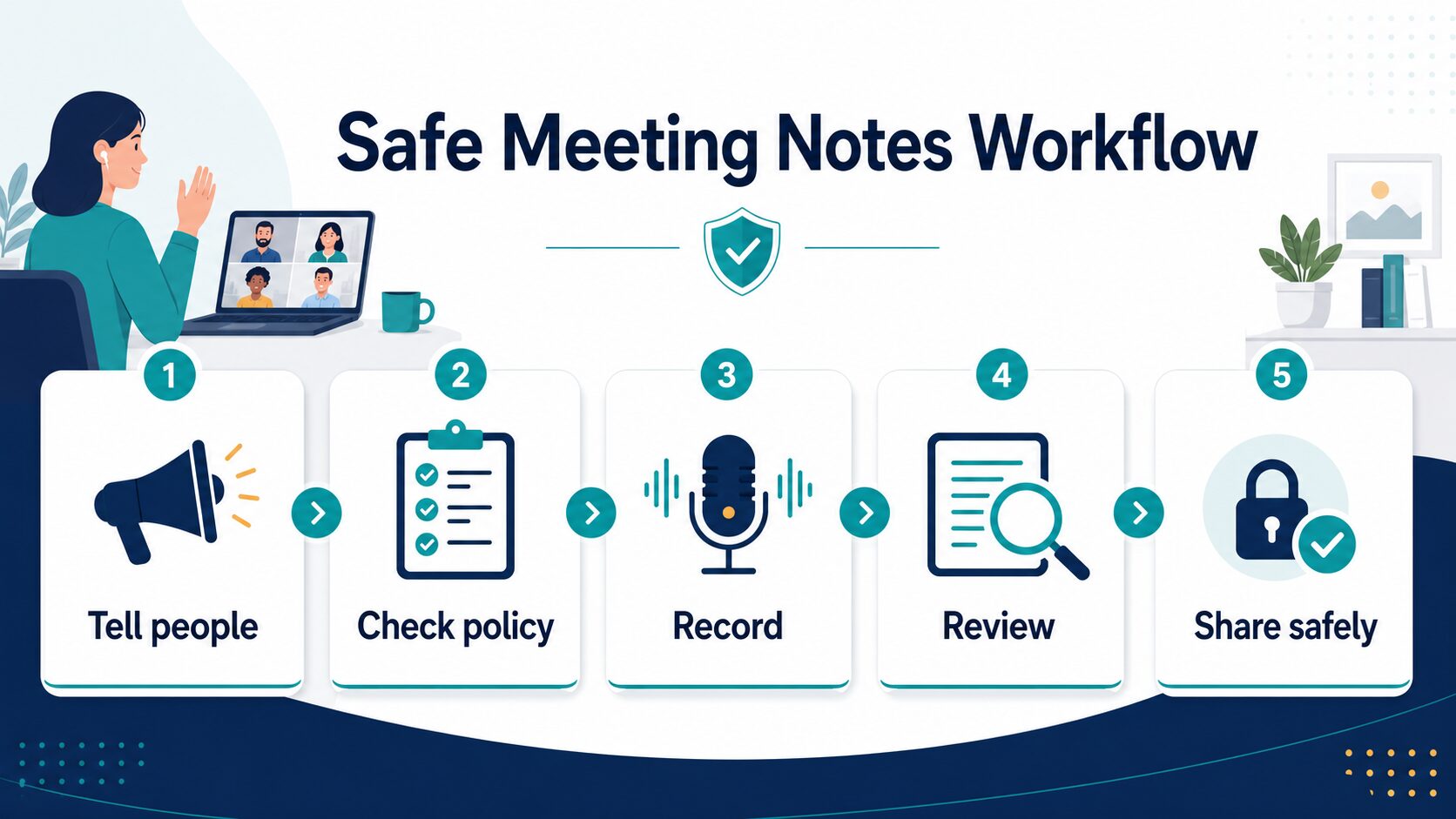
Before recording or using AI notes, ask five questions:
- Have participants been told that AI notes, recording, or transcription may be used?
- Does your employer, school, client contract, or project policy allow it?
- Is the meeting sensitive enough that notes should stay manual?
- Who can access the transcript, summary, recording, and shared clips afterward?
- Can you delete, redact, or restrict access if sensitive information appears in the notes?
If you use AI to turn meeting notes into emails, keep the same discipline. Summaries can help you write clearer follow-up, but do not paste confidential transcript sections into a general-purpose writing tool without approval. For safer wording, use a narrow follow-up workflow like the one in how to rewrite professional emails with AI, and use the AI tool privacy checklist before uploading sensitive work data.
For a meeting-specific next step, pair this guide with how to turn meeting transcripts into action items with AI. If Otter is already on your shortlist, also compare the broader transcription cluster in Otter alternatives or the newer Otter alternatives for remote teams.
When A Free Plan Is Enough
A free plan is usually enough when you are evaluating the workflow, taking notes for a few low-risk internal meetings, or deciding whether AI summaries are useful at all. It is not enough when your team depends on retention controls, admin controls, integrations, higher usage limits, export needs, customer-call review, reliable transcript access, or broader transcript sharing.
Before you upgrade, write down the job you are paying for:
- Cleaner personal notes: start with Fathom or Granola.
- Shared team history: compare Otter.ai and Fireflies.ai, then decide who owns transcript access and speaker-label review.
- Customer-call reuse: look at tl;dv and confirm capture mode, sharing rules, and clip context.
- Transcription-heavy work: compare Notta against your file, language, speaker attribution, local/cloud mode, and export needs.
Which Comparison Should You Read Next?
This page is the hub when you are still choosing a category. If you already know the two tools or workflow you are comparing, a narrower guide is faster:
- Fireflies vs Otter: use this when the decision is searchable team repository vs shared meeting transcript workflow.
- Fathom vs Granola: use this when the decision is classic assistant vs no-bot notes.
- Zoom AI Companion vs Fathom: use this when you are deciding between built-in Zoom notes and a separate assistant.
- Fathom vs Fireflies: use this when customer-call follow-up, CRM context, and team handoff matter.
FAQ
What is the best AI meeting assistant for remote and hybrid teams?
For individuals, Fathom is a sensible first look. For shared team transcripts, compare Otter.ai and Fireflies.ai. For bot-free notes, compare Granola with the current desktop options from Fathom or tl;dv. For customer-call clips, look at tl;dv. For transcription-first or local desktop workflows, look at Notta. If your existing meeting platform already provides approved notes, test that built-in route before adding another vendor.
Which AI meeting assistant is best for speaker attribution?
If speaker attribution is the main issue, shortlist tools that let you review transcripts clearly, then test them with your actual meeting pattern. Otter.ai and Notta are natural places to start for transcript-first workflows, while Fireflies.ai can fit teams that need searchable meeting history. For hybrid meetings, always review a sample before relying on speaker labels.
What should I use for remote and in-room participants?
Use the tool that survives a real mixed-audio pilot. A remote-only demo does not prove that the assistant will identify people correctly when several voices come from the same conference room. Run the three-meeting scorecard above and check consent, speaker labels, transcript access, and follow-up.
Are AI meeting assistants safe to use at work?
They can be useful, but safety depends on the meeting, participants, policy, and settings. Review each tool’s privacy page, tell participants when recording or AI notes are used, and avoid sensitive meetings unless your organization clearly allows it.
Should I use an AI meeting assistant for client calls?
Only when your client, contract, company policy, and local consent rules allow it. Client calls can contain confidential business context, so transcript access and clip sharing need extra care.
Can AI meeting assistants replace taking notes?
No. They can help capture and organize meeting content, but you still need to review the notes, correct important details, and decide what should be shared. For research-heavy work, keep the same verification mindset used in AI research tools: useful output still needs human review.
Final Recommendation
Start with capture mode, not a logo. Use an approved built-in note feature when it already solves the job. Choose Fathom or Granola for individual bot-free or follow-up-focused notes, Otter.ai or Fireflies.ai for a governed team transcript library, tl;dv for reusable customer-call content, and Notta for transcription-first or local desktop workflows.
If speaker attribution is the reason you are searching, do not skip the three-meeting pilot. The right choice is the tool that handles your actual room audio, gives you access controls you can explain, and turns reviewed notes into one useful next action. For a broader stack, connect this article to the AI productivity tools guide, the AI tool privacy checklist, or the AI Work Toolkit Start Here page.
Official Sources Checked
Official product, pricing, privacy, and relevant security/help pages were checked on July 14, 2026. Pricing and plan limits change, so verify the official pricing page before buying.