
Descript vs CapCut AI: Which Short-Video Tool Should You Use First?
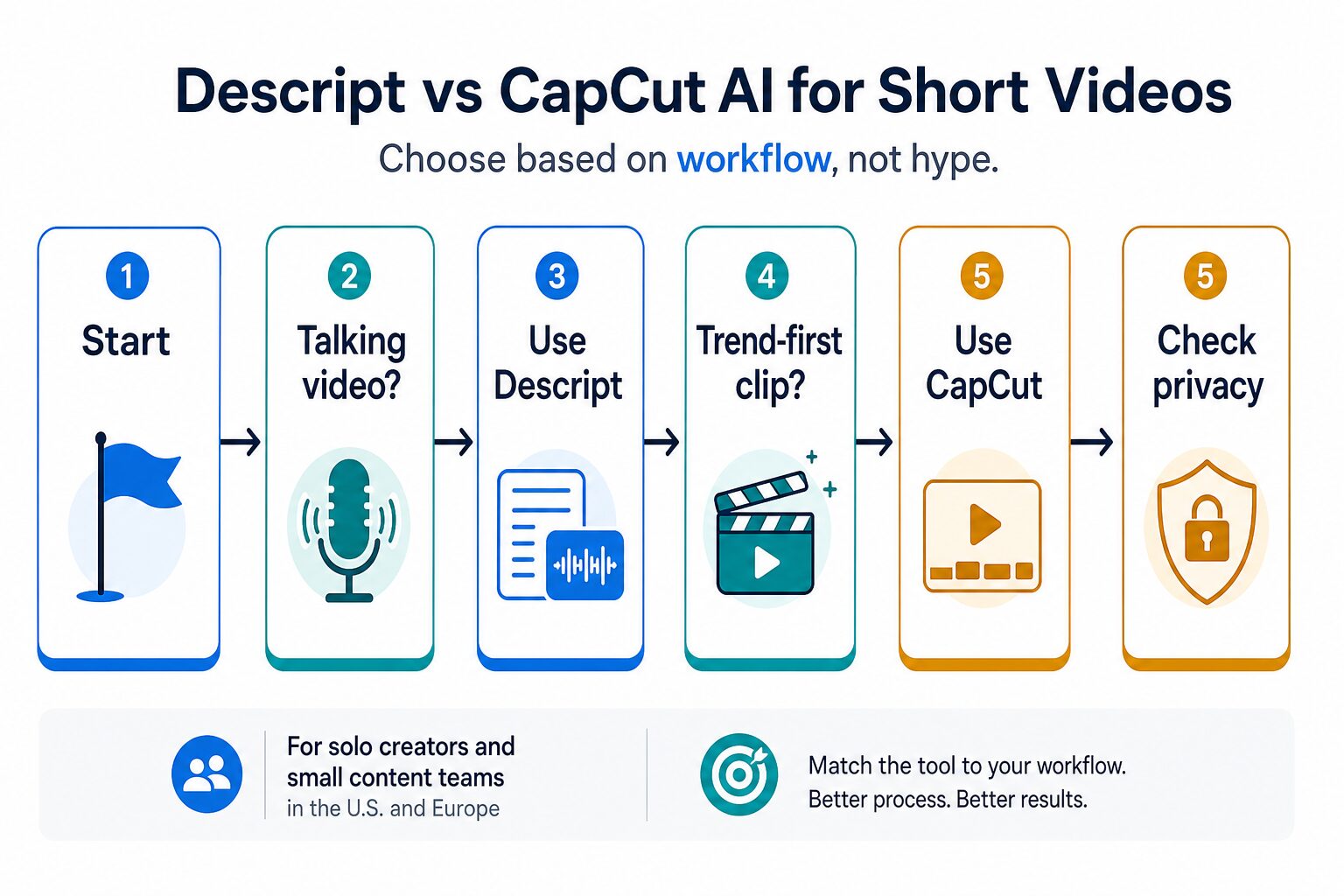
Descript and CapCut AI solve different short-video problems. Choose Descript first when your source footage is a spoken recording that needs cleanup, captions, clips, and review. Choose CapCut first when the video is already a vertical social clip and the job is fast formatting, captions, effects, and publishing.
Quick Verdict: Pick By Source Clip, Not By Feature Count
Choose Descript first if the raw material is a podcast, webinar, screen recording, interview, course clip, meeting-style recording, or talking-head video. Its fit is strongest when editing the words, captions, clips, and review flow matters more than social effects.
Choose CapCut first if the raw material is already a vertical social clip or mobile video. Its fit is strongest when speed, captions, templates, effects, and social-ready formatting matter more than transcript-led cleanup.
Pause before using either tool if the footage contains client work, employee voices, student data, unreleased products, legal/medical/financial context, copyrighted assets, or commercial material with unclear rights.
Evidence Note
This comparison is based on official product, pricing, help, privacy, security, and terms sources checked again on July 9, 2026. It is not a hands-on speed test, output-quality test, transcription-accuracy benchmark, or caption-accuracy benchmark. Use the recommendations as workflow guidance, then verify the current plan details in your own account before paying.
How To Decide Between Descript And CapCut AI
The useful comparison is not “which app has more AI features?” It is “which app removes the bottleneck from the footage I actually have?” A solo creator editing one talking video a week has a different problem from a creator making daily vertical clips for TikTok, Instagram Reels, YouTube Shorts, or LinkedIn.
Use these criteria before choosing:
- Source material: Are you starting with a long recording, a transcript, a podcast, or a screen recording? Or are you starting with quick mobile footage and social-first clips?
- Main editing action: Do you want to edit spoken words like a document, or assemble visual moments quickly?
- Caption workflow: Do you need captions as part of a polished spoken-content edit, or fast stylized captions for social output?
- Export and plan limits: Check watermark, resolution, storage, AI-credit, collaboration, and export limits on the plan you will actually use.
- Privacy and rights: Raw audio, face video, client calls, and unreleased brand footage should not be uploaded casually.
Run This 30-Minute Fit Test Before You Pay
Before subscribing, run one low-risk sample through the tool you are leaning toward. Use a harmless two-minute talking clip, not client footage, unreleased brand work, student data, copyrighted music, a private class recording, or a private meeting recording.
Use This Test Clip
- Step 1: write down the real source format you expect to edit most often: long spoken recording, screen tutorial, interview, mobile clip, product demo, or trend-style social video.
- If you are leaning Descript: import the clip, clean one awkward sentence, make a captioned short, export it, and check whether the transcript, media hours, AI credits, review flow, and export settings match the plan you would actually use.
- If you are leaning CapCut: trim the same clip into a vertical short, add captions or effects, export it, and check whether watermark, resolution, storage, account, device, region, and commercial-use limits fit your channel.
- If neither test feels smooth: do not force this two-tool comparison. Read the broader AI video editing tools guide before paying.
Descript vs CapCut AI Comparison Table
| Decision Point | Descript | CapCut | What To Check Before You Choose |
|---|---|---|---|
| Best first fit | Transcript-led editing for podcasts, webinars, interviews, screen recordings, tutorials, and talking videos. | Fast vertical social clips, mobile/web editing, captions, templates, effects, and trend-first creator workflows. | Start from your real source footage before comparing feature lists or AI labels. |
| Editing model | Strong when the transcript is central to the edit. | Strong when the visual short-video format is central to the edit. | Try one sample edit and see which workflow removes more friction. |
| AI positioning | Official pages emphasize media editing, transcription, captions, clips, screen recording, audio/video workflows, and collaboration. | Official pages emphasize AI-assisted social video creation, captions, templates, effects, and creator publishing workflows. | Do not pick the tool with more AI labels if the editing model is wrong. |
| Pricing caveat | The official pricing page lists a Free plan plus paid tiers. Check media hours, AI credits, export quality, billing interval, and collaboration limits before purchase. | CapCut’s official Pro-cost help says pricing can vary by region, device, and promotion. | Do not rely on old screenshots, one global CapCut price, or another creator’s app-store context. |
| First paid-plan risk | You may discover media minutes, transcription, AI, storage, collaboration, or export limits after importing longer projects. | You may discover region, device, app-store, promotion, export, watermark, or asset-rights limits after building a social workflow. | Check the exact account and billing context you will use. |
| Who should skip it | Skip or pause if you only need quick mobile social edits and do not work from spoken transcripts. | Skip or pause if your main task is cleaning up long spoken recordings, podcasts, webinars, or interview transcripts. | The wrong tool can make a simple edit feel slow even if the product is good. |
| Privacy check | Read Descript’s privacy and security pages before uploading sensitive audio or video. | Read CapCut’s privacy and terms pages before uploading sensitive or commercial footage. | Use low-risk sample footage first and read the terms before uploading valuable material. |
Choose Descript If Your Short Videos Start With Spoken Content
Descript is the better first check when the video begins as a recording with words: a podcast, webinar, lesson, product walkthrough, interview, screen recording, or talking-head clip. In that workflow, the transcript is not just a side output. It becomes part of the editing process.
That matters because many short videos are not really “shot” as short videos. They are pulled from longer source material. A 45-minute podcast might become three short clips. A 20-minute webinar might become a highlight reel. A product tutorial might become a 60-second support clip. For that kind of work, transcript-first editing can be more natural than dragging only visual clips around a timeline.
Use Descript when:
- You record podcasts, interviews, webinars, courses, tutorials, or screen recordings.
- You want to find strong moments from longer spoken content.
- You care about captions, transcript cleanup, and repurposing.
- You need a workflow that feels closer to editing a document than assembling a trend video.
- Your team needs review and collaboration around media projects.
Skip or pause Descript when:
- You mainly make quick vertical social videos from mobile clips.
- You want a template-heavy social editor more than a transcript editor.
- You do not need podcast, screen-recording, webinar, or voice-led editing features.
- Your footage is highly sensitive and you have not reviewed the official privacy and security terms.
For a practical creator workflow, think of Descript as the cleaner first stop when you already have long spoken source material and need to find, trim, caption, and review the best moments. Before upgrading, check the current media-hour, AI-credit, export, collaboration, and security controls that apply to your account.
Choose CapCut If Your Short Videos Start With Social Format And Speed
CapCut is the better first check when the video is meant to be a vertical social clip from the start. If the work is trimming mobile footage, adding captions, using effects, matching a social format, or publishing fast, CapCut’s workflow is closer to how many creators already think.
CapCut can be especially attractive when you do not want a heavier podcast or transcript-editing workspace. The tradeoff is that you must check the exact plan, export, watermark, storage, account, privacy, and commercial-use terms in your own region and device context. CapCut’s official Pro-cost help says pricing can vary by region, device, and promotion, so fixed prices in older comparisons can become stale quickly.
Use CapCut when:
- You make vertical social clips for TikTok, Reels, Shorts, or similar formats.
- You want a fast editor with captions, visual effects, and template-style production.
- You edit often from mobile or want a lightweight web/desktop option.
- You need social-ready clips more than transcript-led long-form repurposing.
Skip or pause CapCut when:
- You need to mine long podcasts, webinars, or interviews for clean spoken clips.
- You need review, collaboration, or transcript-centric cleanup as the central workflow.
- You need a stable fixed plan quote before purchase but have not checked your own account/device/region.
- You handle client, workplace, student, or regulated content and have not reviewed privacy and terms.
For a practical creator workflow, think of CapCut as the faster first stop when the project is already a social clip and the main work is formatting, captioning, polishing, and publishing quickly. Before using it for paid client or brand work, review how uploaded/imported/generated content, metadata, AI prompts, and account data are handled under the current privacy policy and terms.
Pricing, Free Plans, And Export Checks
Do not decide from the headline price alone. Short-video tools can hide the real limit in export quality, watermarking, AI credits, media minutes, storage, collaboration, brand tools, or where the plan is purchased.
Check These Before Paying
- Watermark and export quality: Confirm whether your final video can be exported in the resolution and format you need without unwanted branding.
- AI limits: Check whether captions, clips, transcription, translation, avatars, effects, or other AI features have separate credits or usage caps.
- Media minutes and storage: Transcript-led tools often meter media minutes or project limits differently from social editors.
- Billing context: Annual pricing, monthly pricing, app-store billing, region, device, and promotion can change the final price.
- Commercial use: If the videos are for clients or paid channels, review the official terms before relying on templates, assets, music, or effects.
Privacy And Workplace Data Cautions
Video tools can receive more sensitive material than a normal text prompt. Raw video can include faces, voices, locations, unreleased products, client details, whiteboards, private meeting discussion, background information, metadata, prompts, and generated assets that were never meant to become searchable or reusable media.
Use low-risk sample footage first. Before uploading real client, workplace, class, HR, legal, medical, financial, or confidential footage, check consent, retention, deletion, sharing, AI/model-improvement language, commercial rights, copyright rights, and admin controls in the official terms.
If privacy review is the real blocker, read our AI tool privacy checklist for professionals before choosing a video editor for sensitive work.
Which Tool Should You Try First?
Try Descript first if:
- You record a podcast and want short clips from it.
- You turn webinars, interviews, screen recordings, or tutorials into social snippets.
- You want text-based editing, captions, cleanup, clips, and review around spoken content.
- You care more about repurposing and review than trend effects.
Try CapCut first if:
- You create vertical social clips directly.
- You want quick captions, visual polish, templates, effects, and mobile-first editing.
- You are producing frequent short videos and need speed more than transcript control.
- You are comfortable checking region/device/account-specific Pro pricing and content-rights terms before upgrading.
Where This Fits In A Creator Tool Stack
If you are still choosing the broader category, start with our broader AI video editing tools guide. If your main goal is turning one piece of content into several formats, compare this with our content repurposing tools guide and our repurposing workflow.
For creators who also need blog images, social designs, and written assets, the same cluster includes our AI tools for bloggers, Canva AI review, and Canva vs Adobe Express comparison. If privacy is the blocker, use the AI tool privacy checklist before importing sensitive footage.
FAQ
Is Descript better than CapCut AI?
Descript is better for transcript-led spoken videos, podcasts, webinars, screen recordings, and long-content repurposing. CapCut is usually better for fast vertical social clips, mobile-first editing, templates, captions, and visual effects. The better choice depends on the source footage and workflow, not a universal ranking.
Is CapCut cheaper than Descript?
Do not assume that from old screenshots. Descript has an official pricing page with plan tiers. CapCut’s official Pro-cost help says pricing can vary by region, device, and promotion. Check your current account, app store, device, region, and billing interval before comparing cost.
Can I use Descript or CapCut for client videos?
Possibly, but review the official terms, privacy policy, commercial-use terms, asset/music/template rights, retention, sharing, and deletion controls first. Use sample footage before uploading confidential client material.
Which tool is better for YouTube Shorts?
For Shorts pulled from a podcast, webinar, or talking video, start with Descript. For Shorts made directly as quick vertical social edits, start with CapCut. If you need a wider tool list, read the AI video editing tools guide.
Does this article include affiliate links?
No. This article uses official product/pricing links and internal AI Work Toolkit links only.
Final Recommendation
Start with the source material. If you already have long spoken content and need to turn it into short videos, check Descript first. If you are making vertical social clips directly and want speed, captions, templates, and visual polish, check CapCut first.
Before paying, run one low-risk sample through the plan you would actually use. Confirm export quality, watermark behavior, captions, AI limits, storage, privacy terms, and commercial-use terms. The right short-video editor is the one that removes the real bottleneck without creating a pricing, export, rights, or privacy surprise.
If your work mixes both patterns, do not force one universal winner. Use Descript for transcript-led source cleanup, CapCut for social-format polish, and keep sensitive footage out of either tool until your privacy and rights review is complete.