
Adobe Acrobat AI Assistant vs ChatPDF
Compare Adobe Acrobat AI Assistant vs ChatPDF by PDF workflow, quick Q&A, price checks, privacy risk, and safer fit
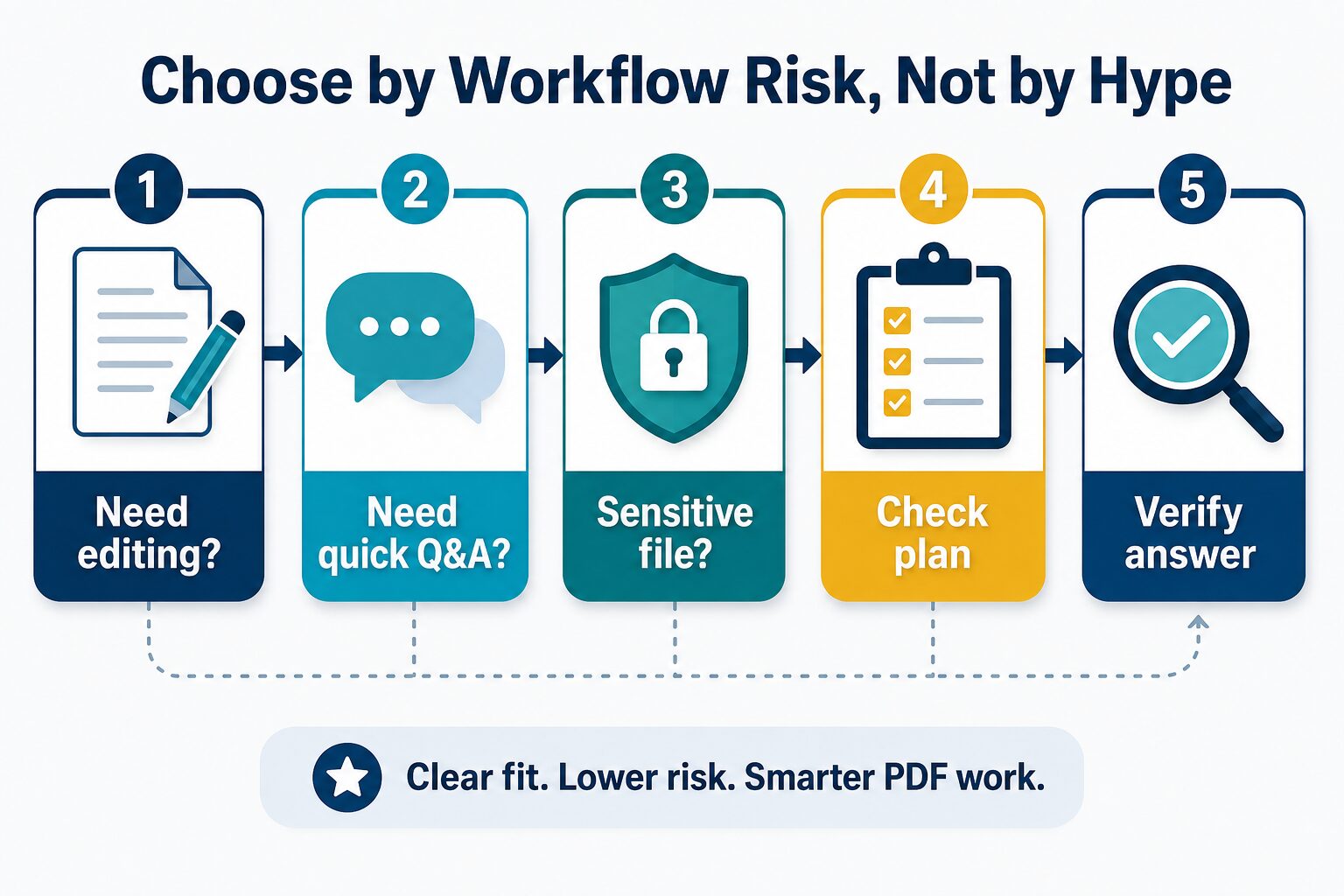
If you are choosing between Adobe Acrobat AI Assistant and ChatPDF, do not start with “which AI is smarter?” Start with the PDF job. Acrobat AI Assistant makes more sense when the document is part of a larger Acrobat workflow: editing, organizing, sharing, exporting, redaction, or business review. ChatPDF makes more sense when you want quick questions and answers against a PDF without committing to a heavier document platform.
Quick verdict: Acrobat for PDF workflow, ChatPDF for fast PDF chat
- Choose Adobe Acrobat AI Assistant if you already work in Acrobat, need PDF editing or review features, care about admin controls, or want AI inside a full document workflow.
- Choose ChatPDF if you want a fast, low-friction way to upload a document, ask questions, see references, and decide whether a PDF is worth deeper reading.
- Choose neither yet if the document contains client, legal, medical, student, HR, unpublished, or proprietary information and your organization has not approved the upload path.
- Do not treat either tool as an authority. Use answers to navigate a document, then verify the source passage before acting on anything important.
Evidence status: this comparison is based on official Adobe and ChatPDF pages checked on July 5, 2026. I did not run a fresh hands-on accuracy benchmark for this article, so output-quality, speed, and hallucination claims are intentionally avoided.
How this comparison was judged
A fair Acrobat AI Assistant vs ChatPDF comparison has to separate three questions. First, do you need a PDF chat interface or a full PDF workbench? Second, are you using public, low-risk documents or private work files? Third, does the pricing model match how often you will use the tool?
The article uses five criteria: document workflow fit, free or entry access, pricing caveats, privacy and data-use caution, and source-verification support. That keeps the decision grounded in work risk rather than a generic feature checklist.
Adobe Acrobat AI Assistant vs ChatPDF comparison table
| Criterion | Adobe Acrobat AI Assistant | ChatPDF | Practical takeaway |
|---|---|---|---|
| Best fit | PDF work where chat is only one part of the job: editing, organizing, exporting, comparing, review, signing, redaction, or business document handling. | Quick PDF Q&A, summaries, references, and lightweight document understanding without starting inside a full PDF editor. | Pick Acrobat when the PDF becomes a work product. Pick ChatPDF when the PDF is reading material. |
| Free / entry access | Adobe Help says free users get a limited number of AI Assistant requests, with full access through an AI Assistant add-on or plans that include it. | ChatPDF says its free plan lets users analyze 2 documents per day, and no account is required to try core features. | Both can be tried cautiously, but the free experience is not the same as ongoing heavy use. |
| Pricing caveat | Adobe plan pages can show AI Assistant as an add-on or as part of Acrobat/Studio packaging. Confirm the final checkout price for your country and account type. | ChatPDF Plus exists for heavier use, but the public pages checked here were clearer about free daily access than exact checkout price. Confirm pricing in your account before upgrading. | Do not base the decision on cached prices. Open the official pricing or upgrade page before paying. |
| Privacy / data caution | Adobe says Acrobat AI Assistant processes documents using Adobe infrastructure and does not use your content to train AI models. Adobe also says the AI workflow involves cloud processing. | ChatPDF says documents are protected during transfer and while stored, and users can delete documents. Treat workplace or client files as a policy question before upload. | Neither official claim replaces your employer, school, client, or legal obligation. |
| Verification | Adobe says AI Assistant provides cited answers and source references in Acrobat. | ChatPDF describes cited sources and page references so users can jump back to the PDF. | Citations help you check faster. They do not make the AI answer automatically correct. |
| Skip if | You do not need Acrobat’s PDF features and only want simple Q&A against one or two documents. | You need PDF editing, redaction, enterprise governance, or a document workflow that continues after the chat. | The better tool is the one that matches the next step after the answer. |
Choose Adobe Acrobat AI Assistant when the PDF is part of your work product
Adobe Acrobat AI Assistant is the better fit when you are already living in Acrobat or when the PDF still needs work after the AI answer. The official Adobe page positions AI Assistant around asking questions, summarizing documents, generating cited answers, working across multiple files in PDF Spaces, and using the broader Acrobat document environment on desktop, mobile, and web.
That matters for contracts, policy packets, manuals, procurement documents, academic PDFs that need annotation, or business reports that need edits and sharing. If your real task is “understand this document, then revise, export, organize, or send it,” a standalone chat tool can create an extra handoff. Acrobat keeps more of that work in the same product family.
The tradeoff is cost and complexity. Adobe plan packaging changes by account type, country, promotion, and whether you already have Acrobat. Adobe Help also notes that free users receive only limited AI Assistant requests and that full access requires an add-on or qualifying plan. Before buying, open Adobe’s current pricing page from the same account you will use for work.
Privacy is also not a one-line answer. Adobe says Acrobat AI Assistant does not use your content to train Adobe’s AI models, and its help pages explain that generative AI features involve cloud processing. That is stronger documentation than many lightweight tools provide, but it still does not mean every sensitive file is safe to upload. Ask your administrator or client before using it with restricted documents.
Choose ChatPDF when you need fast PDF questions, not a full PDF suite
ChatPDF is easier to understand: upload a document, ask questions, and use references to inspect the source. The official ChatPDF page says the free plan lets users analyze 2 documents per day, core features can be tried without an account, and the product supports PDFs plus formats such as Word, PowerPoint, Markdown, and text files.
For a student skimming a paper, a founder reading a vendor PDF, or a knowledge worker checking a public report, that low-friction model is attractive. You do not need to decide whether you are buying a full Acrobat plan before you learn whether AI PDF chat helps your reading process.
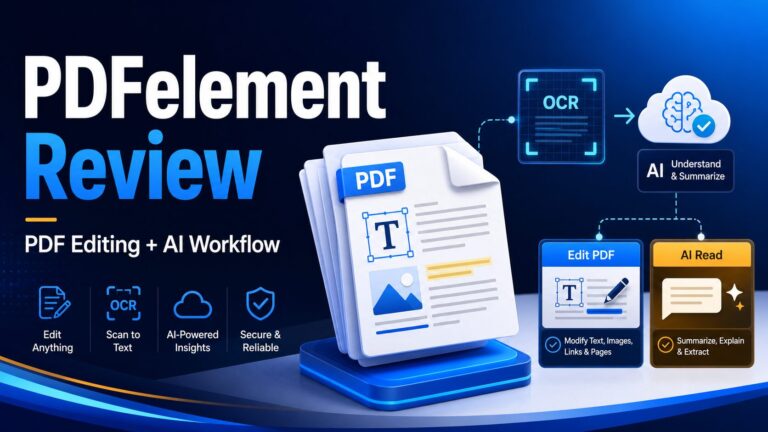
ChatPDF is less compelling when the PDF is not just something to read. If you need to edit the PDF, redact information, collect signatures, compare versions, or manage a broader PDF workflow, you may end up using another tool anyway. For those cases, compare Acrobat AI Assistant with a PDF editor workflow and read the Wondershare PDFelement review for PDF editing and AI workflows before choosing the software layer.
ChatPDF’s official pages make useful security claims, including SSL encryption during transfer, encrypted storage, and user deletion control. Still, a public product FAQ is not the same as a signed enterprise agreement. Do not upload private workplace, academic, legal, medical, financial, or client files until the policy is clear.
When neither tool is the best first move
Sometimes the correct answer is not Adobe or ChatPDF. If the question is “which AI PDF summarizer should I use for school or work?”, start with the broader AI PDF summarizer guide. If the problem is long research packets, compare NotebookLM vs ChatPDF for long PDFs. If ChatPDF feels too limited but you do not specifically need Acrobat, read ChatPDF alternatives for long documents.
You should also pause when the document is sensitive. AI document tools can be useful for navigation, but uploading the wrong PDF can create compliance, confidentiality, or academic-integrity problems. If you cannot explain where the file goes, who can access it, how long it is retained, and whether deletion is available, do not upload the file yet.
Privacy checklist before uploading a PDF
Use this five-point check
- File sensitivity: Is the PDF public, internal, confidential, regulated, or under a client/student agreement?
- Account type: Are you using a personal account, work account, education account, or enterprise plan with different controls?
- Cloud processing: Does the tool send document content to cloud AI services, and is that allowed for this file?
- Retention and deletion: Can you delete the document and chat history, and do you understand what remains in logs or caches?
- Answer verification: Can you jump back to the cited page and confirm the answer before using it?
For a broader version of this check, use the AI tool privacy checklist for professionals. The safest first trial is a public PDF or a harmless sample document, not a live client file.
FAQ
Is Adobe Acrobat AI Assistant better than ChatPDF?
Adobe Acrobat AI Assistant is better when your PDF work continues inside Acrobat: editing, organizing, sharing, exporting, redaction, or multi-document review. ChatPDF is better when you only need quick PDF Q&A and want a simpler starting point.
Is ChatPDF free?
ChatPDF says its free plan lets users analyze 2 documents every day, and that no account is required to try core features. Heavy use, saved history, and advanced features may require an account or paid plan, so check the current upgrade screen before relying on it for routine work.
Does Adobe Acrobat AI Assistant use my PDFs to train AI models?
Adobe says Acrobat AI Assistant processes documents using Adobe infrastructure and does not use your content to train AI models. Adobe’s help pages also say generative AI features involve cloud processing, so sensitive work documents still need policy review before upload.
Can I trust PDF AI citations?
Use citations as a faster path back to the source, not as proof that the answer is correct. Open the cited page, read the surrounding context, and verify important facts manually before sending, citing, or acting on the output.
Which tool should students try first?
For a single public reading assignment, ChatPDF is the simpler first trial. For many sources or a larger research packet, NotebookLM or a dedicated research workflow may fit better. For PDF editing, annotation, or export, Acrobat AI Assistant may be more practical.
Final recommendation
Choose Adobe Acrobat AI Assistant if PDF work is part of a larger document workflow and you already need Acrobat-level tools. Choose ChatPDF if your main job is quick PDF understanding and you want a lighter, lower-friction trial. Choose neither until policy is clear if the file is confidential or regulated.
Before paying, open the official pricing or upgrade page in your own account, check current limits, and run one low-risk sample PDF. The tool that wins is not the one with the biggest feature list. It is the one that helps you get a verifiable answer without creating unnecessary document risk.