AI Meeting Assistant Privacy Checklist: What To Check Before Recording Calls
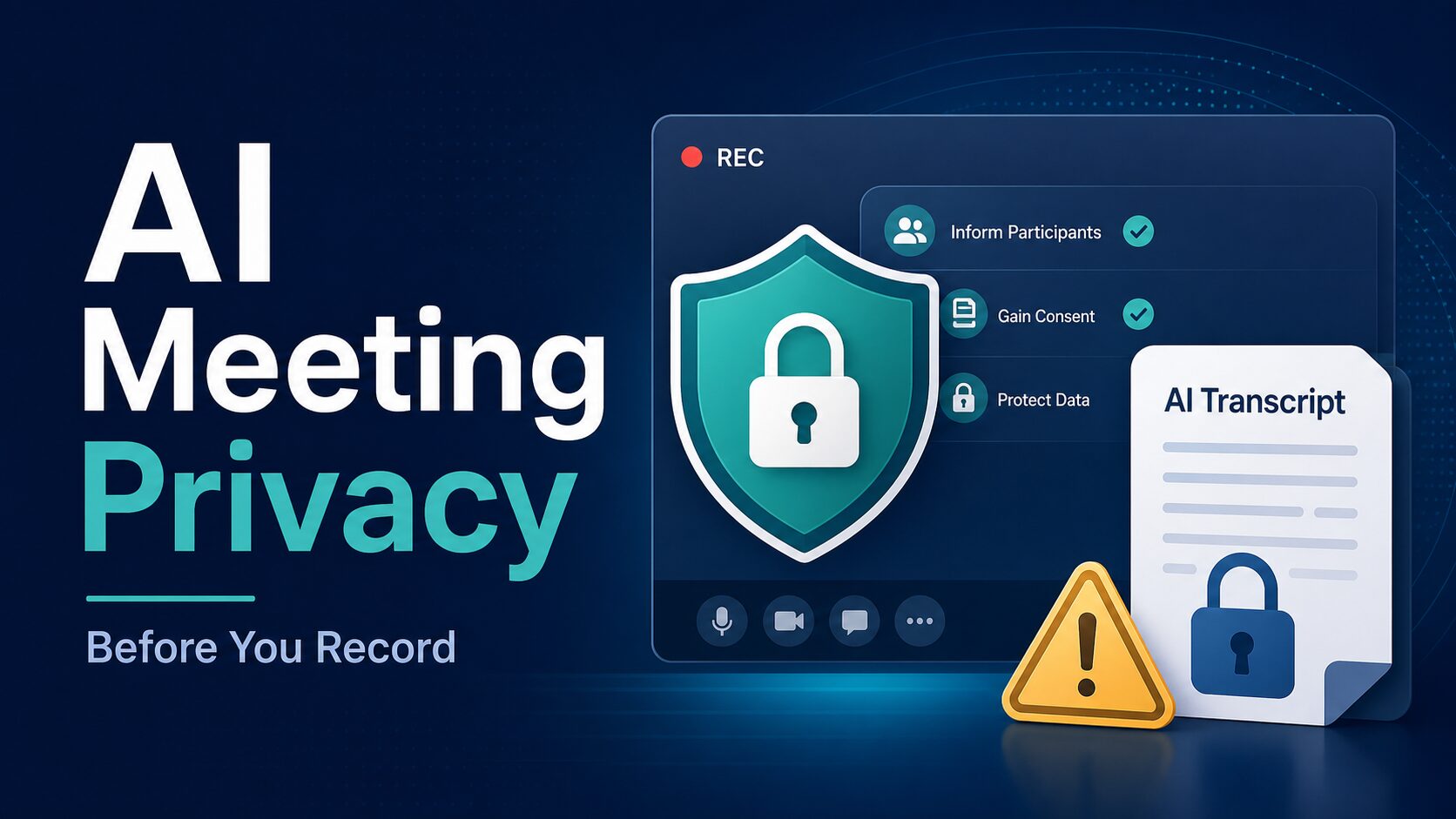
An AI meeting assistant can save time, but it also turns a live conversation into a recorded, searchable, shareable asset. Before you invite one to a call, check consent, meeting sensitivity, storage, sharing, retention, AI-training terms, and your company policy.
Quick answer: Use an AI meeting assistant only when every participant knows the meeting may be recorded or transcribed, the topic is appropriate for your tool and account, and you know where the recording, transcript, and summary will be stored.
If the meeting includes legal advice, HR issues, medical information, unreleased financials, confidential client work, job candidates, minors, or regulated data, pause and ask the meeting owner, IT, HR, or legal before recording.
This guide is based on official vendor privacy, security, terms, and help-center sources. I did not run hands-on security tests, so treat the tool-specific notes as a checklist for what to verify, not as a guarantee that any vendor is safe for every meeting.
AI Meeting Assistant Privacy Checklist
| Before the call, check | Why it matters | Practical action |
|---|---|---|
| Consent and disclosure | Recording laws and workplace norms vary. A hidden or unclear AI recorder can damage trust even when the tool is useful. | Tell participants that the meeting may be recorded or transcribed, why, and how notes will be used. |
| Meeting sensitivity | Some calls contain confidential, regulated, or personal information that should not be captured in a personal AI account. | Skip recording or use an approved business tool for HR, legal, medical, financial, client-confidential, or candidate calls. |
| Storage and retention | Recordings and transcripts may become long-lived records, not temporary notes. | Check where files are stored, how long they remain, and whether you can delete recordings and transcripts. |
| Sharing permissions | A useful summary can become risky if links, transcripts, or workspaces are open wider than intended. | Review who can view, download, share, search, or export the recording and transcript. |
| AI training and subprocessors | Some teams prohibit customer or employee conversations from being used to improve models or processed by unapproved vendors. | Read the vendor’s current AI-training, data-use, subprocessors, and enterprise-control documentation. |
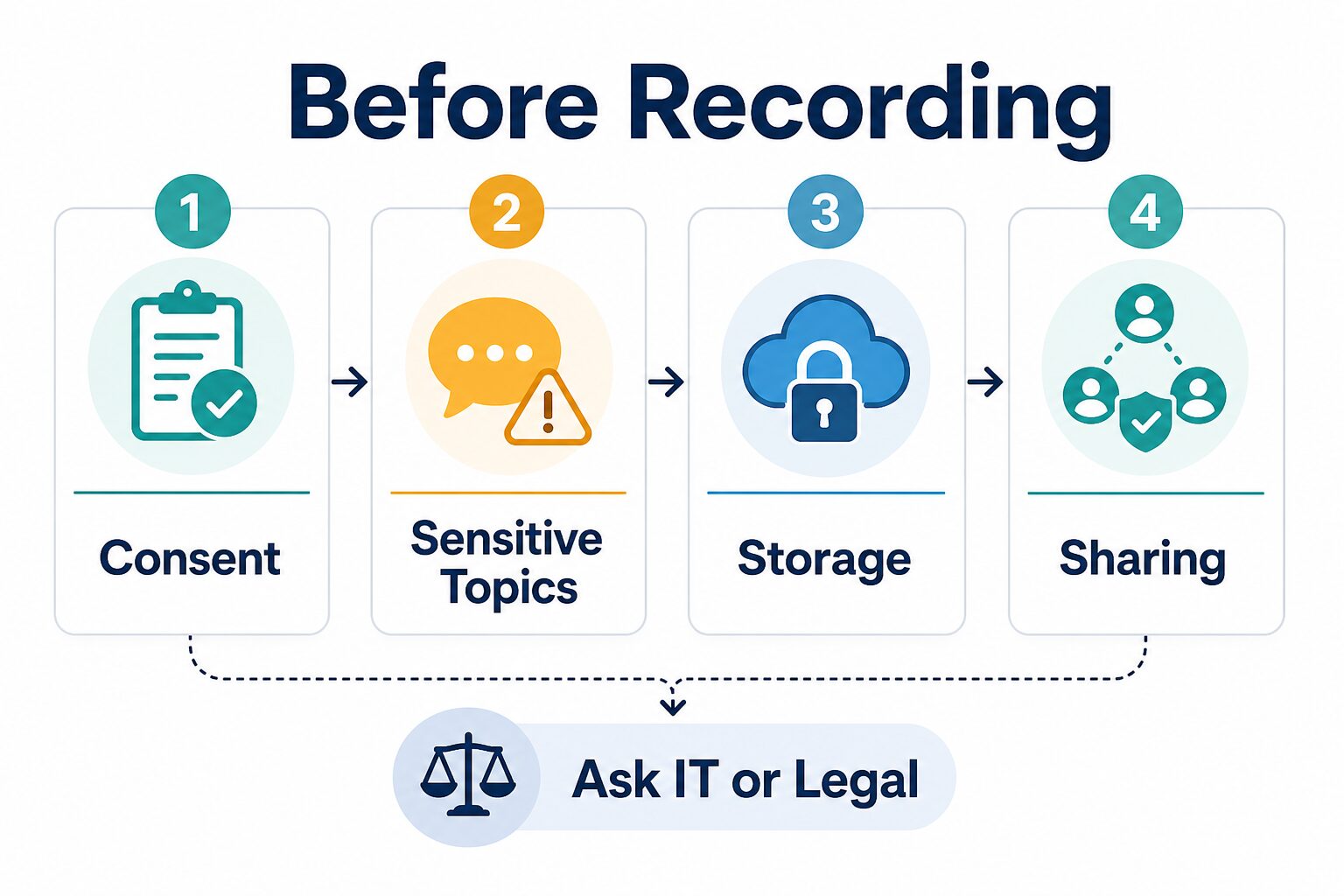
Start With the Meeting, Not the Tool
The safest tool choice depends on the meeting type. A weekly internal status call is different from a client strategy session, a hiring interview, a performance conversation, or a call that includes customer data.
Use this simple rule: if you would not be comfortable saving the full recording in a shared company folder, do not casually send it to an AI note taker. The convenience of a summary does not remove the responsibility to disclose recording, control access, and follow company policy.
Not legal advice: consent requirements vary by location, organization, and meeting context. Fathom and tl;dv both place responsibility for participant consent on the user or recording owner in their own public materials. When the call is sensitive, ask before recording.
What to Check Before You Invite a Bot or Record Locally
1. Can everyone clearly see or understand that recording is happening?
Bot-based meeting assistants are often visible in the participant list. Bot-free or local-capture tools can be less obvious. That does not make disclosure optional. If a tool records device audio or creates a transcript without a visible meeting bot, the person using it still needs to tell participants what is happening.
A simple script is enough for many low-risk calls:
I’d like to use an AI note taker to record and summarize this meeting so I can share accurate action items afterward. Is everyone okay with that?
For client, candidate, legal, healthcare, student, or HR conversations, use your organization’s approved wording instead of improvising.
2. Does the meeting include information you should not upload?
Do not treat all meetings as equal. A product planning call may include roadmap details. A customer call may include personal data. A job interview may include sensitive employment information. A legal or HR call may create obligations that your personal AI account is not designed to handle.
If the conversation includes sensitive information, choose one of three paths:
- Do not record; take manual notes instead.
- Use a company-approved meeting assistant with admin controls and retention policy.
- Ask the meeting owner, IT, HR, or legal before using any AI note taker.
3. Where will the recording and transcript live?
AI assistants do not only create a summary. They may store audio, video, transcript text, speaker names, calendar metadata, chat content, or generated notes. Check whether the account owner can delete recordings, whether workspace admins can enforce retention, and whether shared links can be restricted.
This matters especially if you are using a personal account for work. A personal account may not have the same admin, retention, audit, deletion, or data-processing protections your company expects from approved software.
4. Who can see the notes after the meeting?
Privacy risk often appears after the call, not during it. A transcript link may be forwarded. A workspace may give managers, teammates, or guests more access than you expected. A CRM or automation integration may push summaries into another system.
Before recording, check whether notes are private by default, whether link sharing is enabled, whether external guests can view the transcript, and whether integrations send meeting content into Slack, email, CRM, project management, or AI chat tools.
5. Will meeting content be used for AI training?
Several vendors publish AI-training or no-training statements, but the exact wording and plan controls can change. Read the current policy for your account type. Look for whether audio, video, transcripts, summaries, and user feedback are used to train vendor models, third-party models, or internal features.
If the policy is unclear, do not assume “enterprise-grade” means the content is excluded from training. Ask for the current data-processing terms or use an approved business account.
Tool-Specific Privacy Checks
The tools below are included because they appear in the AI Work Toolkit meeting-assistant cluster. This is not a security ranking, and it is not hands-on testing. Use the links as the starting point for your own review.
| Tool | Check first | Official source path |
|---|---|---|
| Otter.ai | Transcript/recording sharing controls, employee support access rules, privacy policy, and account plan controls. | Otter Privacy & Security, Privacy Policy, Terms |
| Fireflies.ai | Meeting-content processing, AI-training statement, admin access, security documentation, and sharing rules. | Privacy Policy, Security, Trust FAQ |
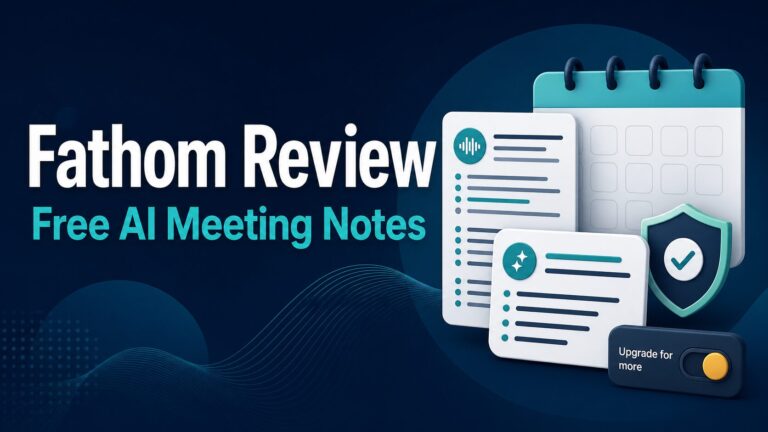
| Fathom | Consent responsibility, recording-owner controls, sharing/deletion workflow, and current privacy terms. | Privacy Policy, Consent Help |
| Granola | Bot-free capture disclosure, workspace sharing, retention, security documentation, and current AI-training/data-use policy. | Security, Policies |
| tl;dv | Consent collection, terms, data training statement, security controls, and workspace/admin configuration. | Terms, Privacy Policy, Consent Collection |
When You Should Skip AI Recording
Skip the AI meeting assistant when the value of a clean summary is lower than the risk of creating a record. That usually includes:
- legal advice or privileged discussions;
- HR investigations, performance reviews, layoffs, or candidate evaluation;
- medical, financial, student, or regulated personal information;
- client calls under a confidentiality agreement;
- unannounced product, funding, acquisition, or security incident details;
- any meeting where a participant declines recording.
For those meetings, write manual notes, ask for permission to summarize after the call, or use an approved enterprise tool configured by your organization.
Personal Account vs Approved Business Account
A personal AI note-taking account may be fine for your own low-risk brainstorming calls. It is a poor default for client, employee, or regulated work. Business accounts can offer better admin controls, single sign-on, auditability, retention settings, and data-processing terms, but only if your organization has actually reviewed and configured them.
If you are a freelancer or small business owner, create your own lightweight policy. Decide which meetings can be recorded, who gets access, how long you keep transcripts, and how you handle deletion requests. If you work inside a company, follow the approved software list instead of adding your own meeting assistant because it is convenient.
Practical next step: If you are still choosing tools, start with the AI meeting assistant roundup, then use this privacy checklist before you connect any tool to real client or team calls.
What to Say Before Recording
Use clear, plain language. Do not hide the tool behind vague wording such as “I’ll use automation.” Say what will happen and why.
| Situation | Better wording | Avoid |
|---|---|---|
| Internal low-risk meeting | “I’d like to record and summarize this call with an AI note taker so we can capture action items. Is that okay?” | “The bot is just for notes.” |
| Client or external call | “With your permission, I can use an AI note taker to create a transcript and summary. We can also proceed without recording.” | “Our tool joins all meetings automatically.” |
| Sensitive call | “This topic may be sensitive, so I will not record unless our approved process says we should.” | “I’ll record it just for myself.” |
How This Fits With Other AI Work Toolkit Guides
If your main question is which tool to choose, read the best AI meeting assistants guide first. If you are moving away from Otter, use the Otter alternatives guide. If your meeting transcript is already approved and available, the next workflow is turning transcripts into action items.
For broader AI adoption, keep the AI tool privacy checklist for professionals nearby. Meeting assistants are only one version of a larger issue: deciding what work data is safe to send into AI tools.
FAQ
Are AI meeting assistants safe?
They can be useful, but “safe” depends on the meeting, account settings, consent process, storage, sharing, retention, AI-training terms, and company policy. Do not use a personal AI note taker for sensitive work just because it creates good summaries.
Can I record a call if I am one of the participants?
Do not rely on a generic rule. Consent requirements vary, and workplace or client policy may be stricter than the minimum legal rule. Tell participants before recording and follow your organization’s approved process.
Is a bot-free meeting assistant more private?
Not automatically. Bot-free capture may reduce meeting clutter, but it can also make recording less visible to participants. You still need disclosure, appropriate storage, sharing controls, and data-use review.
Should I use AI notes for client calls?
Only if the client agrees, your contract or policy allows it, and the tool/account has suitable controls. For confidential client work, ask first and be ready to take manual notes.
Which AI meeting assistant is best for privacy?
This article does not pick a universal winner. The best fit depends on your meeting risk, approved software list, consent workflow, retention settings, sharing defaults, and vendor terms. For feature comparisons, see the Otter vs Fireflies comparison and the broader meeting-assistant guide.
Bottom Line
The privacy question is not “Can this AI assistant summarize my meeting?” The better question is “Should this meeting become a stored transcript at all?” If the answer is yes, disclose the recording, use the right account, confirm storage and sharing controls, and check the vendor’s current data-use terms. If the answer is unclear, do not record yet.
Sources Checked
- Otter Privacy & Security, Otter Privacy Policy, and Otter Terms of Service
- Fireflies Privacy Policy, Fireflies Security, and Fireflies Trust FAQ
- Fathom Privacy Policy and Fathom recording consent help
- Granola Security and Granola Policies
- tl;dv Privacy Policy, tl;dv Terms, and tl;dv Consent Collection
- Harvard University IT guidance on AI meeting assistants and George Washington University virtual meeting privacy guidance