7 Best AI Tools for Non-Native English Professionals
The best AI tools for non-native English professionals are not the seven apps with the longest feature lists. They are the few tools that give writing a safety pass, help you think through the message, and let you verify source-based work before it reaches a client, manager, or hiring team.
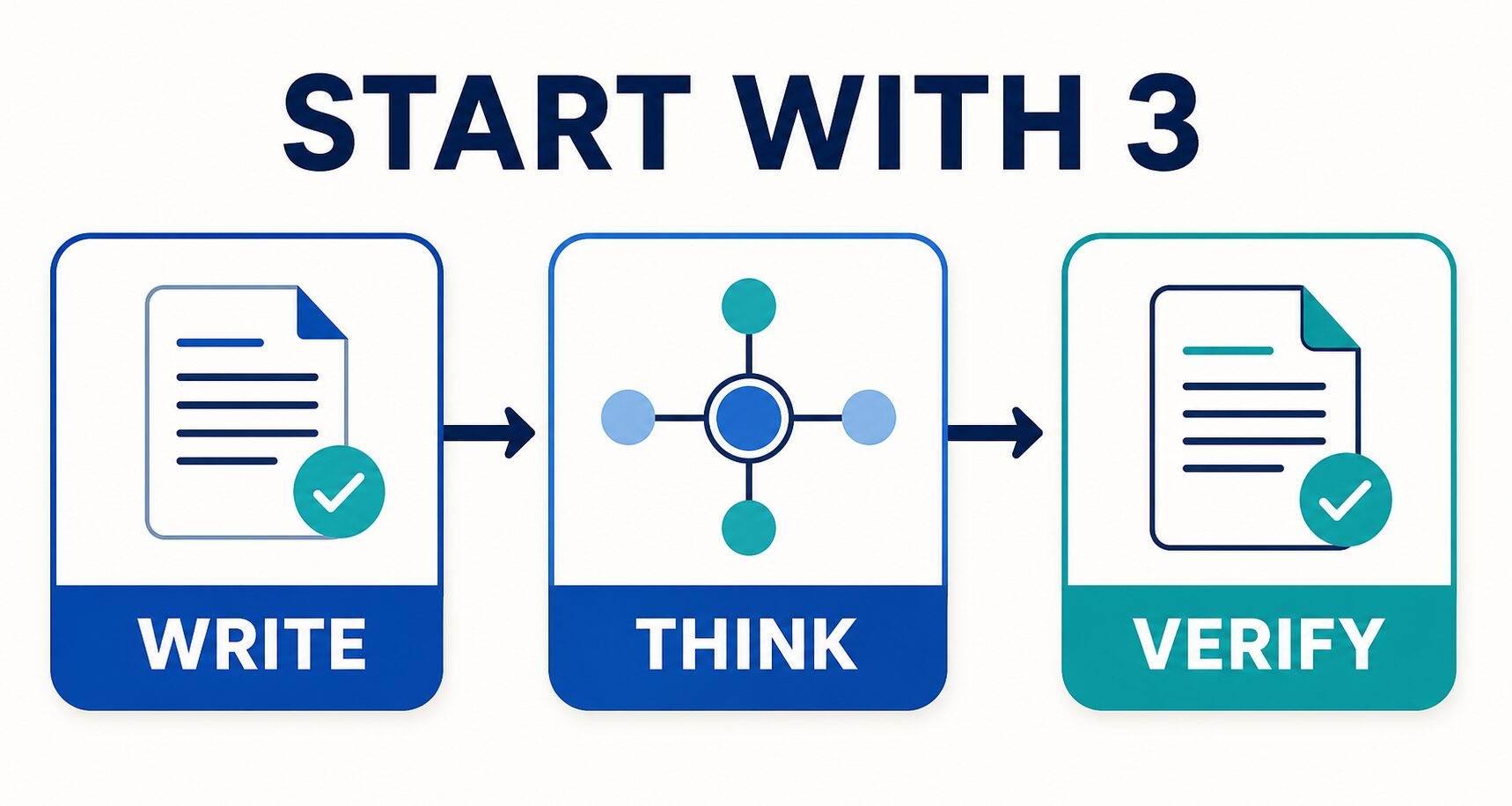
For most English-heavy jobs, start with three functions: write, think, and verify. Add meeting, resume, PDF, or automation software only after that specialist task repeats. This guide compares seven researched options and shows which layer to skip, so you can improve English work without building an expensive stack of overlapping subscriptions.
Quick verdict: start with Grammarly for a final writing pass, either ChatGPT or Claude for planning and critique, and NotebookLM when the answer must stay tied to documents. Wordtune, Otter.ai, and Teal are useful specialist layers—not automatic subscriptions. Use a PDF tool only when editing, OCR, conversion, or forms are recurring work.
Start With Three Jobs, Not Seven Apps
A small stack is easier to trust because every tool has one job:
- Write: check grammar, clarity, tone, and fluency after you have decided what to say.
- Think: outline, compare options, find missing context, and critique a draft without handing over final judgment.
- Verify: trace claims back to approved documents, policies, papers, or notes before sending or publishing them.
Only add a fourth layer when you can name the repeated job it owns. “Transcribe permitted meetings,” “tailor honest resume versions,” or “convert scanned PDFs each week” are clear jobs. “It might be useful” is not.
Evidence note: plan, feature, and data-handling details were checked against official pages on July 15, 2026. This is an official-information comparison with editorial workflow guidance. It does not claim new hands-on tests of output quality, accuracy, speed, transcription, resume results, or PDF conversion.
Quick Comparison: Seven AI Tools For English Work
| Tool | Best job | Try first | Skip if | Risk check |
|---|---|---|---|---|
| Grammarly | Final grammar, clarity, fluency, and tone pass | Run one finished email through the Free plan | You still need to decide the argument or facts | Check account type, prompt limits, and workplace approval |
| Wordtune | Tone and phrasing alternatives | Compare direct, warm, and concise versions | Your current checker already solves the problem | Confirm that the rewrite preserves meaning |
| ChatGPT | Planning, critique, options, and general work support | Ask for missing context before asking for a rewrite | You only need a final grammar check | Separate personal and managed work accounts |
| Claude | Alternative general assistant for analysis and drafting | Use Free until a recurring limit blocks work | You cannot name a separate job from your first assistant | Review plan and data-use terms before work uploads |
| NotebookLM | Source-grounded questions, notes, and document review | Use a non-confidential source set and verify citations | The task is open-ended brainstorming | Check account, sharing, source, and regional limits |
| Otter.ai | Meeting transcripts and follow-up workflow | Test only on a meeting you are allowed to record | Consent or recording policy is unclear | Check consent, retention, and client expectations |
| Teal | Resume versions, job tracking, and job-specific structure | Build and export one truthful resume version | You are editing ordinary workplace messages | Never let AI invent experience or metrics |
Which Tool Fits Each Work Problem?
1. Grammarly: Best First Layer For Finished Workplace Drafts
Choose Grammarly when you already know the message and want a final check for spelling, grammar, tone, or fluency. Its official plans page lists Free at $0 per month with writing corrections, tone visibility, and 100 AI prompts per month. It lists Pro at $12 per month with full-sentence rewrites, tone adjustment, fluency support, and 2,000 AI prompts per member per month.
Best for: emails, reports, customer replies, and updates that are factually complete. Skip if: the hard part is deciding what to say. If you want more options, compare our guides to grammar checkers for non-native English speakers and AI email assistants for work.
2. Wordtune: Best For Controlled Tone Alternatives
Wordtune is the narrower option for rewriting, grammar, fluency, and phrasing alternatives. Its official help page says Basic is free for light use, with daily AI suggestion limits and three monthly summaries. Higher plans add more usage, while prices can vary by region or promotion.
Use it with a meaning lock: “Give me direct, warm, and concise versions. Preserve the request, deadline, and level of certainty. Add no facts.” Skip it when your existing writing tool already gives enough alternatives. See Grammarly vs Wordtune for the focused decision.
3. ChatGPT: Best General Layer For Planning And Critique
Use ChatGPT when the task needs structure before polish: outlining a report, finding missing context, comparing options, preparing interview questions, or critiquing a draft. For managed work, OpenAI’s official Business page lists a secure team workspace at $20 per user per month with annual billing for two or more users, or $25 per user per month when billed monthly. The same page lists centralized administration, SAML SSO, MFA, connectors, and no training on business data by default.
That business policy does not automatically approve a personal account for confidential work. Check your employer’s policy and account type. For a broader comparison, use ChatGPT vs Claude vs Gemini for work.
4. Claude: Best As An Alternative General Assistant, Not An Automatic Second Subscription
Claude fits the same general layer: analysis, drafting, critique, and planning. Anthropic’s official plan guide, dated May 19, 2026, lists Free at $0 for occasional use and Pro at $20 per month or $200 per year for regular use.
Try ChatGPT and Claude on the same permitted task, then keep the one that fits your workflow and account requirements. Paying for both only makes sense when you can describe two distinct recurring jobs. If paid-plan limits are the real question, read which paid AI plan is worth it.
5. NotebookLM: Best Source Layer For PDFs, Policies, And Research Notes
Choose NotebookLM when the answer must stay grounded in documents you provide. Google’s official help page publishes plan-based limits for notebooks, sources, chats, reports, and other features, and labels those limits as subject to change. The same page says data is not used to train NotebookLM unless you provide feedback, while feedback may expose the full interaction context for review.
Use it for permitted PDFs, policies, papers, or notes—and verify important claims against the original source. For deeper workflows, see AI PDF summarizers, our research-paper summary method, and NotebookLM vs ChatPDF.
6. Otter.ai: Best Specialist Layer For Meetings You May Record
Otter.ai solves a meeting problem, not a general English problem. Its Basic-plan help page lists up to 300 transcription minutes per month, up to 30 minutes per transcription, three audio or video file imports per account, and access to the 25 most recent conversations.
Consent is the first gate. Do not record simply because a tool can join. Check local law, company policy, client expectations, retention, and whether the call includes HR, legal, medical, financial, or unreleased business information. Compare AI meeting assistants for remote and hybrid teams before choosing a capture method.
7. Teal: Best Specialist Layer For Honest Resume Versions
Teal’s official resume-builder page says the free builder can create, edit, and export unlimited resumes as DOC or PDF files. Its pricing page lists paid Teal+ billing options and added keyword matching, analysis, design, and AI credits; verify the current billing period before upgrading.
Use a resume tool to organize truthful evidence, tailor wording, and manage versions—not to invent achievements. For a full comparison, see AI resume builders with free-export and English-fit checks.
Use The PASTE Check Before Uploading Work
The most important tool decision often happens before the prompt. Run this five-part check before pasting text, uploading a file, or recording a call:
- P — Permission: are you allowed to upload or record this material, and do other people need to consent?
- A — Account: are you using a personal account or an employer-managed account with different controls?
- S — Sensitivity: does the material include client, HR, legal, medical, financial, student, or unreleased business data?
- T — Traceability: can you verify important claims against the original email, document, transcript, or policy?
- E — Exit: do you understand retention, deletion, export, sharing, and what happens when the trial or employment ends?
If one answer is unclear, pause the upload. Use a redacted example, approved account, or offline workflow until the policy is clear. Keep our AI tool privacy checklist beside any stack that touches work data.
Run A One-Week Stack Trial Before Paying
Use one ordinary, non-confidential task each day. The goal is to find the real bottleneck, not to prove that every tool is useful.
- Monday — Write: draft a real email yourself, then use a writing checker for grammar and tone. Reject any change that alters the request or facts.
- Tuesday — Think: give one general assistant a safe project update and ask what context a busy manager might still need.
- Wednesday — Verify: use an approved source document and confirm every important statement against the original.
- Thursday — Specialist test: try a meeting, resume, or PDF layer only if that task genuinely recurs.
- Friday — Keep or remove: write one sentence describing each tool’s recurring job. Remove any tool that has no distinct job.
| Decision | Keep free | Consider paid | Remove |
|---|---|---|---|
| Usage | The limit rarely interrupts work | A verified limit blocks a weekly task | The tool was not needed during the trial |
| Overlap | It owns one clear job | Paid features replace a separate cost or manual step | Another tool already owns the same job |
| Risk | The approved workflow handles permitted data | The paid account adds controls your organization requires | Permission, consent, or data handling stays unclear |
FAQ
What are the best AI tools for non-native English professionals?
Start with a writing checker such as Grammarly, one general assistant such as ChatGPT or Claude, and NotebookLM when documents must ground the answer. Add Wordtune for controlled rewrites, Otter.ai for permitted meetings, or Teal for resume workflows only when that specialist job repeats.
Should I use AI to sound like a native speaker?
No. Aim for clear, credible professional English that preserves your meaning. A message can be grammatically polished and still be wrong if AI changes the request, certainty, relationship, or facts.
Can free plans be enough?
Yes, when limits do not interrupt a recurring task. Use the one-week trial to identify the actual blocker. Upgrade because a verified paid feature removes repeated friction, not because a plan has a longer feature list.
Do I need both ChatGPT and Claude?
Usually not. Try both on the same permitted task, then keep the one that fits your workflow and account requirements. Paying for two general assistants makes sense only when each has a distinct recurring job.
Which AI tool is safest for confidential work?
No public comparison can approve a tool for your organization. Use the PASTE check, your employer’s policy, the official privacy and business terms, and the controls of your exact account. When permission is unclear, do not upload the material.
What should I buy first?
Buy nothing first. Test the free or already-approved option on a normal work task. Pay only when a recurring limit blocks weekly work or a required managed-account control justifies the upgrade.
Final Recommendation
Build the smallest stack that covers your real work: one writing pass, one thinking assistant, and one source-checking workflow. Let every specialist subscription earn its place with one repeated job. That keeps English work clear, protects your professional meaning, and makes privacy and verification part of the workflow instead of an afterthought.
Official Sources Checked
- Grammarly plans and Grammarly security
- Wordtune plans and pricing
- OpenAI business pricing and OpenAI business data
- Claude plan guide and Anthropic data-use guidance
- NotebookLM plans, limits, and data handling
- Otter.ai Basic-plan limits and Otter privacy and security
- Teal resume builder and Teal pricing