VEED vs CapCut for Simple Creator Videos
Compare VEED vs CapCut by workflow, plans, and privacy checks to choose a browser-first or mobile-first video editor.
Quick verdict
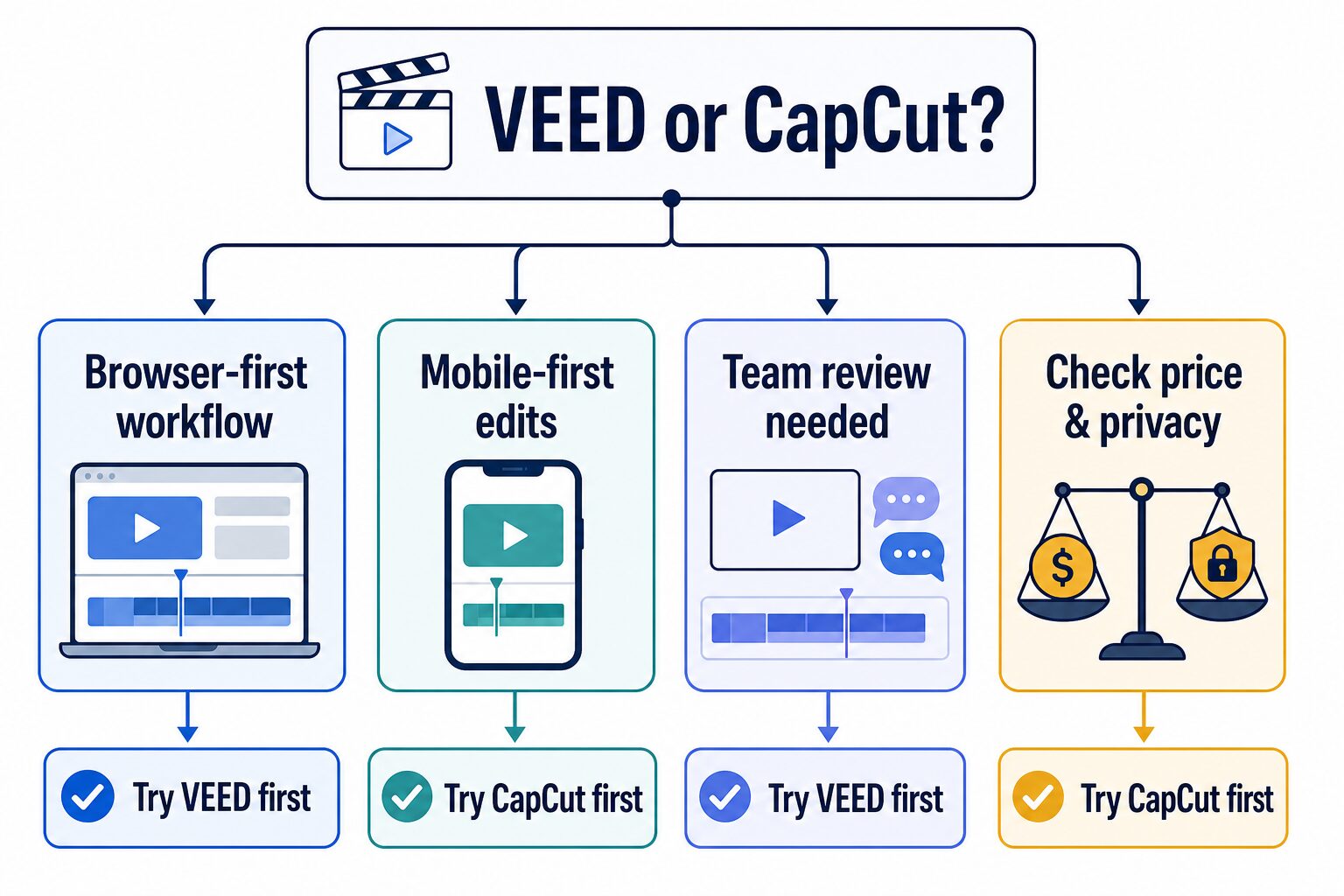
Try VEED first if your work starts in a browser and you want to keep a simple edit-and-review process close to a shared workspace. Try CapCut first if you mainly make quick mobile-first social edits and its current plan is available and fits your device.
Do not choose by a generic feature score. Choose by where your footage starts, where the final edit happens, who needs to review it, and which account-level plan actually covers the features you need. Both services can change plan terms and availability, so check the live official flow before paying.
Evidence status: official research only. This is not a hands-on test of editing speed, output quality, export quality, support, or AI results.
Start with the job your video editor must do
A simple creator video can become complicated quickly: footage may arrive from a phone, a client may need to approve captions, a social edit may need a vertical version, or a recorded call may include information that should not be uploaded casually. The useful question is not “Which editor wins?” It is “Which editor fits the next video I need to ship safely?”
Choose a browser-first path when you want the project available from a web workspace. Choose a mobile-first path when most cuts, captions, and posting prep happen on a phone.
If a teammate or client needs to see a draft, decide how you will collect feedback before you pay for features that do not fit your approval loop.
Write down aspect ratio, caption needs, audio cleanup, platform destination, and the delivery deadline. Then confirm the relevant plan in the live product flow.
Do not use a trial to upload confidential client clips, private meetings, regulated information, or unpublished material without the appropriate approval and policy review.
Choose by source footage, not by a feature list
Start by naming the source you will edit most often. A creator who records short product updates on a phone has a different problem from a consultant turning a screen recording into a client walkthrough. A feature comparison cannot tell you which is easier in your own workflow unless you define the source, the destination, and the person who must approve the final version.
If the source is already on a phone and the goal is a short social edit, test the mobile path first. Check that the current account plan supports the exact caption, export, and sharing steps you need.
If the work starts from a browser, shared files, or a simple web workspace, test whether a browser-first edit keeps the review path shorter and more understandable.
Do not choose on editing features alone. Establish who owns the source, who can access it, and whether the service is approved before the first upload.
List the target outputs before paying: one vertical short, a captioned update, a landscape cut, or several platform variants can create different plan and review requirements.
This is why a “winner” badge is rarely enough. A workflow that feels simple for one person can add friction for someone who needs to transfer footage, collect client approval, work across devices, or maintain an internal data boundary. Make the first trial a realistic miniature of the work you will repeat—not a random test of every button.
For a broader category view, see our AI video editing tools guide for creators. If your real problem is turning one longer source into clips, use the short-video repurposing workflow before choosing another editor.
VEED vs CapCut: decision table
| Decision point | VEED | CapCut | Practical takeaway |
|---|---|---|---|
| Best first fit | Creators who want to begin in a browser-based editing path and check whether the live plan fits their workflow. | Creators who mainly work from mobile and want to inspect the current device-specific plan path. | Start with the device and approval path you already use. |
| Free / trial check | VEED’s official pricing page offers a free start; confirm current feature limits in the live plan flow. | CapCut provides a free online entry point; confirm the current account-level limits and availability before relying on a feature. | Use a non-sensitive sample clip before treating either free path as your production workflow. |
| Paid-plan check | Do not assume a fixed price or feature gate. Review the current VEED pricing page and upgrade flow. | CapCut says Pro pricing can vary by region, device, and promotions, with monthly and yearly options typically available. | Compare the plan that unlocks your required workflow, not the lowest price you happen to see. |
| Editing environment | Official pages position VEED as a web-based video editor; check the current workspace and collaboration features you need. | Official pages offer web, desktop, and mobile product paths; check the path that matches your actual editing device. | “Available somewhere” is not the same as “comfortable in your daily workflow.” |
| Privacy / terms check | VEED’s privacy policy covers data supplied through its applications, including uploaded audio and video files. | CapCut’s policy and terms apply to the service, with terms noting that availability can vary by jurisdiction, device, and language. | Read the official terms for your location before uploading client, personal, or unpublished footage. |
| Who should skip first | Skip a browser-first editor if you cannot work reliably in that environment or need a device-specific offline workflow not confirmed by the official documentation. | Skip a mobile-first route if your editing requires a browser-based review process or your location/device cannot confirm the needed plan and availability. | Neither is the right first test when sensitive footage cannot leave an approved company workflow. |
When VEED is the better first trial
Start with VEED when the browser is your natural editing desk. It is a sensible first check for a creator who wants to open a video editor from a web workspace, keep the project easy to revisit, and verify whether the live plan supports the next deliverable.
That does not make VEED automatically better for every video. Before upgrading, open the official VEED pricing page and confirm the current limits for the exact tasks you care about. Use a small, non-sensitive sample clip. Check how you will organize source files, ask for approval, and deliver the final version before you move client work into a new process.
Pause or skip this first trial if your real workflow is mostly phone capture and fast on-the-go edits, or if your team requires a data path that the account terms and your organization have not approved.
When CapCut is the better first trial
Start with CapCut when your daily work is genuinely mobile-first. This can fit a creator who captures, trims, captions, and prepares a simple social edit from a phone or prefers to evaluate CapCut’s current web, desktop, or mobile option for a specific device.
Do not use an old price screenshot as your buying decision. CapCut’s official pricing help page says Pro pricing varies by region, device, and available promotions. It directs users to their active web, desktop, or mobile account flow for the current price and plan choices.
Pause or skip CapCut as the first test when the device path, jurisdiction, or data terms are unclear, or when your workflow needs a browser-first review process that you have not confirmed. For another short-video comparison focused on a different editing problem, read our Descript vs CapCut guide.
Questions to answer before you upgrade
Upgrade pages are designed to show what is available now, but you still need to translate plan language into a work decision. Write down the following answers while you inspect the official plan flow. This prevents a common failure mode: choosing a low entry price and only later discovering that the intended workflow needs a different option.
- Which device will do the editing? Confirm the option for the actual phone, desktop, or browser setup—not a device you may use someday.
- Which output is non-negotiable? Identify the final aspect ratio, captions, revision need, and delivery destination before treating an add-on as optional.
- How will renewal work? Read the current billing cadence, renewal presentation, region, and promotion terms in your logged-in account rather than relying on a comparison article.
- Who may access the project? Clarify the reviewer, client, contractor, or teammate path before asking anyone to upload or download source footage.
- What is the exit plan? Make sure you can retain the approved final deliverable and your own source-file organization without depending on an unreviewed workflow.
These questions are not a claim that either service lacks a particular capability. They are a decision checklist for a creator who wants to confirm the live terms that apply to their account. Use the product pages to verify current details, and keep any sensitive source material out of an unapproved test.
A 20-minute pre-payment test
Do a small workflow test before you commit. This is not a benchmark; it is a way to find a poor fit before you build a content habit around it.
| Time | What to do | A useful result |
|---|---|---|
| 0–5 minutes | Pick one non-sensitive sample clip and one destination such as a vertical social post or a simple client update. | You can create a project without moving confidential footage or an entire back catalog. |
| 5–10 minutes | Make only the necessary trim, caption, title, and aspect-ratio changes. | You can find the basic edit path without buying a plan on the assumption that a feature is included. |
| 10–15 minutes | Decide how another person would review the draft and where the approved export will live. | The approval step does not require a workaround that defeats your team’s process. |
| 15–20 minutes | Open the official pricing and privacy/terms pages for the account and region you will actually use. | You know the current plan gate, renewal cadence, and information you need to confirm before paying. |
Privacy and workplace-data checks before you upload
Video can expose more than a transcript: faces, voices, screens, names, locations, account details, client information, and unpublished product material may all appear in a clip. VEED’s privacy policy and CapCut’s privacy policy are starting points, not a substitute for your workplace rules.
- Use a non-sensitive sample for the first trial.
- Confirm who may upload, review, download, and retain footage.
- Review current terms for the location and device that will be used.
- Remove customer, financial, health, legal, student, and unpublished information unless the approved process specifically permits it.
Use the full AI-tool privacy checklist before moving work footage into a new service.
FAQ
Is VEED or CapCut better for simple creator videos?
Neither is universally better. VEED is the more sensible first trial for a browser-first workflow; CapCut is the more sensible first trial for a genuinely mobile-first workflow, provided the current plan and availability fit your location and device.
Can I compare the free plans by price alone?
No. A free entry point does not tell you whether the current account includes the feature, export, device path, or usage terms you need. Test one non-sensitive clip and check the live official plan flow.
Should I upload client footage during a free trial?
Not until you have reviewed the relevant service terms and your organization’s data-handling requirements. Start with a non-sensitive sample instead.
Final recommendation
Choose VEED first when you want a browser-centered editing path; choose CapCut first when mobile-first editing is the real job. In both cases, the best next step is a short non-sensitive test followed by a live pricing and privacy check—not a subscription based on an old comparison chart.
Sources checked July 11, 2026: VEED pricing and privacy pages; CapCut pricing help, privacy policy, and terms. Product terms, pricing, and availability may change by account, region, device, or promotion.